Table of Contents
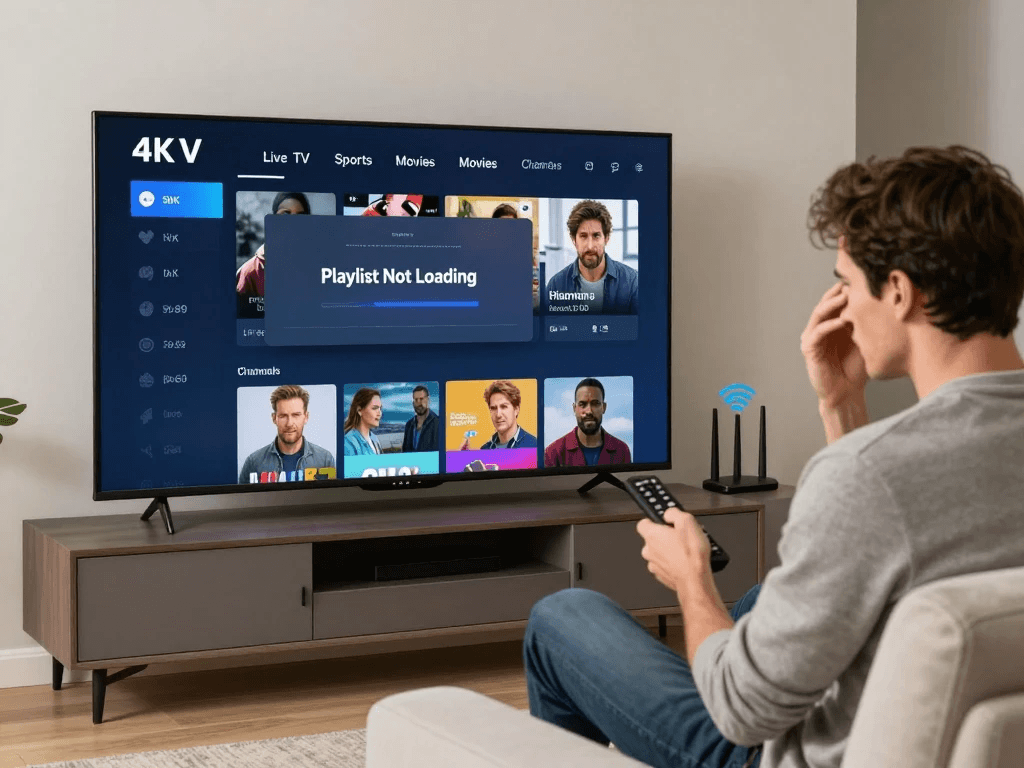
Nothing is more frustrating than sitting down to watch your favorite live TV channel, sports event, movie, or news program only to find that your IPTV playlist is stuck loading. You may see a spinning circle, an empty channel list, an error message, or a playlist that worked perfectly yesterday but suddenly refuses to load today. If you are dealing with an IPTV playlist not loading, the good news is that the problem is often fixable without replacing your TV or streaming device.
The cause can be surprisingly simple. Your internet connection may have become unstable, the playlist URL may be outdated, your subscription may have expired, or your IPTV application may have corrupted cached data. In other situations, the problem can be on the provider’s side rather than your device. This guide walks you through 12 practical fixes, starting with the easiest solutions and progressing toward more advanced troubleshooting. Whether you use a Firestick, Smart TV, Android TV, Google TV, smartphone, tablet, or computer in the USA, you can use these steps to identify the problem and get your IPTV channels working again.
Why Is My IPTV Playlist Not Loading?
When an IPTV playlist does not load, it is easy to assume that your IPTV app is broken. However, several different components work together before your channel list appears on your screen. Your device needs a working internet connection, your IPTV application needs to function correctly, the playlist URL needs to be valid, and the IPTV service needs to respond correctly to your request.
A problem with any one of these components can prevent the playlist from loading. For example, if your Wi-Fi connection works for browsing but frequently drops packets, an IPTV playlist may fail to download completely. Similarly, an old M3U URL may no longer be valid even though your IPTV application itself works normally.
Before changing multiple settings at once, it is better to identify where the problem is occurring. The table below gives you a quick starting point.
| Problem | Possible Cause | Recommended Action |
|---|---|---|
| Playlist will not load | Incorrect URL | Verify the playlist address |
| Playlist suddenly stopped | Expired subscription | Check your account status |
| Endless loading | Internet or server issue | Test your connection |
| Login works but channels are missing | Playlist configuration | Refresh the playlist |
| Playlist loads but channels buffer | Network or server instability | Test another network |
| Works on one device only | App/device problem | Test another compatible app |
| EPG is missing | EPG configuration | Check EPG settings |
| All devices fail | Provider/server issue | Contact the provider |
The important point is that an IPTV playlist not loading does not automatically mean that your television, Firestick, or streaming box is defective. Start with basic troubleshooting before making major changes.
Common Reasons an IPTV Playlist Stops Working
An IPTV playlist can stop loading for temporary or permanent reasons. Understanding the likely causes can save you considerable time because you will know which solution to try first.
Some problems originate locally. These include weak Wi-Fi, an application that has been running for too long, insufficient device storage, outdated software, corrupted cache files, or incorrect playlist settings. These problems are usually relatively easy to resolve.
Other problems are outside your device. A playlist provider may have changed its server address, experienced an outage, suspended an account, or replaced an old playlist URL. If the same playlist fails on multiple devices and networks, the provider or playlist itself becomes a much stronger suspect.
Is the Problem Your IPTV App, Device, Internet, or Provider?
A useful troubleshooting strategy is to isolate one component at a time.
For example, if your IPTV playlist does not load on your Firestick but works normally on your phone using the same account and network, the service itself is probably working. The problem is more likely related to the Firestick, IPTV application, or device configuration.
On the other hand, if the same playlist fails on your phone, Smart TV, and streaming device, repeatedly restarting each device is unlikely to solve the problem. You should investigate the playlist, subscription, or IPTV provider.
This simple process prevents you from wasting time changing settings that are unrelated to the actual problem.
12 Fixes for IPTV Playlist Not Loading
The following solutions are arranged from simple checks to more advanced troubleshooting. You do not necessarily need to complete all 12. Once you identify the cause and your playlist starts working again, you can stop.
1. Check Your Internet Connection
The first thing you should check when your IPTV playlist is not loading is your internet connection. IPTV depends on a continuous connection between your device and the service’s servers. Your internet may appear to work normally while still experiencing instability that prevents a playlist from downloading correctly.
Open another application on your device and visit a few websites. If pages load slowly, videos stop unexpectedly, or other streaming services are also having problems, your network may be responsible. Restarting your router can sometimes resolve temporary connectivity problems.
If possible, test your IPTV device using an Ethernet connection instead of Wi-Fi. Wired connections can provide greater stability, especially when your streaming device is located far from your router. If Ethernet is not practical, move your device closer to the router or test a different Wi-Fi band.
What to Check
- Can other websites load normally?
- Can YouTube or another streaming service play video?
- Does your device remain connected to Wi-Fi?
- Are other people using the network heavily?
- Does the problem disappear when using another network?
- Does your router need to be restarted?
Do not focus only on download speed. A fast connection can still experience interruptions, congestion, or unstable Wi-Fi. For IPTV, consistency matters because the device must communicate with the service reliably.
Quick Internet Test
| Test | Result | What It Suggests |
|---|---|---|
| Websites work normally | Good | Continue troubleshooting |
| Other streaming apps fail | Poor | Network may be responsible |
| IPTV works on hotspot | Network issue likely | Check home network |
| IPTV fails everywhere | Probably not Wi-Fi | Check playlist/provider |
| Wi-Fi frequently disconnects | Unstable | Improve network connection |
If your IPTV playlist starts loading after switching networks, you have strong evidence that your original network connection was contributing to the problem.
2. Verify Your IPTV Playlist URL
One of the most common reasons for an IPTV playlist not loading is an incorrect, outdated, or incomplete playlist URL. Many IPTV services use an M3U playlist address containing account information or other parameters. If even one character is missing or changed, the application may not be able to retrieve the channel list.
Start by opening the account information or setup instructions supplied by your IPTV provider. Compare the URL with the one currently saved in your IPTV application.
Look carefully for accidental spaces, missing characters, incorrect punctuation, or an incomplete address. Copying and pasting is generally safer than typing the URL manually.
Check for These Common Mistakes
- Extra spaces at the beginning or end
- Missing characters
- Incorrect capitalization where relevant
- Old username or password
- Incorrect server address
- Expired playlist URL
- Partially copied URL
- Typographical errors
- An old playlist saved in the application
If your provider recently sent you a new playlist URL, make sure you are not accidentally using the previous one.
Why a Correct Login Does Not Always Mean a Correct Playlist
Some IPTV applications separate account authentication from playlist retrieval. You may be able to open the application successfully while the channel list remains empty because the playlist itself cannot be retrieved.
That is why checking your actual playlist configuration is important.
If your provider supplies an M3U URL, use the exact address provided to you. Do not modify it unless the provider’s instructions specifically tell you to do so.
3. Refresh or Reload the IPTV Playlist
If your playlist URL is correct but the IPTV channels still do not appear, try refreshing the playlist. IPTV applications often store channel information locally. If the application has not updated that information, it may continue showing an outdated or incomplete list.
The exact button varies between IPTV applications. You may see options such as Refresh Playlist, Reload Playlist, Update Playlist, Sync, or Update Channels.
General Refresh Process
- Open your IPTV application.
- Navigate to the playlist section.
- Select your active playlist.
- Look for a refresh or update option.
- Start the update.
- Wait for the channel list to finish loading.
- Close and reopen the application if necessary.
Avoid repeatedly pressing the refresh button every few seconds. If the server is slow, multiple requests may not make the situation better.
After the refresh completes, check whether your channel groups and individual channels have returned.
When Refreshing Helps
Refreshing is particularly useful when:
- Your provider has recently updated channels.
- The playlist was working earlier.
- Some channels disappeared.
- The application displays an old channel list.
- The playlist loads but appears incomplete.
If refreshing does nothing, continue to the next troubleshooting step instead of repeatedly refreshing.
4. Restart Your IPTV App
Applications can encounter temporary errors after running for extended periods. Your IPTV app may remain open in the background, accumulate cached information, or experience a temporary communication problem with the playlist server.
Completely closing and reopening the application is a simple solution that many users overlook.
On some streaming devices, pressing the Home button does not actually close the application. It simply moves the application into the background. If your device allows you to force-close an application, use that option.
Try This:
- Exit the IPTV application.
- Close it completely.
- Wait approximately 10–20 seconds.
- Open it again.
- Reload the playlist.
- Check whether your channels appear.
If the playlist loads correctly after restarting the app, the problem was probably temporary rather than a permanent issue with your subscription.
This fix is especially useful when your IPTV service worked earlier the same day and suddenly stopped loading without any changes to your account.
5. Restart Your Streaming Device
If restarting the application does not help, restart the device itself. Firesticks, Smart TVs, Android TV boxes, Google TV devices, phones, tablets, and computers can all experience temporary software or memory issues.
A full restart gives the operating system an opportunity to close background processes and establish a fresh network connection.
Devices Where This Can Help
- Amazon Fire TV Stick
- Fire TV
- Android TV
- Google TV
- Smart TVs
- Apple TV
- Android phones
- iPhones and iPads
- Windows computers
- Mac computers
Instead of immediately uninstalling the IPTV application, restart the device first. This takes less time and does not remove your saved configuration.
Why Restarting Can Work
Your device may have:
- A temporary memory issue
- A stuck background process
- A network connection that needs to be re-established
- An application process that failed
- A temporary DNS resolution problem
- An outdated connection state
Once the device restarts, open your IPTV application and test the playlist again.
If other applications work correctly but your IPTV playlist continues to fail, proceed with the playlist-specific fixes below.
6. Clear the IPTV App Cache and Data
If your IPTV playlist remains stuck, corrupted cache data could be responsible. Applications store temporary information to improve performance, but cached files can occasionally become outdated or corrupted.
Clearing the cache is generally the safer first step because it typically removes temporary files without deleting all application settings.
The exact procedure depends on your device.
Clear Cache First
Look for the application settings on your device and find the IPTV application. If a Clear Cache option is available, use it and then restart the application.
After clearing the cache:
- Open the IPTV app.
- Wait for it to load completely.
- Check your playlist.
- Refresh the playlist if necessary.
Be Careful With Clear Data
Clear Data or Clear Storage is more aggressive. Depending on the application, it can remove saved login information, playlists, preferences, EPG settings, favorites, and other configuration details.
Before using it, make sure you have your playlist URL or account information available.
| Action | Typical Effect | Risk |
|---|---|---|
| Clear Cache | Removes temporary files | Low |
| Restart App | Reloads application | Very low |
| Restart Device | Refreshes system processes | Very low |
| Clear Data | Resets application information | Higher |
| Reinstall App | Removes and reinstalls application | Higher |
If clearing the cache solves the problem, there is no reason to clear all application data.
7. Check Whether Your IPTV Subscription Has Expired
Sometimes your IPTV playlist is not loading because the subscription associated with it is no longer active. Depending on the service and application, an expired account can produce different symptoms.
You might see an empty playlist, authentication failure, missing channels, an error message, or a playlist that simply refuses to update.
Log in to the customer area supplied by your IPTV provider and check your subscription status. Look for the expiration date, active devices, connection limits, and account status.
Check These Account Details
- Subscription expiration date
- Username
- Password
- Number of allowed devices
- Active connections
- Service status
- Playlist status
- Recent account changes
If your subscription has expired, changing DNS settings or reinstalling your IPTV application will not solve the underlying issue.
What If Your Subscription Is Active?
If your account is active but the playlist still does not load, confirm that you are using the correct credentials and playlist information.
It is also worth checking whether your provider has recently changed its server or playlist configuration.
If your account is active and the same playlist fails on multiple devices, the problem may be on the provider’s side.
8. Test the IPTV Playlist on Another Device or App
One of the most effective troubleshooting techniques is testing the same playlist on another compatible device or IPTV application.
This creates a simple diagnostic test.
Suppose the playlist does not load on your Smart TV. You can test the same account on a compatible smartphone or another supported device. If the playlist loads there, the service is probably functioning, and you should investigate the original TV or IPTV application.
If the playlist fails everywhere, your attention should move toward the playlist, account, network, or provider.
Device Testing Table
| Test | Result | Likely Cause |
|---|---|---|
| Fails on every device | Provider/playlist | Investigate account or service |
| Works on phone but not TV | TV/app | Troubleshoot TV |
| Works on TV but not phone | Mobile/app | Check mobile configuration |
| Works on another network | Network | Check router/DNS |
| Playlist loads but streams fail | Network/server | Investigate playback |
| Only EPG fails | EPG settings | Check guide configuration |
This is often faster than spending an hour changing settings on a single device.
Do Not Change Everything at Once
If you test a different device, network, application, and playlist simultaneously, you may not know which change solved the problem.
Try to isolate variables. For example, use the same playlist on a second device while staying on the same network. That gives you more useful information.
9. Check Your IPTV Server or Provider Status
Sometimes the problem has nothing to do with your device.
An IPTV service may experience temporary server maintenance, technical problems, authentication issues, or other interruptions. If the server responsible for your playlist cannot respond, your application may show an endless loading screen even though your internet connection is working normally.
Look for an official service-status message, provider announcement, or support response if one is available.
Signs of a Provider-Side Problem
A provider-side issue becomes more likely when:
- Your playlist suddenly stopped working.
- Multiple devices have the same problem.
- Other internet services work normally.
- Your subscription is active.
- Your playlist URL has not changed.
- Multiple channels disappear at once.
- The provider confirms maintenance.
- The same account fails on another network.
If you have completed the basic troubleshooting steps and nothing changes, contact your provider with useful information rather than simply saying, “IPTV doesn’t work.”
Tell them:
- Your device
- IPTV application
- Error message
- Approximate time the problem started
- Whether the playlist works on another device
- Whether your internet connection is working
This gives support staff enough information to investigate efficiently.
10. Try a Different Network or Check DNS
If your IPTV playlist does not load on your normal home connection, testing another network can help determine whether the issue is related to your internet provider or local network.
For example, you could temporarily test the device using a mobile hotspot. If the playlist loads through the hotspot but not through your home network, the problem may involve your router, local DNS resolution, network configuration, or internet service.
You should treat this as a diagnostic test rather than assuming that changing DNS will automatically make IPTV faster.
Useful Network Tests
- Restart your router.
- Test another Wi-Fi network.
- Temporarily test a mobile hotspot.
- Try Ethernet if available.
- Check whether other services are working.
- Check whether the issue affects multiple devices.
- Restart your modem/router.
What DNS Has to Do With IPTV
DNS translates domain names into IP addresses. If your device cannot resolve the domain associated with a playlist or server correctly, the application may have difficulty connecting.
However, DNS is only one possible cause. Do not assume that changing DNS will solve every IPTV problem.
If your playlist works immediately when you use another network, you have valuable evidence that the original network deserves further investigation.
11. Check EPG and Playlist Settings
An IPTV playlist and an electronic program guide, commonly called an EPG, are related but different components.
The playlist tells your application about available channels and streams. The EPG provides program information such as show names, schedules, and descriptions.
This distinction matters because an EPG can fail while the playlist itself continues working.
You may open your IPTV application and see your channels but no program guide. That does not necessarily mean your playlist is broken.
Common EPG Problems
- Incorrect EPG URL
- Outdated EPG source
- Incorrect timezone
- Broken guide data
- Unsupported format
- Incorrect playlist-to-EPG mapping
- Provider-side EPG outage
If your channels load but the guide is empty, focus on EPG settings instead of repeatedly replacing your playlist.
Playlist vs EPG
| Feature | Playlist | EPG |
|---|---|---|
| Channel names | Yes | Sometimes |
| Stream information | Yes | No |
| Program schedule | No | Yes |
| Channel list | Primary source | Can complement it |
| Can fail independently? | Yes | Yes |
If the playlist itself is not loading, troubleshoot the playlist first. If channels load but schedules are missing, troubleshoot the EPG.
12. Update or Reinstall Your IPTV App
If your playlist works elsewhere but continues failing in one IPTV application, the application may be outdated, corrupted, or incompatible with the device’s current software.
Before reinstalling it, check whether an update is available. Developers sometimes release updates to address compatibility problems, bugs, playback issues, and operating-system changes.
If an update does not help, reinstalling the application can provide a clean installation.
Before Reinstalling
Make sure you have saved or can retrieve:
- Playlist URL
- Username
- Password
- EPG URL
- Account details
- Favorite channels
- Important settings
Then remove the application, restart the device if appropriate, reinstall the application from a legitimate source, and enter your information again.
Do not download modified or suspicious versions of IPTV applications from unknown websites. When possible, use your device’s official application store or the developer’s legitimate distribution channel.
IPTV Playlist Not Loading on Different Devices
The troubleshooting process can vary depending on the device you use. A playlist that works on your phone may fail on a Smart TV because of application compatibility, storage limitations, operating-system differences, or network configuration.
The following sections cover some of the most common devices used for streaming in the USA.
IPTV Playlist Not Loading on Firestick
Amazon Fire TV devices are widely used for streaming, but an IPTV application can still experience cache, network, storage, or compatibility problems.
If your IPTV playlist is not loading on Firestick, begin with the basics. Confirm that the Firestick is connected to the internet and that other applications can stream normally. Then restart the Firestick and reopen your IPTV application.
If the problem remains, check the application cache. You should also make sure your Firestick has enough available storage and that the IPTV application is up to date.
Firestick Troubleshooting Order
- Test another streaming application.
- Restart the Firestick.
- Check Wi-Fi.
- Clear IPTV app cache.
- Refresh the playlist.
- Verify the playlist URL.
- Check subscription status.
- Test the account on another device.
- Update the application.
- Reinstall if necessary.
If the same playlist works on another device using the same network, focus your attention on the Firestick or IPTV application.
IPTV Playlist Not Loading on Smart TV
Smart TVs can have additional compatibility considerations because their operating systems differ between manufacturers and models.
If your IPTV playlist is not loading on a Smart TV, first verify that the television has a stable internet connection. Open another streaming application to determine whether the network is working.
Next, restart the television. Depending on the TV, putting it into standby mode may not fully restart the operating system, so a complete power cycle can sometimes be useful.
Check whether your IPTV application has an available update. If the application supports playlist refresh or account reauthentication, try those options before reinstalling.
If the IPTV service works correctly on your phone or another streaming device, the issue is likely related to the TV application or configuration.
IPTV Playlist Not Loading on Android TV
Android TV and Google TV devices provide more application-level controls than some Smart TVs.
If the playlist is not loading, check the application’s cache and storage settings. Make sure the device has enough free storage and that the application is updated.
You can also test the same playlist with another compatible IPTV application. This does not mean that one application is necessarily better than another; it simply helps you determine whether the original application is responsible.
If the playlist works in another application, you have narrowed the problem down considerably.
IPTV Playlist Not Loading on Phone or Tablet
Mobile devices can have different network behavior because you may switch between Wi-Fi and cellular data.
If your IPTV playlist works on Wi-Fi but not cellular data, or vice versa, the network connection is an important clue.
Check whether the application has permission to access the network, whether battery-saving settings are restricting it, and whether the application is current.
Also test the playlist with another compatible network if possible.
How to Tell If Your IPTV Provider Is the Problem
Knowing when to stop troubleshooting your own device is just as important as knowing how to fix it.
If your IPTV playlist does not work anywhere, the chances of a local device problem decrease significantly. Suppose you have confirmed that your internet works, your subscription is active, the playlist URL is correct, and the same account fails on several compatible devices. In that situation, repeatedly clearing cache or restarting your TV is unlikely to solve the underlying issue.
The provider or playlist server should be investigated.
| Symptom | Device/App | Provider/Playlist |
|---|---|---|
| App crashes | ✓ | |
| Internet unavailable | ✓ | |
| One device fails | ✓ | |
| Playlist URL invalid | ✓ | |
| Subscription expired | ✓ | |
| Same account fails everywhere | ✓ | |
| Multiple channels disappear | ✓ | |
| EPG unavailable | ✓ | ✓ |
| Provider confirms outage | ✓ |
This distinction can save you considerable time.
Signs Your Provider May Be Responsible
Look for a pattern rather than one isolated failure.
If your playlist suddenly stops working on multiple devices at approximately the same time, your provider may be experiencing an outage or technical problem.
Likewise, if your subscription is active but authentication repeatedly fails, contact the provider before resetting every device in your home.
Another warning sign is repeated instability. If your playlist works for a few minutes and then disappears, repeatedly stops updating, or frequently requires a new URL, the service may not be providing the reliability you expect.
A temporary outage does not necessarily mean you need a new provider. Technical issues can happen with any online service. However, frequent failures combined with poor support are reasonable reasons to evaluate your options.
When Should You Consider a Different IPTV Subscription?
If you have correctly configured your device and repeatedly experience playlist problems, the issue may be the quality or reliability of the service you are using.
You should not choose a new IPTV subscription simply because of one temporary outage. Instead, look at the overall experience. Does your provider respond to support requests? Are account details clear? Is your playlist consistently available? Does the service support your device? Are subscription and refund terms transparent?
For readers in the USA, compatibility is particularly important because households may use a mixture of Fire TV devices, Smart TVs, Android TV, Google TV, Apple devices, and computers.
A reliable service should provide clear setup information and explain which devices and applications are supported.
What to Look for in a Reliable IPTV Service
When comparing services, consider more than the number of channels advertised.
Look for:
- Clear subscription terms
- Compatible devices
- Reliable technical support
- Transparent pricing
- Clear connection limits
- Stable playlist access
- EPG support when offered
- Regular service maintenance
- Reasonable refund policies
- Clear information about content rights and availability
A huge channel count does not automatically guarantee a better viewing experience. Stability, usability, support, and transparency can matter more than an impressive number on a sales page.
You should also make sure that the service you choose operates legally and that the content you access is properly authorized for distribution in your jurisdiction.
Questions to Ask Before Choosing an IPTV Provider
If your current service repeatedly gives you playlist problems, ask these questions before purchasing another subscription.
Does the service support your device?
Confirm compatibility with your specific device rather than assuming every IPTV service works everywhere.
Does the provider offer clear setup instructions?
Good setup instructions should explain how to add the service to supported applications and devices.
Is customer support available?
If your playlist stops working, you need a practical way to contact the provider.
What happens during an outage?
A provider should communicate clearly about significant technical interruptions when possible.
How many connections are allowed?
Do not assume that a subscription allows unlimited simultaneous viewing. Connection limits can vary.
Is there a refund policy?
Read the terms before paying. A clearly explained refund policy is preferable to vague promises.
Can you verify compatibility?
If you use an older Smart TV or a less common streaming device, confirm compatibility before purchasing.
IPTV Playlist Not Loading vs IPTV Channels Not Playing
These two problems are often confused, but they are not identical.
If the playlist does not load at all, your application may be unable to retrieve the channel list. If the playlist loads but channels refuse to play, the problem occurs later in the process.
Understanding this distinction can make troubleshooting much faster.
| Problem | What It Usually Means |
|---|---|
| Playlist will not load | Playlist retrieval/configuration problem |
| Playlist loads but no channels appear | Account or playlist configuration |
| Channels appear but won’t play | Stream/server/network issue |
| Channels buffer frequently | Network or server stability |
| EPG missing | Guide-data configuration |
| Only some channels fail | Specific channel/server issue |
| Everything suddenly disappears | Provider or playlist issue |
For example, if you can see hundreds of channel names but clicking on them produces an error, do not spend all your time checking the M3U URL. The playlist itself has already loaded. Your investigation should move toward playback, network, server, or channel availability.
IPTV Playlist Troubleshooting Checklist
If you want a quick solution instead of reading every section again, use this checklist.
Try These 12 Steps
- Check your internet connection.
- Verify your IPTV playlist URL.
- Refresh the playlist.
- Restart the IPTV application.
- Restart your streaming device.
- Clear the application cache.
- Check your subscription status.
- Test the playlist on another device.
- Check whether the provider has an outage.
- Test another network.
- Review EPG and playlist settings.
- Update or reinstall the IPTV application.
Work through the list in order. You may solve the problem within the first three or four steps.
How to Troubleshoot an IPTV Playlist Faster
The fastest troubleshooting method is not necessarily the one with the most technical steps. It is the one that gives you useful information.
Start by asking yourself three questions:
Does the internet work?
If no, fix the network first.
Does the playlist work on another device?
If yes, troubleshoot the original device or application.
Does the playlist fail everywhere?
If yes, investigate the subscription, playlist, or provider.
This simple decision-making process eliminates many unnecessary steps.
Example Troubleshooting Scenario
Imagine your IPTV playlist stops loading on your Smart TV at 8:00 PM.
You first open another streaming service and it works normally. This suggests your internet connection is probably fine.
Next, you restart the IPTV application. Nothing changes.
You refresh the playlist, but the channel list remains empty.
You then test the same account on your phone using the same Wi-Fi network. It also fails.
At this point, the problem is unlikely to be your Smart TV. Because the account fails on another device using the same network, you should check your subscription status and contact the provider.
This approach is much more efficient than reinstalling the TV application several times.
What to Tell IPTV Customer Support
If you need to contact your IPTV provider, provide enough information for them to investigate the issue.
A message such as “my IPTV doesn’t work” does not tell support much.
Instead, provide:
- Device model
- IPTV application name
- Date and approximate time the problem started
- Exact error message
- Whether the playlist loads
- Whether channels appear
- Whether another device works
- Whether your internet is working
- Whether your subscription is active
For example, you could explain that the playlist stopped loading at approximately 7:30 PM, your internet works normally, the same account fails on both your Smart TV and phone, and your subscription is active.
That information immediately suggests that the provider or playlist may need investigation.
Why Your IPTV Playlist May Work in the Morning but Not at Night
Some users notice that IPTV problems appear during particular times of day.
This can happen because network conditions change throughout the day. Household internet usage can increase in the evening when people return from work and school. Your local network may become congested, or a service’s infrastructure may experience higher demand.
However, you should not automatically assume that evening problems are caused by the provider.
Test the service at different times and on different networks. If your home network becomes unstable every evening while other devices are also slower, your local connection may be the issue.
If the IPTV service consistently fails across multiple networks at the same time, the provider may be experiencing capacity or server problems.
Keeping track of when the problem occurs can therefore provide useful evidence.
Why an IPTV Playlist Can Be Empty Even When the App Opens
Opening an IPTV application successfully does not mean the playlist has loaded.
The application itself is usually installed locally on your device. The playlist, however, may need to be retrieved from an external server.
This means you can have a perfectly functioning IPTV application that displays an empty playlist.
Possible reasons include:
- Invalid playlist URL
- Expired account
- Server unavailable
- Authentication failure
- Network problem
- Incorrect playlist format
- Provider configuration change
- Application compatibility issue
The key is to separate the application from the content source.
If the application opens normally, do not immediately assume that you need to reinstall it.
What If Only Some IPTV Channels Are Missing?
A partial channel problem is different from a complete playlist failure.
If your playlist loads and most channels work but certain channels are missing, the issue may relate to channel availability, provider updates, regional availability, playlist organization, or individual stream problems.
Try refreshing the playlist first. If only one or two channels are affected while everything else works, the problem may be limited to those streams.
You should also check whether the provider has changed channel categories or reorganized its playlist.
If a large group of channels suddenly disappears, contact the provider and ask whether there has been a service update.
Do not repeatedly reinstall your IPTV application when the majority of your channels are already functioning.
How Internet Speed Affects IPTV
Internet speed matters, but it is not the only factor that affects IPTV performance.
A connection can have high advertised download speeds and still provide a poor streaming experience if it suffers from instability, congestion, high latency, or weak Wi-Fi coverage.
For example, your internet plan may advertise hundreds of megabits per second, but your streaming device might receive a much weaker and less stable connection because of its location.
If you experience frequent buffering, test the connection close to the streaming device. Compare Wi-Fi with Ethernet if possible.
You should also check whether other household devices are consuming significant bandwidth at the same time.
For IPTV troubleshooting, think about connection quality, not just the speed-test number.
Should You Use Ethernet for IPTV?
If your streaming device is close enough to your router for a practical wired connection, Ethernet can be worth testing.
A wired connection eliminates many Wi-Fi variables, including:
- Wireless interference
- Weak signal strength
- Distance from router
- Wi-Fi congestion
- Some connection drops
This does not guarantee that IPTV will work because the service itself can still experience problems. However, Ethernet is an excellent diagnostic tool.
If the playlist works reliably through Ethernet but not Wi-Fi, you have identified a network problem rather than a playlist problem.
You can then improve Wi-Fi coverage, reposition your router, use a stronger access point, or continue using Ethernet where practical.
Why Restarting Your Router Can Help
Your router manages the connection between your home network and the internet. Like any electronic device, it can experience temporary software or connectivity issues.
Restarting the router can refresh its network session and clear temporary problems.
To test it properly, turn off the router according to the manufacturer’s recommended procedure, wait briefly, and then allow it to reconnect completely.
Once your internet connection is restored, test the IPTV playlist again.
If the playlist suddenly works, the router or network connection may have been contributing to the problem.
If the issue returns repeatedly, however, you should investigate further rather than treating a router restart as a permanent solution.
Can VPNs Affect IPTV Playlist Loading?
A VPN changes the network path between your device and internet services. In some situations, that can affect connectivity, routing, latency, or how a server responds to your connection.
If your IPTV playlist works without a VPN but fails when the VPN is active, you have identified a useful difference.
You should check the terms and legal requirements applicable to the service you are using before changing network-routing configurations.
Also remember that a VPN is not a universal solution for IPTV problems. Adding one can sometimes introduce another variable rather than fixing the original issue.
For troubleshooting purposes, compare the service with your normal connection and, where lawful and appropriate, without the VPN to determine whether the network path is affecting the problem.
How to Prevent IPTV Playlist Problems in the Future
Once you get your IPTV playlist working again, take a few simple steps to reduce the chance of repeating the same troubleshooting process.
Keep your device software and IPTV application reasonably up to date. Avoid filling your streaming device’s storage completely. Save your legitimate playlist or account information somewhere secure so that you can restore the configuration if an application needs to be reinstalled.
It is also helpful to know whether your provider has a support channel and where to check your subscription status.
If you frequently experience outages, record when they happen and which devices are affected. Patterns can help you determine whether the issue is your network, device, or service.
Most importantly, choose services that provide clear information, transparent terms, compatible applications, and accessible support.
IPTV Playlist Not Loading: Quick Diagnostic Table
Use this table whenever you encounter the problem again.
| What You See | First Thing to Try | Next Step |
|---|---|---|
| Playlist stuck loading | Test internet | Verify URL |
| Empty playlist | Refresh playlist | Check subscription |
| Login failure | Verify credentials | Contact provider |
| App crashes | Restart device | Update/reinstall |
| Channels missing | Refresh playlist | Check provider |
| Channels buffer | Test network | Try Ethernet |
| EPG missing | Check EPG settings | Refresh guide |
| Works on phone only | Check TV/app | Reinstall app |
| Fails everywhere | Check subscription | Contact provider |
| Works on hotspot | Check home network | Troubleshoot router |
Frequently Asked Questions About IPTV Playlist Not Loading
Why is my IPTV playlist not loading?
An IPTV playlist may not load because of an incorrect URL, expired subscription, internet instability, application problems, DNS or network issues, or a provider-side outage. Start by testing your internet connection and verifying the playlist URL. Then refresh the playlist and restart the IPTV application. If the same playlist fails on multiple devices, check your subscription and contact the provider because the problem may not be related to your device.
How do I fix an IPTV playlist that won’t load?
Start with the simplest solutions. Check your internet connection, verify the playlist URL, refresh the playlist, restart the IPTV app, and restart your device. If that does not work, clear the application’s cache, check your subscription, test the playlist on another device, investigate network or DNS issues, review EPG settings, and update or reinstall the IPTV application.
Why is my IPTV playlist loading but showing no channels?
An empty playlist can be caused by an expired account, incorrect credentials, an invalid playlist URL, a provider-side problem, or incorrect application configuration. First verify that your subscription is active and that the playlist URL is correct. Then refresh the playlist. If it remains empty on several devices, contact the provider.
Why does my IPTV playlist work on one device but not another?
If the same playlist works on one device but not another, the service itself is probably functioning. The problem may involve the IPTV application, device software, cache, storage, network configuration, or compatibility. Test the affected device with another compatible application and compare its network connection with the device that works.
Why is my IPTV playlist suddenly not working?
A previously working playlist can stop working because a subscription expired, the provider changed its server configuration, the playlist URL became invalid, the service experienced an outage, or your network changed. Start by checking your account and playlist details. If the failure occurs on multiple devices, investigate the provider or playlist rather than repeatedly resetting your devices.
Why does my IPTV playlist keep loading forever?
Endless loading can occur when your application cannot establish a successful connection to the playlist server. Possible causes include an unstable internet connection, incorrect URL, server outage, DNS problems, application errors, or an inactive subscription. Test another website or streaming application first, then test the playlist on another device or network.
Why is my IPTV playlist not loading on Firestick?
On Firestick, start by checking your internet connection and restarting the device. Then clear the IPTV application’s cache, verify the playlist URL, refresh the playlist, and check your subscription. If the playlist works on another device, the issue may be related to the Firestick application or configuration.
Should I clear IPTV app data if my playlist is not loading?
Clear the cache first because it is less disruptive. Clearing application data can remove saved playlists, credentials, EPG settings, favorites, and other preferences. If you decide to clear data, make sure you have the necessary account and playlist information before doing so.
Should I reinstall my IPTV app if the playlist won’t load?
Reinstalling can help when the application is corrupted or incompatible with your device, but it should not be your first step. Verify your internet connection, playlist URL, subscription, and application cache first. If the playlist works elsewhere but continues failing in one application, updating or reinstalling that application can be a reasonable next step.
What should I do if none of these IPTV playlist fixes work?
Test the same playlist on another compatible device and another network if possible. If it continues failing everywhere, verify your subscription and contact the provider. If you repeatedly experience playlist failures, poor support, or unreliable service, you may want to evaluate other legitimate IPTV options that better match your device and viewing requirements.
Final Thoughts: Fix Your IPTV Playlist and Get Back to Watching
An IPTV playlist not loading can be frustrating, especially when you know the service worked previously. Fortunately, you do not need to assume that your television, Firestick, or streaming device is broken. In many cases, the problem can be traced to something simple, such as an unstable internet connection, incorrect playlist URL, outdated application data, or an expired subscription.
The best approach is to troubleshoot systematically. Start with your internet connection and playlist URL. Refresh the playlist, restart the application, and reboot your device. If that does not help, clear the cache, verify your account, and test the same playlist on another device or network. These tests can quickly tell you whether the problem is local or provider-related.
If your playlist fails everywhere despite an active subscription and correct configuration, the provider or playlist server deserves closer attention. You should not spend hours repeatedly reinstalling applications when the same service fails across multiple devices.
And if playlist problems happen repeatedly, consider what you expect from an IPTV service: reliable access, clear setup instructions, compatible devices, responsive support, transparent pricing, and clear subscription terms. Choosing a service that meets those expectations can save you from repeating the same troubleshooting process in the future.
Ready to troubleshoot your IPTV playlist? Start with Fix #1, work through the 12 steps in order, and test your playlist after each major change. If the problem continues across multiple devices and networks, contact your provider or consider a more reliable, properly authorized IPTV solution that supports your setup.