
Introduction
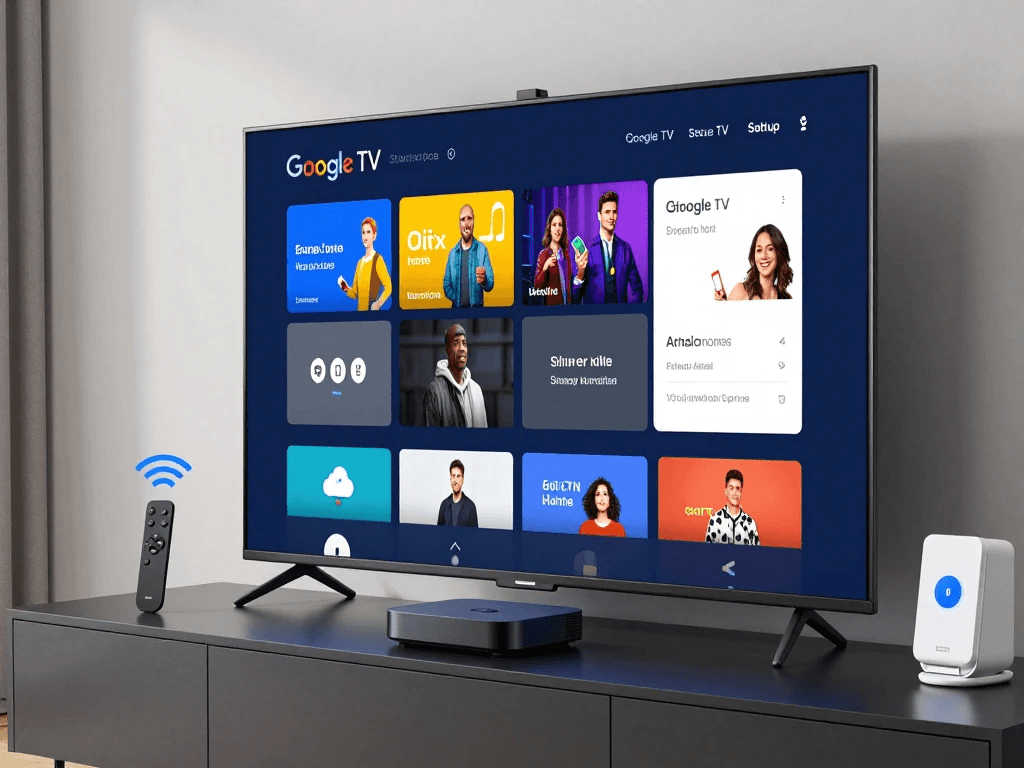
Bringing home a new Google TV device is exciting. Whether you’ve purchased a smart TV with Google TV built in or a streaming device like Chromecast with Google TV, you’re just a few steps away from enjoying thousands of movies, TV shows, live channels, and apps in one place. However, the initial Google TV setup process can feel overwhelming if you’re unfamiliar with smart TVs or streaming devices.
The good news is that setting up Google TV is much easier than you might think. With the right preparation and a clear understanding of each step, you can have your entertainment system ready in just a few minutes. This comprehensive guide walks you through everything you need to know—from connecting your device and pairing the remote to signing in with your Google Account and customizing your home screen. By the end of this guide, you’ll have a fully optimized Google TV experience tailored to your preferences.
Table of Contents
What Is Google TV?
Google TV is Google’s modern smart TV platform that brings together streaming apps, live television, and personalized recommendations into one easy-to-use interface. Instead of opening multiple apps to find something to watch, Google TV organizes content from your favorite streaming services in one place, making it easier to discover new movies and shows.
Unlike traditional smart TV operating systems, Google TV focuses on personalization. It learns your viewing habits and suggests content based on your interests, subscriptions, and watch history. It also integrates seamlessly with other Google services, allowing you to control compatible smart home devices, use Google Assistant for voice commands, and sync your preferences across multiple devices.
Whether you’re streaming blockbuster movies, watching live sports, or exploring YouTube content, Google TV is designed to simplify your entertainment experience while keeping everything organized in one intuitive dashboard.
Google TV vs. Android TV
Many people confuse Google TV with Android TV because they share the same foundation. Although they’re closely related, there are several important differences that affect your user experience.
| Feature | Google TV | Android TV |
|---|---|---|
| User Interface | Personalized content-first layout | App-focused interface |
| Recommendations | AI-powered suggestions | Basic recommendations |
| Watchlist | Built-in | Limited support |
| User Profiles | Multiple personalized profiles | Limited customization |
| Google Assistant | Built-in | Built-in |
| Smart Home Controls | Advanced integration | Standard integration |
If you’re upgrading from Android TV, you’ll notice that Google TV offers a cleaner interface, smarter recommendations, and improved navigation that helps you spend less time searching and more time watching.
Why Choose Google TV?
One of the biggest advantages of Google TV is convenience. Rather than jumping between multiple streaming platforms, you receive recommendations from several services in one location. This saves time and helps you discover content you may otherwise miss.
Google TV also supports thousands of apps through the Google Play Store. Popular streaming services such as Netflix, YouTube, Disney+, Prime Video, Hulu, Max, Peacock, and many others are readily available. In addition, you can download music apps, fitness apps, educational tools, games, and productivity applications, making Google TV much more than just a streaming platform.
Another significant benefit is Google Assistant integration. With simple voice commands, you can search for movies, control playback, adjust your smart lights, check the weather, or even ask questions without leaving your couch.
What You’ll Need Before Starting Google TV Setup
Before beginning your Google TV setup, gathering everything you’ll need can save time and help prevent unnecessary interruptions. Spending just a few minutes preparing ensures the installation process goes smoothly from start to finish.
Most setup issues happen because users discover they’re missing a password, don’t know their Google Account credentials, or have an unstable internet connection. Taking care of these details beforehand helps you avoid frustration and complete the setup more efficiently.
Google TV Setup Checklist
Use the following checklist before powering on your device.
| Requirement | Why You Need It | Required |
|---|---|---|
| Google Account | Download apps, sync preferences, use Google services | ✅ Yes |
| Stable Wi-Fi Connection | Access streaming content and updates | ✅ Yes |
| HDMI Port (Streaming Device) | Connect Google TV device to your television | ✅ Yes |
| TV Remote | Navigate setup menus | ✅ Yes |
| Google TV Remote | Control your Google TV device | ✅ Yes |
| Power Adapter | Supply power to your device | ✅ Yes |
| Smartphone | Faster setup and account transfer | Optional |
| Ethernet Connection (if supported) | More stable internet connection | Optional |
Keeping these items ready before you begin makes the process much faster and minimizes interruptions during installation.
Check Your Internet Connection
Your internet connection plays a major role in the Google TV setup process. During installation, your device downloads software updates, verifies your Google Account, and installs essential services. A slow or unstable connection can delay setup or cause unexpected errors.
For the best experience, connect to a reliable home Wi-Fi network. If your device supports Ethernet, a wired connection offers greater stability, particularly if you plan to stream 4K content regularly.
Here are Google’s recommended minimum internet speeds for streaming:
| Streaming Quality | Recommended Speed |
|---|---|
| Standard Definition (SD) | 3 Mbps |
| High Definition (HD) | 5 Mbps |
| Full HD (1080p) | 10 Mbps |
| 4K Ultra HD | 25 Mbps |
| 4K HDR | 35 Mbps or higher |
If multiple people in your household stream videos, play online games, or attend video meetings simultaneously, consider subscribing to a higher-speed internet plan to ensure smooth performance.
Prepare Your Google Account
Your Google Account serves as the foundation of your Google TV experience. It allows you to install apps, synchronize purchases, manage subscriptions, receive personalized recommendations, and access Google Assistant.
Before starting setup, verify that you remember your email address and password. If you use two-factor authentication, make sure your mobile phone is nearby so you can approve the login request quickly.
If you don’t already have a Google Account, you can create one for free. Once signed in, your Google TV automatically syncs supported apps, YouTube subscriptions, Google Photos, calendars, and other Google services, creating a seamless entertainment ecosystem across your devices.
Step-by-Step Google TV Setup Guide
Once you’ve prepared everything, you’re ready to begin the actual installation process. The setup wizard is designed to guide you through each step, making it accessible even if you’ve never configured a streaming device before.
While the exact screens may vary slightly depending on your TV manufacturer or Google TV device, the overall process remains largely the same. Following each step carefully helps ensure your device is configured correctly and ready to use without unnecessary troubleshooting later.
Step 1: Connect Your Google TV Device
If your television has Google TV built in, simply connect it to power and turn it on. If you’re using a standalone streaming device such as Chromecast with Google TV, connect the device to an available HDMI port on your television before plugging it into a power outlet using the included adapter.
After everything is connected, switch your television to the correct HDMI input using your TV remote. Within a few moments, you should see the Google TV welcome screen. If the screen doesn’t appear, double-check that the HDMI cable is securely connected and confirm you’ve selected the correct input source.
Quick Setup Steps
- Connect your Google TV device to the HDMI port.
- Plug the power adapter into a wall outlet.
- Turn on your television.
- Select the correct HDMI input.
- Wait for the Google TV welcome screen.
Step 2: Pair Your Google TV Remote
The next step is pairing your Google TV remote. Most Google TV remotes pair automatically when you insert the included batteries and turn on the device. If automatic pairing doesn’t occur, don’t worry—you can easily pair it manually.
To manually pair the remote, press and hold the Back and Home buttons simultaneously for several seconds until the pairing light begins flashing. Once your television detects the remote, simply follow the on-screen instructions to complete the process.
After pairing, you’ll also have the opportunity to configure the remote to control your television’s power, volume, and input settings. This allows you to use a single remote for most everyday functions, eliminating the need to juggle multiple controllers.
Step 3: Select Your Language and Region
After your remote is connected, Google TV prompts you to choose your preferred language and region. Selecting the correct language ensures that menus, voice search, subtitles, and Google Assistant responses appear as expected.
If you’re setting up Google TV in the United States, choose English (United States) unless you prefer another supported language. Your regional selection also influences available apps, content recommendations, and local streaming services, helping personalize your experience from the very beginning.
Once you’ve confirmed your language and region, you’ll move on to connecting your device to the internet—the next essential step in completing your Google TV setup.
Step 4: Connect Google TV to Wi-Fi
Connecting your Google TV to the internet is one of the most important steps in the setup process. Without an internet connection, you won’t be able to stream movies, install apps, download software updates, or access Google services. Fortunately, Google has made this process simple, whether you’re connecting to a home Wi-Fi network or using an Ethernet connection on supported devices.
During the setup wizard, Google TV scans for nearby wireless networks and displays them in a list. Select your home network, enter your Wi-Fi password, and wait for the connection to be established. If you have a dual-band router, you’ll typically see both a 2.4 GHz and a 5 GHz network. Whenever possible, choose the 5 GHz network for faster speeds and better streaming performance, especially if you plan to watch content in 4K Ultra HD.
How to Connect to Wi-Fi
- Select your Wi-Fi network from the list.
- Enter your wireless password.
- Select Connect.
- Wait for Google TV to verify the connection.
- Continue to the next setup screen.
Pro Tip: Place your router in an open location with minimal interference. Avoid placing it behind cabinets or near large metal objects, as these can weaken the signal.
Should You Use Wi-Fi or Ethernet?
Some Google TV devices and smart TVs include an Ethernet port, while others require a separate Ethernet adapter. If your device supports a wired connection, it’s worth considering, especially if your television is located close to your router.
A wired Ethernet connection offers several advantages over Wi-Fi. It delivers more consistent speeds, reduces latency, and minimizes buffering during high-definition streaming. If you frequently watch live sports, stream 4K HDR movies, or play cloud-based games, Ethernet can provide a noticeably smoother experience.
| Connection Type | Advantages | Best For |
|---|---|---|
| Wi-Fi | Easy setup, no cables | Most households |
| Ethernet | Faster and more stable | 4K streaming, gaming, large downloads |
For most users in the United States, a strong Wi-Fi 5 or Wi-Fi 6 network is more than sufficient. However, if reliability is your top priority, Ethernet is often the better choice.
Step 5: Sign In to Your Google Account
After connecting to the internet, you’ll be prompted to sign in to your Google Account. This step unlocks many of Google TV’s most useful features, including personalized recommendations, app downloads from the Google Play Store, Google Assistant, and synchronization across your Google devices.
Google TV gives you two convenient sign-in options. You can use your smartphone for a faster experience or enter your email address and password manually using the remote. If you’re already signed in to Google on your Android phone, the mobile setup method can save you several minutes.
Signing in also enables family-friendly features such as multiple user profiles, parental controls, and customized watchlists, making Google TV suitable for households with different viewing preferences.
Option 1: Sign In Using Your Smartphone
Using your Android phone is the fastest way to complete the Google TV setup. Once prompted, Google TV displays instructions for linking your device. Your phone securely transfers your Google Account information without requiring you to type lengthy passwords with the remote.
This method also imports many of your saved preferences, making the experience feel familiar from the very first time you use Google TV.
Benefits of Smartphone Setup
- Faster login process
- No need to type passwords manually
- Syncs your Google Account automatically
- Imports compatible settings
- Saves time during installation
If you’re already using an Android smartphone, this option is highly recommended.
Option 2: Sign In Manually
If you don’t have an Android phone or prefer to complete setup manually, simply enter your Google Account credentials using the remote.
Although typing with the on-screen keyboard can take a little longer, the process is straightforward. If your account uses two-factor authentication, Google may ask you to verify your identity using a trusted device or text message.
Take your time entering your email address and password carefully to avoid unnecessary login errors.
Why Your Google Account Matters
Some users wonder whether they can skip signing in altogether. While it’s technically possible to use Google TV with limited functionality, you’ll miss many of the platform’s best features.
Your Google Account allows you to:
- Download apps from Google Play
- Access YouTube subscriptions
- Use Google Assistant
- Receive personalized recommendations
- Sync watchlists across devices
- Purchase or rent movies
- Store preferences in the cloud
- Enable voice search
- Manage family profiles
Without signing in, Google TV functions more like a basic streaming interface than the personalized entertainment hub it’s designed to be.
Step 6: Accept Google’s Terms and Privacy Settings
After signing in, Google presents several agreements and privacy options. While it’s tempting to click through these screens quickly, spending a few moments reviewing them can help you better understand how your information is used.
You’ll typically be asked to accept Google’s Terms of Service, Privacy Policy, and optional services such as location access, diagnostic reporting, and personalized recommendations. These features improve your experience by tailoring content suggestions and enhancing voice search accuracy.
If privacy is a concern, you can disable many optional data-sharing features during setup or revisit them later in the Settings menu. The flexibility to customize these options allows you to balance convenience with your preferred level of privacy.
Step 7: Install the Latest Software Updates
Once your Google Account is configured, your device will usually check for available software updates. Installing these updates before you begin streaming is strongly recommended because they often include security improvements, bug fixes, new features, and performance enhancements.
Depending on your internet speed and the size of the update, this process may take anywhere from a few minutes to half an hour. Your Google TV may restart automatically during the installation, which is completely normal.
Keeping your software up to date ensures compatibility with the latest streaming apps and helps protect your device against security vulnerabilities.
Why Software Updates Matter
Software updates can provide:
- Improved system stability
- Faster performance
- Enhanced security
- New Google TV features
- Better app compatibility
- Voice Assistant improvements
- Streaming quality enhancements
Skipping updates may result in missing features or experiencing problems that have already been resolved in newer software versions.
Step 8: Customize Your Google TV Experience
After completing the technical setup, Google TV begins the personalization process. This is where your device starts becoming uniquely yours by learning your preferences and organizing content based on your interests.
You’ll be asked to select the streaming services you subscribe to, such as Netflix, Disney+, Hulu, Prime Video, Max, Peacock, or YouTube TV. Choosing your subscriptions helps Google TV recommend movies and shows from platforms you already use, reducing the time spent searching for something to watch.
This customization also improves the “For You” tab, which highlights personalized recommendations based on your viewing habits and favorite genres.
Choose Your Favorite Streaming Services
Selecting your streaming subscriptions during setup helps Google TV create a more relevant home screen. Instead of showing content from services you don’t use, it prioritizes recommendations from the platforms you’re most likely to enjoy.
Popular streaming services available on Google TV include:
- Netflix
- YouTube
- Disney+
- Prime Video
- Hulu
- Max
- Peacock
- Paramount+
- Apple TV
- Crunchyroll
- Sling TV
- YouTube TV
- ESPN
- Spotify
- Plex
You can always add or remove services later if your subscriptions change.
Enable Personalized Recommendations
Google TV’s recommendation engine is one of its standout features. By analyzing the content you watch, search for, and save to your watchlist, it suggests movies and TV shows tailored to your interests.
Unlike traditional smart TV menus that simply list apps, Google TV brings content to the forefront. This means you spend less time navigating between streaming services and more time enjoying entertainment.
To improve recommendations even further, consider:
- Rating content you watch
- Adding movies to your watchlist
- Following favorite genres
- Creating separate user profiles for family members
- Keeping your viewing history enabled
The more you use Google TV, the smarter its recommendations become.
Set Up Google Assistant
Google Assistant is built directly into Google TV, giving you hands-free control over many everyday tasks. After setup, you can use the microphone button on your remote to search for content, adjust playback, check the weather, control smart home devices, or ask general questions.
Some examples of voice commands include:
- “Play action movies.”
- “Open YouTube.”
- “Show me comedy films.”
- “Pause.”
- “Turn up the volume.”
- “What’s the weather today?”
- “Dim the living room lights.”
If you have compatible smart home devices, Google Assistant can also control lights, thermostats, security cameras, and other connected products without leaving your couch.
Configure Your Home Screen
Your Google TV home screen is fully customizable. Rearranging apps, pinning favorites, and removing unused shortcuts creates a cleaner interface that’s easier to navigate.
You can organize your home screen by:
- Moving your favorite apps to the front.
- Removing apps you rarely use.
- Pinning frequently watched services.
- Creating separate profiles for each family member.
- Managing your watchlist.
Taking a few minutes to personalize the interface now will make your daily viewing experience more enjoyable and efficient.
Google TV Setup Progress Checklist
By this stage, you’ve completed the core setup process. Here’s a quick recap of what you’ve accomplished:
| Setup Task | Status |
|---|---|
| Connected Google TV to your TV | ✅ Complete |
| Paired the remote | ✅ Complete |
| Selected language and region | ✅ Complete |
| Connected to Wi-Fi or Ethernet | ✅ Complete |
| Signed in to your Google Account | ✅ Complete |
| Accepted privacy settings | ✅ Complete |
| Installed software updates | ✅ Complete |
| Selected streaming services | ✅ Complete |
| Enabled Google Assistant | ✅ Complete |
| Customized your home screen | ✅ Complete |
With the initial configuration finished, your Google TV is now ready for everyday use. In the next section, you’ll learn how to set up Google TV using your Android phone, how to complete Google TV setup without a smartphone, and how to optimize picture, audio, and privacy settings for the best possible viewing experience.
How to Set Up Google TV Using Your Android Phone
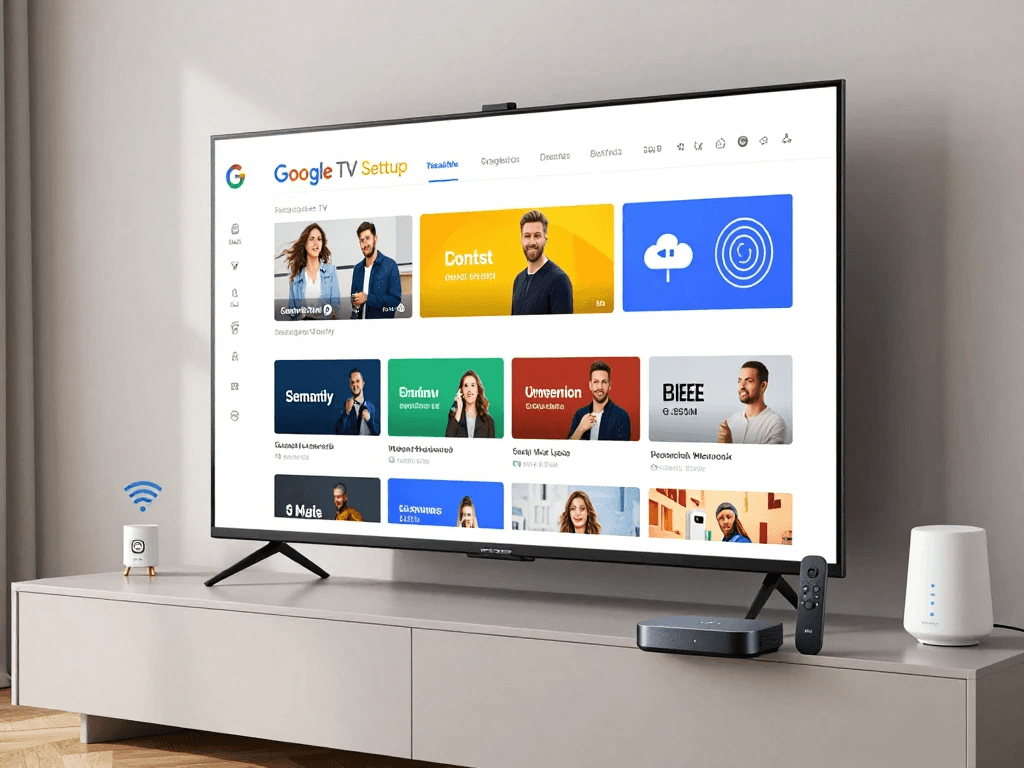
If you own an Android smartphone, setting up Google TV becomes even faster and more convenient. Google designed the mobile setup process to reduce the amount of typing required while automatically transferring many of your account settings. Instead of entering your email address, password, and preferences with the remote, your phone securely communicates with your Google TV device and completes much of the work for you.
This method is especially useful if you have a long Wi-Fi password or use two-factor authentication on your Google Account. Within a few minutes, your Google TV can be connected to your account, personalized with your preferences, and ready to stream your favorite content. For most users, this is the quickest and easiest way to complete the Google TV setup process.
Benefits of Using Your Android Phone for Google TV Setup
Using your smartphone offers several advantages beyond simply saving time. Because your phone already contains your Google Account information, Google TV can automatically import many of your preferences and settings. This creates a more personalized experience from the moment your device is activated.
Here are some of the biggest benefits:
- Faster sign-in process
- No need to type passwords manually
- Automatic Google Account synchronization
- Easier Wi-Fi setup
- Personalized recommendations immediately available
- Faster app installation
- Seamless Google Assistant integration
- Simplified security verification
For users who frequently upgrade devices, the smartphone setup process also makes transitioning to a new Google TV much smoother.
Step-by-Step: Set Up Google TV with an Android Phone
The setup wizard guides you through each step, making the process simple even if it’s your first time using Google TV.
Step 1: Turn On Your Google TV
After connecting your device to your television and powering it on, wait for the welcome screen to appear. Choose your preferred language and continue to the setup options.
Step 2: Choose “Set Up with Android Phone”
When prompted, select the option to use your Android phone for setup. Your television will display simple instructions explaining how to begin.
Step 3: Unlock Your Phone
Make sure your Android phone is unlocked and connected to the same Wi-Fi network you plan to use with Google TV. Ensure Bluetooth is enabled, as your phone may use it to discover nearby devices.
Step 4: Follow the On-Screen Instructions
Your phone should automatically detect the nearby Google TV device. Confirm that the verification code shown on your television matches the one displayed on your phone.
Step 5: Transfer Your Google Account
Once verified, your phone securely transfers your Google Account information and selected preferences to your Google TV.
Step 6: Complete Personalization
Continue following the prompts to choose streaming services, privacy settings, and Google Assistant options before finishing setup.
How to Set Up Google TV Without a Smartphone
Not everyone owns an Android phone, and that’s perfectly fine. Google TV is designed to work just as well with manual setup using the included remote control. Although entering passwords with the on-screen keyboard takes a little longer, the overall process remains straightforward.
Manual setup is also helpful if you prefer not to connect your smartphone or simply want to configure everything yourself. Once completed, you’ll enjoy the same features and functionality as users who chose the mobile setup method.
Manual Google TV Setup Process
Follow these steps if you’re setting up your device without a smartphone:
- Power on your Google TV.
- Select your language.
- Connect to your Wi-Fi network.
- Enter your Wi-Fi password.
- Sign in with your Google Account.
- Verify your identity if prompted.
- Accept Google’s terms.
- Install available software updates.
- Select your streaming services.
- Customize your home screen.
Although the process involves more typing, it usually takes only a few extra minutes.
Tips for Faster Manual Setup
Typing with a remote can feel slow, but a few simple techniques can speed things up significantly.
- Use uppercase and lowercase carefully to avoid password errors.
- Keep your Google Account password nearby.
- Verify your Wi-Fi password before starting.
- Complete software updates before installing apps.
- Don’t unplug the device during updates.
These small preparations can save time and help you avoid restarting the setup process.
Best Google TV Settings After Setup
Once your Google TV setup is complete, you’re ready to optimize your device for the best possible viewing experience. While the default settings work well for most users, adjusting a few options can noticeably improve picture quality, audio performance, privacy, and overall responsiveness.
Taking the time to personalize these settings helps you get the most from your television, especially if you’re watching 4K HDR content or using a premium sound system.
Picture Settings
Picture quality is one of the first things you’ll notice after completing your Google TV setup. Every television model is different, but most offer several picture modes and advanced display settings that can improve image quality.
If your TV supports HDR (High Dynamic Range) or Dolby Vision, make sure these features are enabled. They provide richer colors, improved brightness, and greater contrast, making movies and TV shows look more realistic.
Recommended Picture Settings
| Setting | Recommendation |
|---|---|
| Resolution | Auto (4K if supported) |
| HDR | Enabled |
| Dolby Vision | Enabled (if available) |
| Motion Smoothing | Low or Off |
| Picture Mode | Cinema or Movie |
| Color Temperature | Warm |
Many users prefer Cinema or Movie mode because it produces more natural colors than the vivid modes often enabled by default.
Audio Settings
Great visuals deserve equally impressive sound. Google TV supports several advanced audio technologies, including Dolby Atmos on compatible devices.
If you’re using a soundbar or home theater system, check that HDMI ARC or eARC is enabled. This allows your TV to send high-quality audio directly to your external speakers.
Recommended Audio Settings
| Setting | Recommendation |
|---|---|
| Audio Output | Auto |
| Dolby Atmos | Enabled |
| HDMI ARC/eARC | Enabled |
| Surround Sound | Auto |
| Volume Leveling | Optional |
Proper audio settings can dramatically improve dialogue clarity and create a more immersive viewing experience.
Privacy Settings
Google TV collects certain information to provide personalized recommendations and improve voice search accuracy. Fortunately, you’re in control of most privacy settings.
After setup, visit the Settings menu and review your privacy preferences. You can choose which features remain enabled and which ones you’d prefer to disable.
Consider reviewing:
- Voice activity history
- Personalized advertisements
- Location permissions
- Diagnostic data sharing
- Google Assistant activity
- Search history
Adjusting these settings helps you balance convenience with your preferred level of privacy.
Performance Settings
As you install more apps over time, your Google TV may gradually slow down if storage becomes limited. Fortunately, a few maintenance habits can keep your device running smoothly for years.
Some useful performance improvements include:
- Enable automatic updates
- Remove unused applications
- Restart your Google TV occasionally
- Keep at least 10–20% of storage free
- Clear cached data when necessary
- Close unused background apps
These small maintenance tasks can noticeably improve responsiveness and reduce loading times.
How to Install Apps During Google TV Setup
One of Google TV’s biggest strengths is access to thousands of apps through the Google Play Store. Whether you enjoy streaming movies, listening to music, watching sports, or playing games, there’s likely an app available to suit your needs.
During setup, Google TV may ask which streaming services you subscribe to. Later, you can browse the Play Store to download additional apps whenever you like.
Installing only the apps you actually use helps conserve storage space and keeps your home screen organized.
Popular Apps for Google TV
Below are some of the most popular applications available for Google TV users in the United States.
| App | Category | Free | Subscription Required |
|---|---|---|---|
| YouTube | Video | Yes | No |
| Netflix | Streaming | No | Yes |
| Disney+ | Streaming | No | Yes |
| Hulu | Streaming | No | Yes |
| Prime Video | Streaming | No | Yes |
| Max | Streaming | No | Yes |
| Peacock | Streaming | Limited | Optional |
| Paramount+ | Streaming | No | Yes |
| Spotify | Music | Yes | Optional |
| Plex | Media Server | Yes | Optional |
You can also install news apps, fitness programs, educational content, gaming services, and productivity tools directly from the Google Play Store.
How to Download Apps
Adding apps to Google TV takes only a few minutes.
Follow These Steps
- Open the Google Play Store.
- Select the Search icon.
- Enter the app name.
- Select the app.
- Choose Install.
- Wait for the download to finish.
- Open the app and sign in if required.
Most downloads complete within seconds, depending on your internet speed.
Organize Your Apps
As your app collection grows, organizing your home screen becomes increasingly important. Google TV allows you to rearrange apps so your favorites are always easy to find.
Some organization tips include:
- Place your most-used apps at the beginning.
- Group similar streaming services together.
- Remove shortcuts you don’t use.
- Pin favorite apps to the home screen.
- Delete apps you no longer need.
A clean home screen makes navigation faster and improves your overall user experience.
Enable Automatic App Updates
Keeping your apps updated ensures you always have access to the latest features, security improvements, and bug fixes. Most streaming services regularly release updates that improve playback quality, add new capabilities, and resolve compatibility issues.
To enable automatic updates:
- Open the Google Play Store.
- Navigate to Settings.
- Select Auto-update Apps.
- Choose Update over Wi-Fi only for the best balance between convenience and data usage.
With automatic updates enabled, your apps stay current without requiring manual intervention, helping your Google TV remain secure and perform at its best.
Common Google TV Setup Problems and How to Fix Them
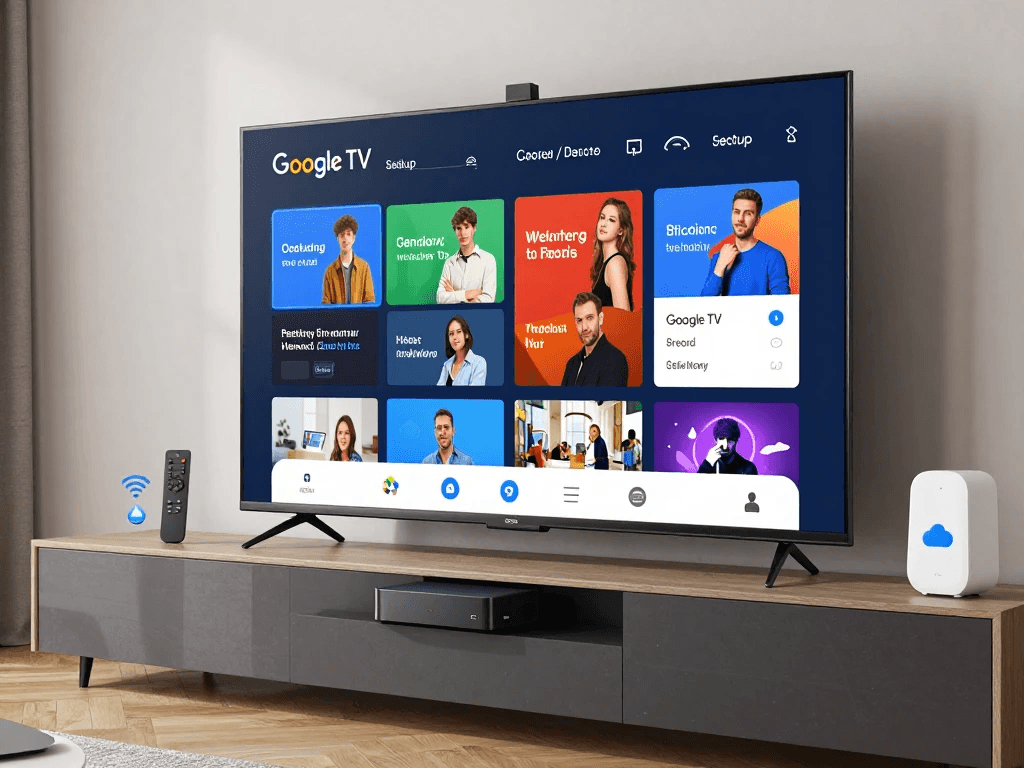
Even though the Google TV setup process is designed to be simple, you may occasionally encounter issues that prevent your device from working correctly. Most problems are minor and can be resolved in just a few minutes without contacting customer support. Whether you’re experiencing Wi-Fi connection failures, remote pairing issues, software update errors, or a frozen setup screen, understanding the most common causes can help you troubleshoot efficiently.
Before assuming your device is defective, work through the recommended solutions one step at a time. In many cases, restarting your Google TV or checking your network connection is all that’s needed to restore normal operation. The following troubleshooting tips cover the most frequent setup issues faced by Google TV users in the United States.
Google TV Won’t Connect to Wi-Fi
One of the most common setup problems is a failure to connect to your wireless network. Since Google TV relies heavily on internet connectivity, this issue can prevent you from completing the setup process or accessing streaming services.
Several factors can cause Wi-Fi connection problems, including entering the wrong password, weak signal strength, router configuration issues, or temporary internet outages. Before making advanced changes, confirm that other devices in your home can successfully connect to the same network.
If your Google TV still won’t connect, try restarting both your router and your Google TV device. Many temporary network issues are resolved with a simple reboot.
Common Causes
- Incorrect Wi-Fi password
- Weak wireless signal
- Router firmware issues
- Internet service outage
- Network congestion
- Unsupported Wi-Fi settings
Solutions
- Restart your router.
- Restart Google TV.
- Verify your Wi-Fi password.
- Move the device closer to your router.
- Forget the network and reconnect.
- Switch between the 2.4 GHz and 5 GHz bands.
- Check for internet outages from your provider.
Improve Your Wi-Fi Signal
A weak wireless signal often causes buffering, slow downloads, or connection failures during setup. Optimizing your home network can significantly improve streaming quality and reduce interruptions.
Consider these tips to strengthen your Wi-Fi connection:
- Place your router in a central location.
- Keep the router away from microwaves and cordless phones.
- Minimize physical obstructions such as walls and furniture.
- Upgrade to a Wi-Fi 6 router if your current equipment is outdated.
- Use a mesh Wi-Fi system in larger homes.
- Limit the number of devices using your network simultaneously.
A stronger signal not only speeds up the setup process but also improves long-term streaming performance.
Google TV Remote Not Pairing
Your Google TV remote should automatically pair during the initial setup, but occasionally the process may fail. If the remote doesn’t respond or stops working unexpectedly, don’t panic. Most pairing issues are caused by low batteries, Bluetooth interference, or temporary software glitches.
Before attempting advanced troubleshooting, replace the batteries with a fresh set and ensure they are inserted correctly. Then restart your Google TV and try pairing the remote again.
How to Pair the Remote Manually
- Insert fresh batteries.
- Turn on your Google TV.
- Hold the Back and Home buttons together for several seconds.
- Wait until the pairing light begins flashing.
- Follow the on-screen instructions.
Once paired successfully, you can also configure the remote to control your TV’s power, volume, and input selection.
Remote Still Isn’t Working?
If manual pairing doesn’t solve the problem, try the following:
- Remove the batteries for one minute.
- Replace the batteries with new ones.
- Restart your Google TV.
- Move closer to the television.
- Remove nearby Bluetooth devices that could interfere.
- Reset the remote if supported by your model.
If none of these steps work, consult your device manufacturer’s support resources to determine whether the remote requires replacement.
Google Account Sign-In Problems
Signing in with your Google Account is required for accessing many of Google TV’s best features. If you’re unable to log in, the issue is usually related to incorrect credentials, two-factor authentication, or internet connectivity.
Double-check that you’re entering the correct email address and password. Remember that passwords are case-sensitive. If you’ve recently changed your password, ensure you’re using the updated version.
If your account uses two-factor authentication, make sure your trusted phone or authentication app is available to complete the verification request.
Common Sign-In Solutions
- Verify your email address.
- Reset your password if necessary.
- Check your internet connection.
- Complete two-factor authentication.
- Restart the setup process if needed.
Patience is important during this step, as repeated failed login attempts may temporarily delay additional sign-in attempts for security reasons.
Google TV Stuck on the Setup Screen
Occasionally, Google TV may appear frozen during setup, displaying the same screen for several minutes without progressing. This can happen while downloading updates, verifying your account, or installing system software.
Before assuming the device has frozen completely, wait at least 15 to 20 minutes if an update is being installed. Interrupting a software update by unplugging the device can lead to additional issues.
If the setup process remains stuck after an extended period, restarting the device is usually the next best step.
What to Do
- Wait several minutes.
- Restart Google TV.
- Restart your router.
- Verify your internet connection.
- Perform a factory reset if necessary.
Factory resets should be used only as a last resort because they erase all current settings and require you to complete the Google TV setup again.
Google TV Won’t Download Updates
Software updates are essential for keeping your device secure and functioning properly. If updates fail to download or install, several different factors may be responsible.
The most common causes include insufficient storage space, unstable internet connections, or temporary Google server issues. Checking your available storage and ensuring a reliable internet connection usually resolves the problem.
Troubleshooting Update Failures
| Problem | Possible Solution |
|---|---|
| Slow download | Restart router |
| Update won’t install | Restart Google TV |
| Storage full | Delete unused apps |
| Internet disconnects | Improve Wi-Fi signal |
| Installation freezes | Restart device |
If update failures continue after multiple attempts, waiting a few hours before trying again may help, particularly if Google’s servers are experiencing heavy traffic.
Apps Won’t Install
Sometimes, you may encounter errors when downloading apps from the Google Play Store. This usually happens because of storage limitations, account synchronization issues, or temporary server problems.
Before troubleshooting, verify that you’re signed in to the correct Google Account and that your internet connection is stable.
Fix App Installation Problems
- Restart Google TV.
- Check available storage.
- Verify your Google Account.
- Update system software.
- Clear Google Play Store cache.
- Try downloading the app again later.
Installing only the apps you regularly use helps preserve storage space and keeps your Google TV running efficiently.
Google TV Running Slowly
Over time, installing numerous apps and storing temporary data can reduce your device’s performance. If menus become sluggish or apps take longer to open, routine maintenance can restore much of the lost speed.
Unlike traditional computers, smart TVs require only minimal maintenance, but a few simple habits can keep your Google TV operating smoothly.
Tips to Improve Google TV Performance
Optimizing your device doesn’t require advanced technical knowledge. Most performance improvements can be achieved through basic housekeeping and software updates.
Best Practices
- Restart Google TV once every week.
- Keep automatic updates enabled.
- Delete unused applications.
- Keep at least 10–20% of storage free.
- Clear app cache periodically.
- Close apps running in the background.
- Maintain a strong internet connection.
These practices reduce slowdowns and improve navigation throughout the interface.
Clear Cache to Improve Speed
Applications store temporary files, known as cache, to speed up future loading times. Over time, however, cached data can accumulate and consume valuable storage.
Clearing cache removes unnecessary temporary files without deleting your personal data or app settings.
How to Clear Cache
- Open Settings.
- Select Apps.
- Choose the app.
- Select Storage & Cache.
- Choose Clear Cache.
Repeat this process occasionally for apps that consume significant storage, such as streaming services and web browsers.
Improve Streaming Quality
Once your Google TV setup is complete, you’ll naturally want the highest-quality viewing experience possible. Fortunately, a few simple adjustments can dramatically improve picture quality and reduce buffering.
If your internet connection is fast enough, Google TV automatically streams content in the highest available resolution supported by both your television and the streaming service.
Tips for Better Streaming
- Use the 5 GHz Wi-Fi band.
- Position your router closer to your TV.
- Use Ethernet whenever possible.
- Limit heavy internet usage during streaming.
- Restart your router occasionally.
- Keep Google TV updated.
These changes can reduce buffering and improve playback consistency, especially during peak internet usage hours.
Recommended Internet Speeds for Streaming
Your internet speed has a direct impact on streaming quality. While many households can stream in HD with moderate broadband speeds, 4K HDR content requires a faster and more stable connection.
| Streaming Quality | Recommended Speed |
|---|---|
| SD | 3 Mbps |
| HD | 5 Mbps |
| Full HD | 10 Mbps |
| 4K UHD | 25 Mbps |
| 4K HDR | 35 Mbps or higher |
If multiple people in your household stream content simultaneously, consider subscribing to a higher-speed internet plan to maintain smooth playback.
Optimize Router Placement
Many streaming issues are caused by poor router placement rather than slow internet service. Positioning your router correctly can significantly improve signal strength throughout your home.
For the best performance:
- Place the router in a central location.
- Keep it elevated on a shelf or table.
- Avoid enclosed cabinets.
- Keep it away from metal objects and large appliances.
- Reduce interference from cordless phones and microwave ovens.
Small adjustments in router placement can make a noticeable difference in both setup reliability and everyday streaming performance.
When Should You Factory Reset Google TV?
A factory reset should only be considered after you’ve exhausted other troubleshooting options. Resetting your device erases all installed apps, user profiles, downloaded content, and personalized settings, returning Google TV to its original factory condition.
You may want to perform a factory reset if:
- The setup process repeatedly fails.
- The device freezes frequently.
- Performance remains poor after troubleshooting.
- You’re selling or giving away your Google TV.
- You want to start with a clean configuration.
After the reset, you’ll need to complete the full Google TV setup process again, including reconnecting to Wi-Fi, signing in with your Google Account, and reinstalling your apps.
Google TV Setup vs. Android TV Setup
If you’ve previously used an Android TV device, you might wonder how Google TV setup differs. While both platforms are built on the Android operating system, Google TV offers a more modern interface with enhanced personalization, smarter recommendations, and deeper integration with Google services.
The setup process for both platforms is similar, but Google TV focuses on helping you discover content rather than simply organizing apps. From the moment you sign in with your Google Account, the platform begins customizing recommendations based on your subscriptions, viewing habits, and interests. This personalized approach makes it easier to find something to watch without opening multiple streaming apps.
For most users, Google TV feels more intuitive and engaging, especially if they already use Google services like Gmail, YouTube, Google Photos, or Google Assistant.
Google TV vs. Android TV Comparison
| Feature | Google TV | Android TV |
|---|---|---|
| Interface | Content-first experience | App-first experience |
| Personalized Recommendations | Advanced AI recommendations | Basic suggestions |
| Watchlist | Built-in across services | Limited availability |
| Multiple User Profiles | Yes | Limited |
| Kids Profile | Yes | Limited support |
| Google Assistant | Built-in | Built-in |
| Google Play Store | Yes | Yes |
| Smart Home Controls | Advanced | Standard |
| Live TV Integration | Improved | Basic |
| Overall Experience | Personalized and modern | Functional and traditional |
While Android TV remains a capable platform, Google TV introduces meaningful improvements that enhance everyday usability.
Advanced Google TV Features You Should Enable
After completing your Google TV setup, you’ll gain access to several advanced features that many users overlook. These tools improve convenience, personalization, and productivity while helping you get more value from your device.
Taking a few minutes to explore these options allows you to customize Google TV to match your viewing habits and household needs.
Create Multiple User Profiles
One of Google TV’s best features is support for individual user profiles. Instead of sharing recommendations with everyone in your household, each person can have their own personalized experience.
Separate profiles help Google TV learn each user’s viewing preferences independently. This prevents children’s cartoons, sports programs, and documentaries from mixing together in one recommendation feed.
Each profile can maintain its own:
- Watch history
- Personalized recommendations
- Watchlist
- YouTube subscriptions
- Google Assistant preferences
- App settings (where supported)
Creating profiles is particularly useful for families with multiple viewers.
Set Up a Kids Profile
If children use your television, Google TV’s Kids Profile provides a safer viewing environment by limiting access to age-appropriate content.
Parents can approve apps, set screen time limits, establish bedtime schedules, and restrict purchases. These controls help create a balanced entertainment experience while giving parents greater peace of mind.
Kids Profile Features
| Feature | Benefit |
|---|---|
| Screen Time Limits | Manage daily viewing |
| Bedtime Scheduling | Automatically lock access |
| App Approval | Control available apps |
| Content Restrictions | Filter inappropriate content |
| Child-Friendly Recommendations | Age-appropriate suggestions |
These built-in parental controls eliminate the need for many third-party monitoring applications.
Use Google Assistant Like a Pro
Google Assistant is much more than a voice search tool. Once configured, it becomes the central hub for controlling both your entertainment system and compatible smart home devices.
Instead of manually navigating menus, you can simply press the microphone button on your remote and speak naturally.
Some useful commands include:
- “Play the latest Marvel movie.”
- “Show comedy TV shows.”
- “Open Netflix.”
- “Pause the movie.”
- “Fast forward two minutes.”
- “What’s the weather today?”
- “Turn off the bedroom lights.”
- “Show my front door camera.”
As your smart home grows, Google Assistant becomes even more valuable by allowing you to control multiple connected devices from a single interface.
Connect Google TV to Your Smart Home
If you already own compatible smart home devices, Google TV can serve as a convenient control center. Through Google Assistant, you can manage lighting, thermostats, security cameras, smart plugs, doorbells, and other connected products without reaching for your phone.
Imagine pausing your movie to check who’s at the front door or dimming your living room lights before starting a film—all using simple voice commands.
Common compatible devices include:
- Smart lights
- Smart thermostats
- Video doorbells
- Security cameras
- Smart plugs
- Smart speakers
- Smart displays
- Robotic vacuum cleaners
Integrating your entertainment and smart home systems creates a more seamless and convenient living experience.
Google TV Privacy and Security Tips
Protecting your personal information is an important part of owning any connected device. Google TV includes several privacy and security settings that allow you to decide how your information is collected and used.
Reviewing these settings after setup helps ensure your device aligns with your personal privacy preferences while maintaining access to the features you value most.
Enable Two-Factor Authentication
Your Google Account provides access to email, photos, purchases, and many other personal services. Protecting it with two-factor authentication (2FA) adds an extra layer of security.
When enabled, you’ll need both your password and a verification code from your phone or authentication app before anyone can access your account.
Benefits of Two-Factor Authentication
- Protects against stolen passwords
- Reduces unauthorized access
- Improves account security
- Helps secure purchases
- Safeguards personal information
Because Google TV relies on your Google Account, strengthening account security also protects your television experience.
Review App Permissions
Many applications request access to features such as your microphone, storage, or location. While some permissions are necessary, others may not be essential for the app’s functionality.
Periodically reviewing app permissions helps minimize unnecessary data sharing.
You can manage permissions by visiting:
Settings → Privacy → Permission Manager
Consider removing permissions that an app doesn’t genuinely require.
Manage Voice Activity
Google Assistant stores voice interactions to improve speech recognition and personalize responses. If you’d rather not keep this history, you can review or delete voice recordings through your Google Account settings.
Some users choose to:
- Delete voice history regularly.
- Disable voice activity storage.
- Review previous recordings.
- Pause voice history collection.
Managing these settings allows you to enjoy voice search while maintaining greater control over your personal data.
Expert Tips for Getting the Most Out of Google TV
Now that your Google TV setup is complete, a few expert habits can help you maximize performance and convenience over the long term.
These recommendations come from experienced users who rely on Google TV every day.
Keep Software Updated
Google regularly releases updates that improve security, fix bugs, and introduce new features. Allowing automatic updates ensures your device stays current without requiring manual intervention.
Software updates often improve:
- System stability
- Streaming performance
- App compatibility
- Google Assistant accuracy
- Security protections
Checking for updates every few weeks is a good practice if automatic updates are disabled.
Restart Your Device Occasionally
Unlike older televisions, modern streaming devices benefit from an occasional restart. Rebooting Google TV clears temporary memory, closes background processes, and resolves minor software glitches.
Many users notice smoother navigation after restarting their device once every week or two.
A simple restart can resolve:
- Slow menus
- App crashes
- Streaming interruptions
- Voice Assistant issues
- Temporary connectivity problems
Remove Apps You Don’t Use
Installing dozens of apps may seem harmless, but unnecessary applications consume storage space and can affect system performance over time.
Every few months, review your installed apps and uninstall anything you no longer use.
Removing unused apps provides several benefits:
- Frees storage space
- Improves responsiveness
- Simplifies navigation
- Reduces background activity
- Makes updates faster
Keeping your device uncluttered contributes to a smoother overall experience.
Use Watchlists to Stay Organized
Google TV’s universal watchlist is one of its most convenient features. Instead of remembering which streaming service offers a movie or TV show, you can save titles to a centralized list for later viewing.
As new episodes become available or movies move between streaming platforms, Google TV helps you keep track of them.
Watchlists are particularly useful if you:
- Follow multiple TV series.
- Share recommendations with family.
- Plan weekend movie nights.
- Save upcoming releases.
This feature eliminates much of the frustration associated with searching across multiple apps.
Common Mistakes to Avoid During Google TV Setup
Although Google TV setup is generally straightforward, avoiding a few common mistakes can save you time and prevent future problems.
Mistake 1: Skipping Software Updates
Installing updates immediately ensures your device has the latest security patches and performance improvements.
Mistake 2: Using Weak Wi-Fi
Poor wireless signals often cause buffering, failed downloads, and unreliable streaming.
Mistake 3: Ignoring Privacy Settings
Review your privacy options instead of accepting every default setting without consideration.
Mistake 4: Installing Too Many Apps
Only install apps you actually use to preserve storage space and maintain optimal performance.
Mistake 5: Sharing One User Profile
Creating separate profiles improves recommendations and keeps each family member’s viewing history organized.
Avoiding these common mistakes helps you enjoy a faster, more personalized, and more secure Google TV experience from day one.
Google TV Maintenance Checklist
Routine maintenance keeps your device operating at peak performance throughout its lifespan.
| Maintenance Task | Recommended Frequency |
|---|---|
| Restart Google TV | Weekly |
| Install Software Updates | Automatically or monthly |
| Review Storage Space | Monthly |
| Remove Unused Apps | Every 2–3 months |
| Clear App Cache | Every 2–3 months |
| Review Privacy Settings | Every 6 months |
| Update Streaming Apps | Automatically |
| Test Internet Speed | Monthly |
Following this maintenance schedule helps reduce technical issues while ensuring your Google TV continues delivering smooth, high-quality streaming.
Frequently Asked Questions About Google TV Setup
Whether you’re setting up Google TV for the first time or troubleshooting an existing device, you may still have a few questions. The following FAQ answers some of the most common questions asked by users in the United States. These answers are designed to help you quickly solve problems and better understand how to get the most from your Google TV experience.
How Long Does Google TV Setup Take?
For most users, the complete Google TV setup process takes between 10 and 20 minutes. The exact time depends on your internet speed, whether software updates are available, and whether you choose to set up the device using an Android phone or manually with the remote.
If a large software update needs to be installed, setup may take an additional 15 to 30 minutes. Although waiting for updates can be inconvenient, installing them immediately ensures your device is secure, stable, and equipped with the latest features.
Do I Need a Google Account for Google TV Setup?
A Google Account is highly recommended because it unlocks nearly all of Google TV’s features. While you can access limited functionality without signing in, you’ll miss important capabilities such as downloading apps from the Google Play Store, receiving personalized recommendations, using Google Assistant, and syncing your watchlist across devices.
If you don’t already have a Google Account, creating one is free and only takes a few minutes. Once you’re signed in, Google TV becomes a much more personalized and enjoyable entertainment platform.
Can I Complete Google TV Setup Without a Smartphone?
Yes. Although using an Android phone makes the setup process faster, it is not required. Google TV includes a complete manual setup option that allows you to connect to Wi-Fi, sign in with your Google Account, and configure your preferences using the included remote.
The manual method simply requires more typing, but the final result is exactly the same. Whether you use a smartphone or not, you’ll have access to all Google TV features after setup is complete.
Why Won’t My Google TV Connect to Wi-Fi During Setup?
Wi-Fi problems are among the most common setup issues. In most cases, the problem is caused by entering an incorrect password, weak wireless signal strength, temporary router issues, or internet service interruptions.
Start by restarting both your router and Google TV. Confirm that your password is correct and move the device closer to your router if possible. If your router broadcasts both 2.4 GHz and 5 GHz networks, try connecting to the other band to see if the issue is resolved.
Can I Use Google TV on Any Television?
Yes, provided your television has an available HDMI port if you’re using a standalone Google TV streaming device such as Chromecast with Google TV. Even older HDTVs can work well with Google TV, although newer televisions may provide a better experience by supporting features like 4K resolution, HDR, Dolby Vision, and HDMI eARC.
If your television already has Google TV built in, no additional streaming device is necessary. Simply complete the setup process and start streaming.
How Do I Install Apps After Google TV Setup?
Installing apps is easy through the Google Play Store. From the Google TV home screen, open the Play Store, search for the app you want, and select Install. Once the download is complete, the app appears on your home screen and is ready to use.
Popular apps include Netflix, YouTube, Disney+, Prime Video, Hulu, Max, Peacock, Spotify, Plex, and many others. Keeping automatic app updates enabled ensures you always have the latest features and security improvements.
How Do I Reset Google TV?
If you’re experiencing persistent problems or preparing to sell your device, you can perform a factory reset.
To reset Google TV:
- Open Settings.
- Select System.
- Choose About.
- Select Factory Reset.
- Confirm your choice.
Keep in mind that a factory reset removes all downloaded apps, user profiles, saved settings, and account information. You’ll need to complete the Google TV setup process again afterward.
Why Is My Google TV Running Slowly?
A slow Google TV is usually caused by limited storage, outdated software, or too many apps running in the background. Restarting your device, clearing app cache, uninstalling unused apps, and installing the latest software updates can often restore normal performance.
It’s also helpful to leave at least 10–20% of your available storage free. This gives the operating system enough space to function efficiently and helps prevent slowdowns over time.
What Internet Speed Is Recommended for Google TV?
The best internet speed depends on the type of content you watch.
| Streaming Quality | Recommended Download Speed |
|---|---|
| Standard Definition (SD) | 3 Mbps |
| High Definition (HD) | 5 Mbps |
| Full HD (1080p) | 10 Mbps |
| 4K Ultra HD | 25 Mbps |
| 4K HDR | 35 Mbps or higher |
If several people in your home stream videos, attend video calls, or play online games simultaneously, consider a faster internet plan to ensure consistent performance across all devices.
Can I Use Bluetooth Devices with Google TV?
Yes. Google TV supports many Bluetooth accessories, including wireless headphones, speakers, keyboards, game controllers, and some remote controls. Pairing Bluetooth devices is simple through the Settings menu and can improve your entertainment experience, especially if you prefer private listening or casual gaming.
How Often Should I Update Google TV?
You should enable automatic updates whenever possible. Google regularly releases software updates that improve performance, introduce new features, and address security vulnerabilities. If automatic updates are disabled, check manually for updates at least once a month to ensure your device remains current.
Google TV Setup Best Practices Checklist
Before you finish, use this checklist to make sure your Google TV is fully optimized for everyday use.
| Task | Status |
|---|---|
| Connected to a stable Wi-Fi or Ethernet network | ✅ |
| Signed in with your Google Account | ✅ |
| Installed the latest software updates | ✅ |
| Enabled automatic app updates | ✅ |
| Configured Google Assistant | ✅ |
| Installed your favorite streaming apps | ✅ |
| Organized your home screen | ✅ |
| Created user profiles | ✅ |
| Reviewed privacy settings | ✅ |
| Enabled two-factor authentication | ✅ |
Completing these tasks helps ensure a smooth, secure, and personalized Google TV experience from day one.
Final Thoughts on Google TV Setup
Setting up your Google TV is more than simply connecting a streaming device to your television—it’s about creating a personalized entertainment hub tailored to your viewing habits. By taking the time to complete each step carefully, you’ll enjoy faster navigation, smarter recommendations, improved streaming quality, and seamless integration with your Google ecosystem.
From connecting to Wi-Fi and signing in with your Google Account to installing apps, optimizing picture settings, and enabling Google Assistant, every part of the setup contributes to a better overall experience. Routine maintenance, such as updating software, removing unused apps, and reviewing privacy settings, helps keep your Google TV running smoothly for years to come.
Whether you’re watching blockbuster movies, following live sports, catching up on your favorite TV series, or exploring educational content with your family, Google TV brings everything together in one easy-to-use interface. With the tips and troubleshooting advice covered in this guide, you’re well equipped to solve common issues and make the most of your device.
Key Takeaways
- Google TV setup usually takes 10–20 minutes, depending on updates and internet speed.
- A Google Account unlocks personalized recommendations, app downloads, and Google Assistant.
- A 5 GHz Wi-Fi network or Ethernet connection provides the best streaming performance.
- Installing software and app updates improves security, stability, and functionality.
- Creating individual user profiles delivers more accurate content recommendations for every member of your household.
- Regular maintenance, including clearing cache and uninstalling unused apps, helps maintain peak performance.
- Reviewing privacy and security settings gives you greater control over your personal data.
Ready to Enjoy Your Google TV?
Now that you’ve completed your Google TV setup, it’s time to start exploring everything the platform has to offer. Browse your favorite streaming services, personalize your home screen, build your watchlist, and experiment with Google Assistant voice commands to make everyday entertainment even easier.
If you found this guide helpful, consider sharing it with friends or family members who are setting up a new Google TV device. Bookmark this page as well—you can always return whenever you need troubleshooting tips, optimization advice, or a refresher on Google TV features.
With your Google TV fully configured and optimized, you’re ready to enjoy thousands of movies, TV shows, live channels, music, games, and smart home features—all from one powerful, easy-to-use platform. Happy streaming!









