
Table of Contents
If you have installed IBO Player and are staring at a screen wondering what to do next, you are not alone. IPTV players can look simple once everything is configured, but the first setup often creates questions: Where do you find your device information? How do you activate the application? Where does your IPTV playlist come from? Should you use an M3U URL or another login method? And what should you check when channels refuse to load?
This IBO Player Guide walks you through the complete process in 2026, from understanding what IBO Player actually does to installing it, activating it when required, adding your own authorized playlist, configuring your viewing experience, and troubleshooting common problems. You will also learn what to look for when choosing an IPTV subscription for use with a compatible player.
Important: IBO Player is a media-player application, not an IPTV content provider. Current app listings for IBO Player variants state that users must supply their own playlists or content, and that the application does not itself provide channels or subscriptions.
What Is IBO Player?
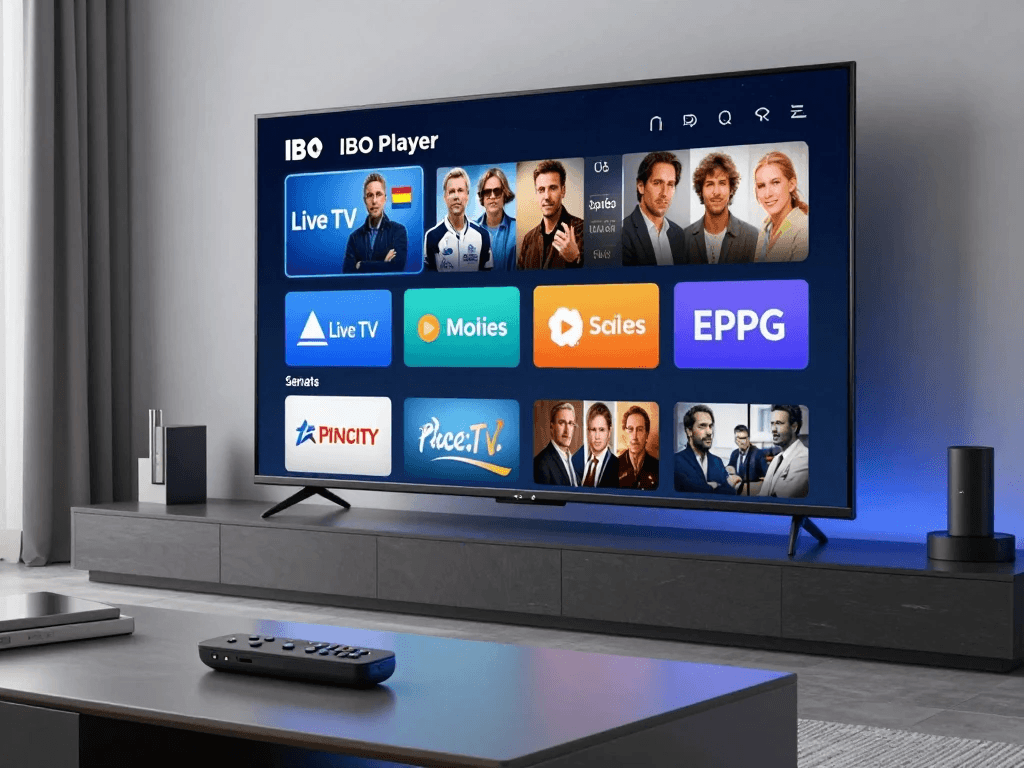
IBO Player is a media-player application designed to play content from playlists or sources that you provide. That distinction is one of the most important things to understand before beginning your setup. When you install the application, you should not expect a built-in collection of television channels, movies, sports events, or series to automatically appear. Instead, the player acts as the interface through which you can organize and play compatible content from an authorized source.
Current app-store listings show that different applications using the IBO Player name can have different features and supported platforms. For example, one current Google Play listing describes IBO Player as a media player for Android and Android TV, while the U.S. App Store listing for IBO PLAYER describes support for Apple devices and playlist-based streaming. This means you should always verify the exact application and version you are installing rather than assuming every app called “IBO Player” has identical functionality.
IBO Player Explained Simply
Think of an IPTV setup as having two separate components. The first component is your player, which provides the interface for loading and watching your content. The second is your content source, which supplies a playlist or account containing channels, movies, series, or other media that you are legally entitled to access.
IBO Player belongs to the first category. It can provide navigation, playback, playlist management, and other viewing functions depending on the particular version. Your IPTV provider or another authorized source belongs to the second category. Without a compatible content source, the player has nothing to display. This distinction also explains why buying or activating a player does not automatically give you access to television channels.
Is IBO Player an IPTV Service?
No. IBO Player and an IPTV subscription are different things. The application is designed to play content supplied by the user, while an IPTV service may provide the playlist or account credentials needed to access authorized streaming content.
This distinction is explicitly stated in several current IBO Player-related app listings. For example, IBO Player IBOV says that users must obtain their own playlist, while IBO Player ProTivi states that it does not provide, host, sell, or distribute channels or subscriptions.
| Component | Purpose |
|---|---|
| IBO Player | Plays and organizes compatible media |
| IPTV subscription | May provide authorized streaming access |
| M3U playlist | Can contain links and metadata for supported streams |
| EPG | Provides electronic program-guide information |
| Streaming device | Runs the player and displays the content |
| Internet connection | Delivers the stream to your device |
Understanding this structure will make the rest of your setup much easier.
Why Use IBO Player for IPTV Streaming?
One reason users look for an IBO Player IPTV setup is simplicity. Instead of using a different application for every playlist, a dedicated media player can give you one interface for organizing compatible content. Depending on the version you use, you may have access to features such as playlist management, favorites, VOD navigation, subtitles, multiple languages, external-player support, and high-resolution playback.
For example, the current IBO Player IBOV listing describes M3U playlist support, favorites management, parental controls, multiple languages, subtitles, and external-player compatibility. Another IBO Player-related application lists M3U/M3U8 and Xtream Codes support. These examples also demonstrate why you should check the exact version you have installed: features are not necessarily universal across every app using the IBO Player name.
Benefits of a Dedicated IPTV Player
A dedicated player can be useful if you want to keep your streaming setup organized. Rather than treating every channel or stream as a separate file, the application can organize information into categories supplied by your playlist. Depending on your source and player version, that could mean live television, movies, series, sports, international channels, or other categories.
Another benefit is convenience. A television-oriented interface can make navigation easier with a remote control than a general-purpose browser. Some Android TV versions are specifically designed around remote navigation and D-pad controls. The current Google Play description for one IBO Player application, for example, says its interface is optimized for Android TV and remote control.
IBO Player Compatible Devices
Device compatibility is one of the first things you should check before installing an IBO Player application. The name alone does not guarantee compatibility because there are multiple applications using similar branding across different stores and platforms.
The current U.S. App Store listing for IBO PLAYER identifies iPhone, iPad, and Apple TV compatibility, while current Google Play listings identify Android phones, Android TV, tablets, and other Android-based streaming devices depending on the particular application.
| Device Type | Possible IBO Player Availability | What to Check |
|---|---|---|
| Android TV | Yes for compatible versions | Google Play listing |
| Android phone/tablet | Available for some versions | Android compatibility |
| Apple TV | Available for certain IBO applications | App Store listing |
| iPhone/iPad | Available for certain versions | iOS App Store |
| Smart TV | Depends on operating system | TV app store |
| Fire TV/Firestick | Depends on the specific version and availability | Official Amazon/device sources |
| TV boxes | Often supported by Android-based versions | Exact application requirements |
IBO Player on Smart TV
If you own a Smart TV, start by checking its official application store. Search for the exact name of the application and examine the developer information, screenshots, compatibility details, and recent update information before installing it.
This is particularly important because IPTV applications frequently have similar names. You do not want to install an unrelated application simply because its title contains “IBO Player.” Once you identify the correct compatible application, install it through the platform’s supported method and launch it.
After opening the application, look for the device information or playlist-management area. The exact menu names can differ between versions, so avoid following a guide that assumes your screen is identical to another user’s screen.
IBO Player on Android TV
Android TV is a common environment for IPTV players because the interface is designed for television screens and remote control. Some current IBO Player applications explicitly identify Android TV compatibility and describe remote-friendly navigation.
To begin, open Google Play on your Android TV device and search for the exact application. Review the listing before installing. After installation, open IBO Player and follow its current on-screen instructions.
If the app asks for device information, record it carefully. You may need that information during activation or when associating a playlist with the device.
IBO Player on iPhone, iPad, and Apple TV
Certain IBO Player applications are available through Apple’s App Store. The current U.S. listing for IBO PLAYER identifies iPhone, iPad, and Apple TV compatibility and describes M3U playlist functionality.
The installation process is straightforward: open the App Store, search for the exact application, verify the developer and supported devices, and install it. Once opened, follow the instructions presented by the application.
Do not assume that an Android tutorial will perfectly match an Apple version. The underlying concept can be similar, but menu names, activation procedures, playlist management, and supported features may differ.
IBO Player Setup: Step-by-Step Installation Guide
Setting up IBO Player becomes much easier when you separate the process into individual stages. Instead of trying to solve installation, activation, playlist configuration, and playback all at once, handle each stage independently.
Your basic workflow is:
Install the application → Open it → Record device information → Activate if required → Obtain an authorized playlist → Add the playlist → Refresh content → Test playback → Configure EPG and preferences.
The exact sequence can vary by application version. Some versions may use an external website for playlist management, while others may provide configuration directly inside the application. The current App Store listing for one IBO PLAYER version, for example, describes uploading a playlist through a device-login page, while other current Android versions describe entering playlist information through the application itself.
Step 1: Install IBO Player
Start with the official app marketplace available on your device. This could be Google Play, the Apple App Store, or another official store supported by your television platform.
Before installing, check:
- Application name
- Developer
- Supported device
- Recent update date
- App description
- Privacy information
- User reviews
- Required permissions
Avoid downloading random APK files from websites simply because they appear near the top of a search result. An unofficial file can introduce unnecessary security and privacy risks.
Step 2: Open the Application
Once installed, launch IBO Player. You may see a welcome screen, device information, playlist section, or activation message.
Take a moment to understand the screen before entering information. If the application displays a device ID, MAC address, or another identifier, copy it accurately. A single incorrect character can prevent your playlist from being associated with the correct device.
Step 3: Record Your Device Information
Some IBO Player versions use device-specific information as part of playlist management or activation. The exact information requested can vary.
You might encounter terms such as:
- Device ID
- MAC address
- App/device identifier
- Activation code
- Playlist URL
Do not confuse these fields. A device identifier identifies your player or device, while a playlist URL points toward your content source. They serve different purposes.
How to Activate IBO Player
The term IBO Player activation can be confusing because different applications and versions may use different activation models. Some may offer a trial period, some may require a payment after a trial, and others may use an in-app activation or licensing process.
The current U.S. App Store listing for IBO PLAYER states that new users can receive a trial period and then purchase the application through the associated process. Meanwhile, a current Google Play listing for another IBO Player application describes renewal and automatic activation through its own payment system. These differences demonstrate why you should follow the activation instructions for the exact application you installed.
IBO Player Activation vs IPTV Subscription
This distinction deserves special attention because confusing the two can lead to unnecessary purchases.
Application activation concerns the software you are using.
IPTV subscription concerns the content source you are using.
Activating the application does not automatically mean that you have purchased television channels. Similarly, purchasing an IPTV subscription does not necessarily activate the player application.
| Question | IBO Player Activation | IPTV Subscription |
|---|---|---|
| What does it concern? | Application/license | Content access |
| Does it provide channels? | No | Depends on the service |
| Who controls it? | App developer/platform | Content provider |
| Can it expire? | Depending on app | According to subscription |
| Is it the same purchase? | No | No |
This separation is essential when troubleshooting. If the application opens normally but your channels are missing, activating the application again may not solve the problem.
How to Add IPTV to IBO Player
Once your player is installed and activated if required, the next step is adding your own authorized content source. The exact procedure depends on the application version.
Current IBO Player-related listings demonstrate support for different playlist methods. One version explicitly describes M3U playlist support, while another identifies M3U/M3U8 and Xtream Codes support.
That means you should not assume every IBO Player-branded application supports every login method.
How to Add an M3U Playlist
An M3U playlist is a file or URL containing information that a compatible media player can use to organize streams.
A typical setup process looks like this:
- Obtain an M3U playlist from an authorized source.
- Open IBO Player.
- Locate the playlist-management option.
- Enter or upload the requested information.
- Save the playlist.
- Refresh the application.
- Open the available categories.
- Test several streams.
The playlist itself does not magically improve the quality of a stream. Your playback experience depends on the source, bitrate, server performance, device capabilities, and internet connection.
How to Use Xtream Codes
Some IBO Player-related applications support Xtream Codes-style credentials. One current Google Play listing specifically identifies Xtream Codes login support alongside M3U and M3U8 playlist URLs.
Where supported, you may be asked for:
- Username
- Password
- Server URL
Enter each field exactly as provided by your authorized service. Pay close attention to uppercase and lowercase characters, punctuation, spaces, and the server address.
If your particular version does not show an Xtream Codes option, do not try to force the credentials into an M3U field. Use the login method officially supported by your version.
M3U vs Xtream Codes: Which Setup Method Should You Use?
Both methods can provide structured information to compatible IPTV players, but they are not identical.
| Feature | M3U Playlist | Xtream Codes |
|---|---|---|
| Main information | Playlist URL/file | Username, password, server |
| Setup style | Playlist-based | Account/API-style |
| Ease of copying | Usually one URL | Multiple fields |
| Compatibility | Depends on player | Depends on player |
| EPG/categories | Depends on source | Depends on source |
| Best approach | Follow provider instructions | Follow provider instructions |
For most users, the practical answer is simple: use the method your authorized content provider and your IBO Player version both support. There is no universal requirement that one method must always be used.
How to Load IPTV Channels on IBO Player
After adding your playlist, give the application time to process the information. Large playlists can contain thousands of entries, and the first loading process may take longer than subsequent refreshes.
Your interface may organize content into categories such as:
- Live TV
- Movies
- Series
- Sports
- News
- Kids
- International
- Favorites
The actual categories come from your content source and the features of your application. If you see a category but no content, that does not necessarily mean the application is broken. It may indicate an issue with the playlist, source, authentication, or server.
Try opening several unrelated channels. If one channel fails but others work, the issue may be specific to that stream rather than the entire application.
How to Set Up EPG on IBO Player
EPG stands for Electronic Program Guide. If your playlist or service supports it, an EPG can make live television easier to navigate because it provides information about current and upcoming programming.
Instead of seeing only channel names, you may see program titles and scheduled times. This can be particularly useful if you use IPTV for news, sports, entertainment, or general live television.
The important point is that EPG information normally comes from a compatible source. If your provider does not supply usable guide data, changing an application setting alone may not create accurate program information.
What Does an IPTV EPG Do?
An EPG can help you:
- See current programs
- View upcoming programs
- Identify scheduled events
- Navigate live channels
- Understand program times
- Organize your viewing
The availability and appearance of these features depend on your player and playlist.
Why Is My IBO Player EPG Not Working?
If channels work but the guide is empty, check:
- Whether your playlist includes EPG information.
- Whether the EPG URL is correct if one is required.
- Whether your player version supports the relevant EPG format.
- Whether your device’s date and time are correct.
- Whether your provider is currently supplying guide data.
- Whether the playlist needs to be refreshed.
Do not immediately assume that the player is defective. EPG problems can originate from the content source just as easily as from the application.
IBO Player Settings for Better IPTV Streaming
After your playlist is working, you can focus on improving your viewing environment. A smooth IPTV experience is influenced by several factors, including the source quality, internet connection, device performance, Wi-Fi conditions, and playback configuration.
One important misconception is that a player can eliminate every buffering problem. It cannot. If the source server is overloaded or the internet connection is unstable, changing a player setting may not solve the underlying problem.
The best approach is to troubleshoot the entire streaming chain rather than focusing on one application.
Video and Playback Settings
Depending on your version, you may find settings related to:
- Hardware decoding
- Software decoding
- External players
- Subtitle preferences
- Audio tracks
- Aspect ratio
- Playback behavior
- Video quality
Current IBO Player-related listings show that some versions support external players, subtitles, multiple languages, and high-resolution playback.
If a stream repeatedly crashes using one playback mode, testing another supported mode can sometimes help. However, you should change one setting at a time so you can identify what actually affects the problem.
Internet Speed for IPTV Streaming
Your internet connection matters, but there is no single bandwidth number that guarantees perfect playback. Required bandwidth depends on video resolution, bitrate, compression, codec, network stability, and the number of devices using your connection.
As a practical planning guide, higher-resolution video generally requires more bandwidth:
| Quality | Approximate Planning Range |
|---|---|
| SD | 3–5 Mbps |
| HD | 5–10 Mbps |
| Full HD | 10+ Mbps |
| 4K | 25+ Mbps |
These figures should be treated as general guidance rather than an official IBO Player requirement. A stream encoded at a particularly high bitrate can require more bandwidth, while efficient compression can reduce the requirement.
Your connection also needs consistency. A connection that briefly reaches a high speed but repeatedly drops packets can produce worse streaming than a stable connection with slightly lower measured speed.
Wi-Fi vs Ethernet for IBO Player
Ethernet is often worth considering for a stationary television because it removes some of the variables associated with wireless networking. If your TV or streaming box is close to your router, a wired connection can provide a consistent link.
Wi-Fi can work perfectly well when the signal is strong and the network is not congested. If buffering occurs, test the device near the router or compare Wi-Fi performance with another device. If every device struggles, investigate the network. If only IBO Player struggles, investigate the application, playlist, device, or content source.
IBO Player Troubleshooting Guide
Even after a successful installation, you may encounter problems. The good news is that most issues can be narrowed down by checking the setup in a logical order.
Start with the simplest possibilities. Confirm that your device is connected to the internet, then confirm that the application opens correctly. Next, determine whether the problem affects all channels or only one. Finally, check your playlist or provider.
This approach prevents you from making unnecessary changes. For example, if every other application streams normally but your playlist suddenly stops loading, replacing your Wi-Fi router is unlikely to be the first thing you should do.
IBO Player Is Not Loading
If the application itself will not open, try these steps:
- Close the application completely.
- Restart your device.
- Check your internet connection.
- Check available device storage.
- Update the application if an update is available.
- Check whether other apps work.
- Reinstall the application if necessary.
If the problem started immediately after an application update, check the developer’s current support information before repeatedly reinstalling.
IBO Player Channels Are Not Showing
This is one of the most common setup questions.
First, check whether the playlist was successfully added. Then verify the credentials or URL. If your subscription or playlist has an expiration date, confirm that it is still active.
A useful diagnostic sequence is:
Application opens → Playlist recognized → Categories appear → Channel list appears → Individual stream plays.
Identify the stage where your setup fails.
If categories do not appear, investigate the playlist or login information. If categories appear but individual streams fail, investigate the source, network, or specific stream.
IBO Player Keeps Buffering
Buffering can have multiple causes. Do not automatically blame the player.
Potential causes include:
- Weak Wi-Fi
- Network congestion
- High stream bitrate
- Slow or overloaded source server
- Device performance limitations
- Router problems
- Too many devices using the connection
- Provider-side problems
- Temporary internet instability
Test multiple channels. If one channel buffers while ten others work normally, the problem may be isolated to that stream.
If everything buffers, run a speed test and compare the result with other devices. Restart your router and streaming device, then test again.
If your connection is stable and other streaming applications work normally, contact the content provider if the issue appears to affect only its streams.
IBO Player EPG Is Not Working
When your channels play correctly but the program guide is missing, investigate the guide separately.
Check:
- EPG availability
- Playlist refresh
- EPG URL, if applicable
- Time zone
- Device date/time
- Application compatibility
- Provider-side guide data
If your provider has recently changed its playlist system, the old EPG information may no longer correspond correctly with your channels.
IBO Player Says Playlist Expired
An expired playlist generally means you should verify the content source rather than repeatedly activating the player.
Check your subscription or account information. If the source is still supposed to be active, contact the provider and ask whether your playlist URL or account credentials have changed.
Avoid buying a second subscription immediately without determining what happened to the first one. You may simply be using an outdated playlist.
IBO Player Black Screen
A black screen can occur for different reasons. Start by testing another channel.
If other channels work, the issue may be specific to the stream. If every channel produces a black screen, check your playlist, internet connection, application version, and playback settings.
You can also restart the application and device. If your version supports an external player, testing it can help determine whether the problem is related to the built-in playback engine.
IBO Player vs Other IPTV Players
Choosing an IPTV player is ultimately a matter of matching features to your needs. Instead of assuming that one application is universally superior, compare practical characteristics such as device compatibility, playlist support, EPG handling, navigation, playback options, and ease of configuration.
Popular IPTV-player categories include IBO Player, IPTV Smarters-type applications, TiviMate, Smart IPTV, and other playlist-based players. Their availability and features can change over time, so you should verify current platform support before making a decision.
| Feature | IBO Player | Other IPTV Player A | Other IPTV Player B |
|---|---|---|---|
| Playlist support | Version-dependent | Version-dependent | Version-dependent |
| M3U | Common on some versions | Often available | Often available |
| Xtream Codes | Version-dependent | Version-dependent | Version-dependent |
| EPG | Version-dependent | Often available | Often available |
| VOD | Depends on source/version | Depends on version | Depends on version |
| Device support | Varies | Varies | Varies |
| Activation | Depends on version | Depends on application | Depends on application |
The goal is not to choose an application based on a generic “best” label. Instead, determine which one supports your device, playlist format, navigation preferences, and required features.
IBO Player and IPTV Subscriptions: What Should You Look For?
If your goal is to use IBO Player with an IPTV subscription, compatibility should be one of your first questions.
Do not choose a service simply because it advertises a large number of channels. You also need to understand how the service delivers your access and whether that method is compatible with your player.
Before purchasing, ask whether the service provides a supported playlist or login method, whether your device is compatible, how long the subscription lasts, what the refund terms are, and how customer support works.
You should also determine whether the content is properly authorized for distribution. The fact that a service provides a playlist does not by itself establish that every stream is licensed. Responsible IPTV users should consider both technical compatibility and the legal source of the content.
What Makes an IPTV Subscription Compatible With IBO Player?
Compatibility depends on the exact player version and the information supplied by the service.
Look for:
- Supported playlist format
- M3U/M3U8 support where applicable
- Xtream Codes support where applicable
- EPG availability
- Device compatibility
- Clear account information
- Reliable customer support
- Transparent billing
- Refund terms
Current IBO Player-related applications demonstrate that supported formats can differ. One current listing explicitly mentions M3U/M3U8 and Xtream Codes, while another focuses on M3U playlists.
Questions to Ask Before Buying an IPTV Subscription
Before entering your payment details, ask practical questions.
Does it work with my device?
Tell the provider exactly what you are using, such as Android TV, Apple TV, Smart TV, or another supported device.
Which login method does it provide?
Ask whether you receive:
- M3U URL
- M3U file
- Xtream Codes credentials
- Another supported method
Is EPG included?
If you rely heavily on the program guide, confirm that the service supplies compatible EPG data.
What is the subscription duration?
Understand whether you are paying for a month, several months, or another period.
What is the refund policy?
Read the actual terms rather than relying only on a marketing statement.
How does customer support work?
Find out whether support is available through email, chat, ticketing, or another documented method.
How to Choose an IPTV Plan for IBO Player
The appropriate plan depends on how you intend to use the service.
An occasional viewer may prefer a short-term option that lets them evaluate compatibility. Someone who already knows the service works with their device may prefer a longer subscription, provided the terms are clear.
| User Type | Factors to Consider |
|---|---|
| Occasional viewer | Short duration, compatibility |
| Regular viewer | Reliability, support, duration |
| Family household | Supported simultaneous streams/devices |
| Sports viewer | Relevant authorized programming |
| VOD viewer | Movie/series organization |
| International viewer | Desired regional programming |
Do not choose based solely on the advertised channel count. A large list is not necessarily useful if the content you actually watch is unavailable, poorly organized, or unreliable.
IBO Player Security, Privacy and Legal Considerations
Security should be part of your IPTV setup from the beginning. The safest starting point is to obtain applications through legitimate distribution channels and avoid unknown files.
This matters because “IBO Player” is not necessarily one single application distributed by one universal developer. Current app-store results show several different applications using IBO Player-related names, with different developers, features, update dates, and data-safety disclosures.
That makes verification particularly important.
Download IBO Player From a Trusted Source
Whenever possible:
- Use your device’s official app store.
- Verify the developer.
- Check the application description.
- Check recent updates.
- Review privacy information.
- Avoid suspicious download pages.
- Do not disable device security merely to install an unknown application.
If you are using Android, examine the Google Play listing carefully. If you are using Apple devices, check the App Store listing.
Is IBO Player Legal?
The software itself should be considered separately from the content you stream through it.
A media player can be used to play legitimate content supplied by the user. The legal status of a particular stream depends on factors including licensing, copyright, distribution rights, and applicable law.
Current IBO Player-related app descriptions repeatedly make this distinction. Several listings state that the application does not provide or include channels and that users are responsible for their own content or playlists.
For U.S. users, the practical rule is straightforward: use streaming sources that you are authorized to access and avoid services that clearly distribute copyrighted programming without appropriate rights.
How to Protect Your Information
Your IPTV account may contain credentials, playlist URLs, or other information that should not be publicly shared.
Follow these basic practices:
- Do not post your M3U URL publicly.
- Do not share usernames and passwords.
- Use unique passwords where accounts support them.
- Avoid unknown websites requesting unnecessary personal information.
- Keep your device software updated.
- Download applications from trusted sources.
- Review app permissions.
- Be cautious with unsolicited payment links.
A playlist URL can sometimes contain account-related information, so treat it as private even if it does not look like a traditional password.
How to Identify a Suspicious IPTV Service
The IPTV market contains many different services, and quality can vary significantly. You should therefore evaluate the service before paying.
Warning signs can include:
- No clear contact information
- No terms or refund policy
- Unusually aggressive payment requests
- Requests for unnecessary sensitive information
- No explanation of supported devices
- Unclear content licensing
- Pressure to pay immediately
- Promises that sound unrealistic
- No reliable customer-support channel
A professional service should make it reasonably clear what you are purchasing, how long it lasts, which devices are supported, and what happens if you experience technical problems.
IBO Player Guide for Beginners
If you are completely new to IPTV players, do not worry about understanding every technical term at once. Your first objective is simply to establish a working connection between your device, player, and authorized content source.
The easiest way to think about the process is as a chain. Your television or streaming device runs IBO Player. IBO Player reads your playlist or account information. The playlist points toward your content source. Your internet connection retrieves the stream. Finally, your device decodes and displays the video.
If one part of that chain fails, your viewing experience can stop. That is why identifying the exact failure point is more useful than randomly changing settings.
Beginner Setup in Seven Steps
- Install the correct IBO Player version.
- Open the application.
- Record the requested device information.
- Complete activation if the version requires it.
- Obtain a compatible authorized playlist.
- Add the playlist.
- Test live TV, VOD, and EPG where available.
Once those steps work, you can customize favorites, language settings, subtitles, and other available preferences.
IBO Player for Sports Fans
Sports streaming places particular demands on an IPTV setup because live events are time-sensitive. If your connection fails during an important game, restarting the device repeatedly can become frustrating.
For sports-focused viewing, pay attention to network stability rather than speed alone. If your connection is shared by several people, large downloads, gaming sessions, video calls, or cloud backups can affect streaming.
You should also test the relevant channels before an important event. If a particular stream is unreliable, having another authorized source or channel available can prevent last-minute problems.
EPG information can also be useful for sports because it helps you identify scheduled programming. However, guide accuracy depends on the source providing the data.
IBO Player for Movies and Series
VOD viewing is different from live television. You are generally less dependent on an exact broadcast time, so playback controls, search, categories, subtitles, and resume functions may become more important.
Some current IBO Player-related applications describe movie and series organization, favorites, subtitles, multiple audio languages, and resume functionality.
If you primarily watch VOD, look at how your particular application organizes content. A good playlist structure can make a larger library much easier to navigate.
If a movie refuses to play while other titles work, the problem may be the specific video format, codec, stream, or source. Testing another title helps determine whether the issue is general or isolated.
IBO Player Setup Checklist
Before you consider your installation complete, run through this checklist:
- Correct IBO Player application installed
- Device compatibility confirmed
- Application opens normally
- Device ID recorded if required
- Activation completed if applicable
- Authorized IPTV source obtained
- Supported playlist method confirmed
- Playlist successfully added
- Live channels tested
- VOD tested
- EPG tested if available
- Internet connection checked
- Wi-Fi or Ethernet optimized
- Favorite channels organized
- Privacy and security reviewed
This checklist is particularly useful if you are setting up IBO Player for a family member. It gives you a clear sequence instead of relying on memory.
IBO Player Common Mistakes to Avoid
Mistake 1: Confusing Activation With a Subscription
Activating the application does not automatically provide channels. Keep your application purchase and content subscription separate in your mind.
Mistake 2: Using the Wrong Playlist
If you copy an old URL or account credential, the player may display an error even though the application itself works correctly.
Mistake 3: Installing Unverified APKs
Do not assume that a website offering an APK is trustworthy simply because it uses the IBO Player name.
Mistake 4: Ignoring Device Compatibility
An application designed for Android TV is not automatically guaranteed to work identically on every Smart TV operating system.
Mistake 5: Blaming the Player for Provider Problems
If one source is offline but other applications work normally, investigate the source before reinstalling the player.
Mistake 6: Choosing a Subscription Without Checking Compatibility
Before paying, confirm which playlist or login method the service supplies and whether your IBO Player version supports it.
IBO Player Quick Setup Summary
| Step | Action |
|---|---|
| 1 | Install the correct IBO Player application |
| 2 | Open the app |
| 3 | Locate device information |
| 4 | Activate if required |
| 5 | Obtain authorized IPTV credentials |
| 6 | Add supported playlist |
| 7 | Refresh content |
| 8 | Test channels |
| 9 | Configure EPG |
| 10 | Optimize your network |
| 11 | Save favorites |
| 12 | Troubleshoot any remaining issues |
This is the basic workflow you can return to whenever you configure IBO Player on a new device.
IBO Player Guide: Advanced Troubleshooting
If you have already completed the basic troubleshooting steps and still have problems, go deeper rather than repeating the same actions.
First, determine whether the problem is related to the application, device, network, or content source.
A simple test is to use another streaming application on the same device. If that application also fails, the problem may involve your network or device. If other applications work but your IBO Player playlist does not, examine the playlist or source.
Next, test the same playlist on another compatible device if your subscription terms permit it. This can reveal whether the issue follows the playlist or stays with the original device.
Finally, document the exact error message. “It doesn’t work” is difficult for technical support to diagnose, while “the playlist loads but every channel returns a playback error” gives support a much clearer starting point.
Why Your IPTV Playlist May Load Slowly
Large playlists can take time to process. If your source contains many channels, movies, series, logos, descriptions, and guide entries, the application may need to process significant amounts of information.
The device itself also matters. Older hardware may take longer to process large libraries than newer devices.
If your playlist is unusually large, consider whether you actually need every category. Some applications or services allow you to organize favorites or categories so that your most-used content is easier to reach.
Avoid repeatedly refreshing the playlist while it is still loading. Give the application enough time to complete the process before deciding that something has failed.
Why Some Channels Work and Others Do Not
This is an important troubleshooting clue.
If ten channels work and one does not, your internet connection and application are probably capable of playing at least some content. The failed channel may be temporarily unavailable, incorrectly configured, or experiencing a source-side problem.
If every channel fails, the problem is more likely to involve:
- Playlist authentication
- Expired access
- Internet connection
- Application configuration
- Server availability
- Device compatibility
Testing multiple categories can help you identify the pattern.
How to Improve Your IBO Player Experience
Once everything works, small organizational improvements can make the application much easier to use.
Start by adding frequently watched channels to favorites if your version supports that feature. This prevents you from scrolling through hundreds or thousands of entries every time you want to watch something.
You can also organize your viewing habits around categories. If you mainly watch news, sports, and entertainment, focus on those sections instead of navigating the entire playlist.
For VOD, use search and favorites when available. If subtitles or multiple audio tracks are important to you, check whether your specific application and content source support them.
Current IBO Player-related applications advertise features such as favorites, parental controls, multiple languages, subtitles, external players, and VOD organization, but exact functionality varies between versions.
IBO Player and 4K Streaming
You may see IBO Player applications advertise HD or 4K playback. That does not mean every stream will automatically be 4K.
There are several parts to the chain:
Source quality → Internet bandwidth → Device decoding → Player support → Display resolution
If the original source is HD, the player cannot transform it into genuine native 4K content simply by selecting a higher resolution.
Your television or streaming device also needs to support the relevant resolution and codecs. A 4K television alone does not guarantee that every external stream will play in 4K.
Therefore, when evaluating a service or player, distinguish between 4K playback capability and availability of genuine 4K source content.
IBO Player and Multiple Devices
If you want to use an IPTV subscription across several devices, read the service’s terms carefully. The number of devices on which you can install a player is not necessarily the same as the number of simultaneous streams permitted by your subscription.
For example, you might install an application on a television and phone, but the content provider may limit simultaneous connections.
Ask before purchasing:
- How many devices can be registered?
- How many streams can run simultaneously?
- Is sharing permitted?
- Are multiple household users supported?
- Does changing devices require support?
Do not assume that “multiple devices” automatically means “multiple simultaneous streams.”
IBO Player for U.S. IPTV Users
If you are in the United States, your requirements may differ depending on what type of content you want to watch. Some users prioritize U.S. news and local programming, while others are interested in sports, international channels, movies, or multilingual entertainment.
Your location can also affect the availability and licensing of particular content. A service that works in one country may not have identical rights or availability in another.
For U.S. users, therefore, evaluate both technical compatibility and content authorization. A technically compatible playlist is not necessarily a legitimate source for every program it contains.
How to Choose a Compatible IPTV Provider for IBO Player
When comparing IPTV services for use with IBO Player, start with compatibility rather than marketing claims.
A practical evaluation checklist includes:
1. Device Support
Confirm that your specific television, streaming box, or mobile device is supported.
2. Playlist Format
Determine whether the provider supplies M3U, Xtream Codes, or another method supported by your version.
3. Content Availability
Check whether the service actually provides the type of authorized programming you need.
4. EPG
If you rely on program guides, confirm that EPG data is available.
5. Support
Look for a documented support method and clear response expectations.
6. Billing Terms
Understand the price, duration, renewal terms, and refund policy before paying.
7. Privacy
Avoid services that ask for unnecessary personal data.
Frequently Asked Questions About IBO Player
What Is IBO Player?
IBO Player is a media-player application used to play compatible playlists or media sources supplied by the user. It does not automatically provide television channels or an IPTV subscription. Current app listings for multiple IBO Player applications make this distinction clear.
How Do I Set Up IBO Player?
Install the correct version for your device, open the application, record any device information it provides, complete activation if required, and add an authorized playlist using a method supported by your version. After the playlist loads, test channels and configure available features such as EPG, favorites, subtitles, and playback settings.
How Do I Activate IBO Player?
Activation depends on the specific IBO Player application. Some versions may offer a trial and subsequent purchase, while others may use a different activation process. Check the current instructions associated with the exact application you installed rather than assuming that every IBO Player version uses the same procedure.
Does IBO Player Provide IPTV Channels?
No. IBO Player is a media player. Current listings state that users supply their own playlists or content, and the application itself does not provide channels or subscriptions.
How Do I Add IPTV to IBO Player?
If your application supports M3U, you can generally add an M3U URL or file through its playlist-management system. Some versions may also support Xtream Codes. The exact method depends on the version you have installed.
Does IBO Player Support M3U?
Several current IBO Player-related applications support M3U or M3U8 playlists. However, because multiple applications use the IBO Player name, verify the feature list for your specific version.
Does IBO Player Support Xtream Codes?
Some versions do. For example, the current Google Play listing for IBO Player ProTivi specifically identifies Xtream Codes login support alongside M3U/M3U8 support. This should not be assumed for every IBO Player application.
Can I Use IBO Player on Smart TV?
It depends on your Smart TV operating system and the availability of a compatible IBO Player application. Check the official application store on your television before attempting installation.
Can I Use IBO Player on Android TV?
Yes, certain IBO Player applications are specifically designed for Android TV. Current Google Play listings describe Android TV support and remote-oriented navigation for some versions.
Can I Use IBO Player on Apple TV?
Certain IBO Player applications are available for Apple TV. The current U.S. App Store listing for IBO PLAYER identifies Apple TV alongside iPhone and iPad compatibility.
Why Is IBO Player Buffering?
Buffering can be caused by unstable internet, weak Wi-Fi, network congestion, high stream bitrate, device limitations, or problems at the content source. Test multiple channels and other applications to determine where the problem originates.
Why Are My IBO Player Channels Not Showing?
Check your playlist URL or credentials, subscription status, device information, and application compatibility. If the application loads but the playlist does not, focus on the playlist and content source rather than repeatedly reinstalling the player.
Why Is IBO Player EPG Not Working?
Your EPG may be missing because the source does not provide guide information, the EPG URL is incorrect, the playlist needs refreshing, the device time zone is wrong, or your application does not support the particular EPG format.
Is IBO Player Free?
The answer depends on the specific IBO Player application. Some listings show free downloads with in-app purchases or activation requirements. The current U.S. App Store listing, for example, shows IBO PLAYER as free with in-app purchases.
Does Activating IBO Player Give Me an IPTV Subscription?
No. Application activation and an IPTV subscription are separate. Activation concerns the software, while a subscription or playlist can provide access to content from a separate source.
What IPTV Services Work With IBO Player?
A service should provide a playlist or login method that your particular IBO Player version supports. Before purchasing, confirm whether it provides M3U, M3U8, Xtream Codes, or another compatible method and whether the content is legitimately authorized.
Can I Use the Same IPTV Subscription on Multiple Devices?
That depends on the terms of the content provider. Installing the player on several devices is not necessarily the same as being allowed to stream simultaneously on several devices.
Does IBO Player Support 4K?
Some IBO Player-related applications advertise 4K playback. However, actual 4K viewing also depends on the source quality, device, display, network, and stream encoding.
Is IBO Player Legal in the USA?
The player is software for playing media. The legal status of the content you access depends on whether you have authorization to receive and use that content. Use legitimate applications and content sources and avoid unauthorized distribution of copyrighted programming.
IBO Player Guide: Your Complete Setup in One View
At this point, the entire process can be reduced to a straightforward workflow.
First, identify the correct IBO Player application for your device. Because several applications use similar names, verify the developer and platform before installing.
Second, install and open the application. Record any device information you may need.
Third, complete the application’s activation process if activation is required.
Fourth, obtain a playlist or account from an authorized content source.
Fifth, determine which login method your IBO Player version supports. This could be M3U, M3U8, Xtream Codes, or another method.
Sixth, add your information and wait for the playlist to load.
Seventh, test several channels instead of relying on one stream.
Eighth, configure EPG, favorites, subtitles, language, and other available options.
Finally, optimize your network and troubleshoot any remaining issues systematically.
Final Thoughts: Get More From Your IBO Player Setup
Setting up IBO Player does not have to be complicated. The biggest source of confusion is usually the assumption that the application itself supplies IPTV content. Once you understand that the player, playlist, subscription, device, and internet connection are separate components, troubleshooting becomes much easier.
Your first priority should be choosing the correct application for your device and confirming its current capabilities. From there, activation is only one part of the process. You still need a compatible and authorized content source, the correct playlist or account information, and a stable network connection.
If you are comparing IPTV subscriptions for use with IBO Player, focus on practical compatibility rather than promises alone. Check the supported login method, device compatibility, EPG availability, subscription terms, support options, and the legitimacy of the content source before paying.
Ready to Set Up IBO Player?
If you are ready to start streaming, use the checklist in this IBO Player Guide before you purchase or configure anything:
- Confirm your device.
- Install the correct IBO Player version.
- Check the application’s current activation requirements.
- Obtain an authorized IPTV playlist or account.
- Confirm M3U, M3U8, or Xtream Codes compatibility where applicable.
- Load your playlist.
- Test several channels.
- Configure EPG if available.
- Optimize your internet connection.
- Save your favorite channels.
- Keep your login information private.
For your next step, check your device compatibility and choose an IPTV subscription that clearly supports the playlist method required by your IBO Player version. That simple compatibility check can save you time, avoid unnecessary purchases, and give you a much smoother IPTV setup experience.









