
Table of Contents
Setting up a new streaming box should feel exciting—not like you have just opened a box full of cables, unfamiliar menus, and settings you are afraid to touch. If you are holding a new Formuler device and wondering what to do first, you are in the right place. A proper Formuler setup is much simpler when you take it one step at a time.
In this beginner-friendly guide, you will learn how to connect your Formuler to your TV, configure the remote, connect to Wi-Fi or Ethernet, update the software, install apps, configure MYTVOnline, and troubleshoot common problems. You will also learn what you need for IPTV setup, how to improve streaming performance, and which settings are worth changing. Because Formuler devices and software versions vary, always compare the instructions on your screen with the documentation for your specific model.
Whether you own a newer Formuler model or are setting up an older device for the first time, the goal is the same: get your equipment connected, your internet working, your applications configured, and your viewing experience running smoothly.
What Is Formuler?
Formuler is a brand that produces dedicated Android-based entertainment and streaming devices. Depending on your model, your device can provide access to streaming applications, media playback, and Formuler’s MYTVOnline platform for compatible television services.
One important point is worth understanding before you begin: Formuler is a hardware and software manufacturer, not a television-content provider. Buying a Formuler device does not automatically give you access to paid television channels, premium movies, or other subscription content. Formuler’s own support documentation specifically explains that content and portal information come from the service provider you choose.
That distinction makes your setup much easier to understand. Think of your Formuler as the equipment that connects your television, internet connection, applications, and compatible services. Your TV provides the screen, your internet provides the connection, and your chosen legitimate streaming or television service provides the content.
Formuler Setup Can Vary by Model
Before following any instructions, look at the box, device label, or system information and identify your exact model. You may encounter differences between devices using MYTVOnline 2, MYTVOnline 3, MYTVOnline 4, MYTVOnline+, or other Formuler software environments.
This matters because a menu path that is correct for one generation may not appear on another. For example, Formuler’s current support instructions place content-source management in different menu locations depending on whether you use MYTVOnline 2, 3, or 4.
Use this guide as your overall roadmap, but treat the exact wording of menus as model-dependent.
What You Need for a Formuler Setup
Before you switch anything on, gather everything you need. Spending two minutes preparing your equipment can save you from repeatedly getting up to search for a missing cable or password.
Your basic Formuler setup usually requires:
- Your Formuler device
- The supplied power adapter
- An HDMI cable
- A compatible TV or display with HDMI
- Your Formuler remote control
- Batteries for the remote, if required
- A working internet connection
- Your Wi-Fi password or an Ethernet cable
- Any account credentials required by your chosen applications
- Login or connection information supplied by your legitimate TV/streaming provider
You should also make sure your TV has an available HDMI input. If your television has several HDMI ports, note which one you use. This small detail becomes useful later because you will need to select that input on your TV.
If you plan to use Ethernet, position the Formuler somewhere that allows the Ethernet cable to reach your router without being stretched or sharply bent. If you plan to use Wi-Fi, try to place the device where it can receive a strong wireless signal.
Ethernet vs. Wi-Fi for Formuler
Both connection types can work, but they offer different advantages.
| Connection | Main advantage | Main drawback | Good choice when |
|---|---|---|---|
| Ethernet | Consistent wired connection | Requires a cable | Your router is nearby |
| 5 GHz Wi-Fi | Convenient and potentially fast | Shorter effective range | Your device is relatively close to the router |
| 2.4 GHz Wi-Fi | Better range through obstacles | More congestion and lower typical speeds | The router is farther away |
| Mesh Wi-Fi | Flexible whole-home coverage | Quality depends on the mesh setup | You need wireless coverage in several rooms |
For a fixed entertainment device, Ethernet is often an excellent choice when it is practical. A wired connection removes one major variable from troubleshooting because you do not have to worry about wireless signal strength or interference.
That does not mean Wi-Fi is automatically bad. A strong, stable wireless network can work perfectly well. If your Formuler is close to your router and your home network is reliable, Wi-Fi can be the simplest option.
Formuler Setup Step 1: Connect Your Device to Your TV
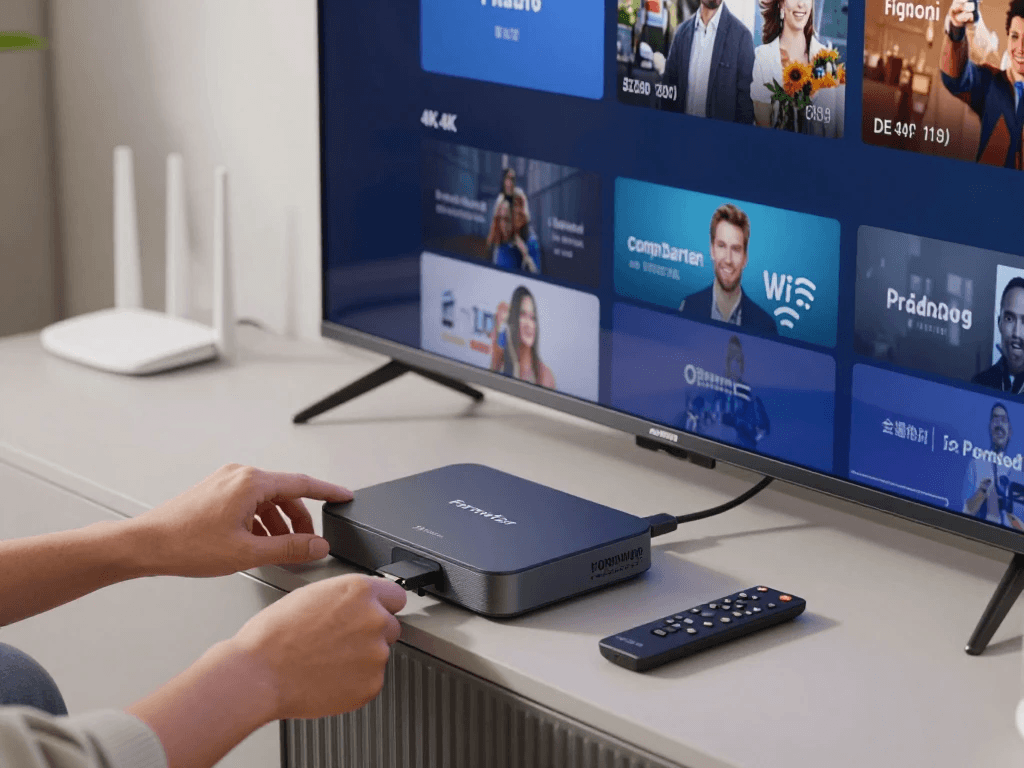
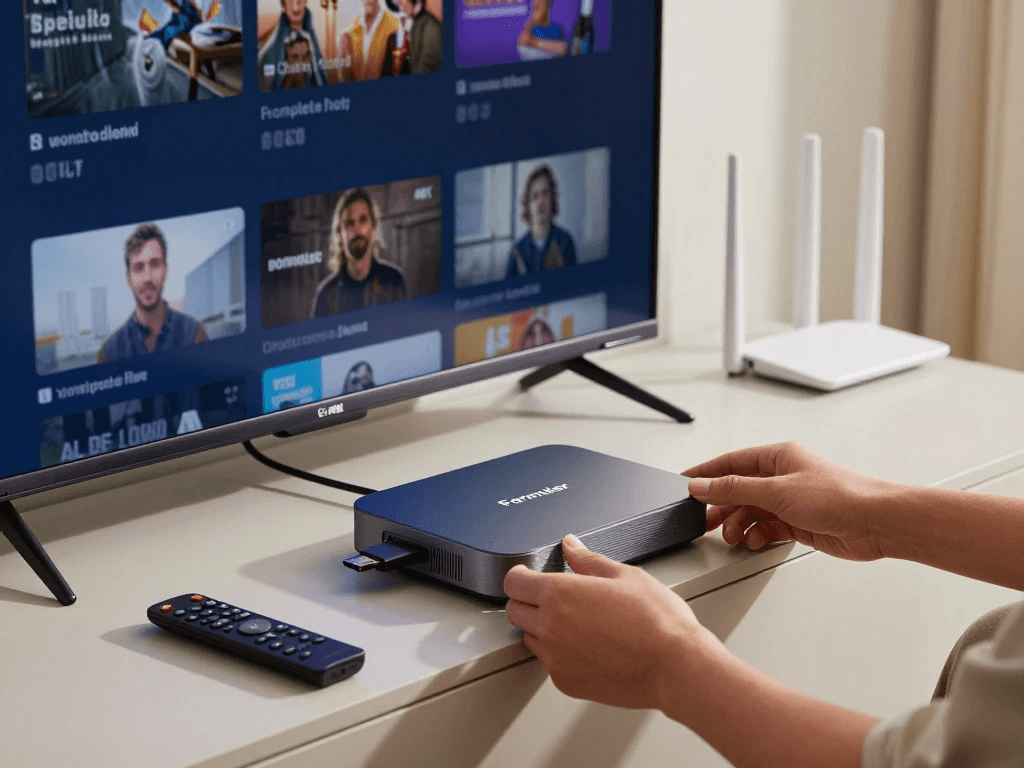
Once you have everything ready, start with the physical connection. Do not worry about apps, IPTV credentials, or advanced settings yet. Your first objective is simply to make sure the Formuler can communicate with your television.
Connect the HDMI Cable
Take one end of the HDMI cable and connect it to the HDMI output on your Formuler. Connect the other end to an available HDMI input on your television.
Remember the number or name of the HDMI input you selected. For example, if you connected the device to HDMI 2, you will need to select HDMI 2 on your TV.
Next, connect the Formuler’s power adapter and plug it into an appropriate power outlet. Turn on your television and use the TV remote to select the HDMI input connected to the Formuler.
You should eventually see the Formuler startup screen or setup interface.
Give the Device a Moment to Start
The first startup can take longer than a normal restart. Avoid repeatedly unplugging the device simply because the screen does not appear immediately.
If you do not see anything, work through the following checks:
- Confirm the Formuler power connection.
- Make sure the TV is switched on.
- Confirm that the correct HDMI input is selected.
- Remove and reconnect the HDMI cable.
- Try another HDMI input on the TV.
- If available, test another known-good HDMI cable.
- Restart the Formuler and television.
A black screen does not necessarily mean the device is defective. Incorrect TV input selection is one of the simplest problems to overlook.
Formuler Has No Picture: What to Check
If your Formuler turns on but your TV shows no image, start with the simplest explanation.
First, look at the TV’s input/source menu. If the Formuler is plugged into HDMI 2 but your TV is displaying HDMI 1, you will not see the device interface.
If the correct input is selected, reseat the HDMI cable at both ends. A loose connection can produce intermittent or completely absent video.
You can also try a different HDMI port. If one port behaves differently from another, the problem may involve the TV input rather than your Formuler.
If the device was previously configured with an unusual display resolution, display compatibility can also become a factor. In that situation, consult the support documentation for your exact Formuler model rather than randomly changing advanced display settings.
Formuler Setup Step 2: Configure and Pair the Remote
Once the picture appears, your next priority is the remote. You will use it for practically every part of the setup process, so make sure it works before moving forward.
Insert the batteries according to the polarity markings inside the battery compartment. If your particular remote requires pairing, follow the on-screen instructions for your model.
Formuler provides model-specific remote guidance through its official support center, and current documentation covers different remote models, including GTV-BT1 and GTV-IR1.
Test the Basic Remote Functions
Try the following:
- Directional buttons
- OK/Select
- Back
- Home
- Volume controls
- Power
- Menu or application shortcuts, where applicable
Do not worry if every button does something different from what you expected. Remote layouts vary between models.
If a particular button does not appear to work inside an application, that does not automatically mean the remote is faulty. Formuler notes that compatibility with third-party applications cannot always be guaranteed, while applications distributed through its Home Market are intended to provide compatibility with Formuler devices.
Formuler Remote Not Working?
If your remote does nothing:
- Check the batteries.
- Make sure they are inserted correctly.
- Restart the Formuler.
- Move the remote closer to the device.
- Follow your model’s pairing procedure again.
- Check the official remote documentation for your specific model.
If the remote works in the main Formuler interface but behaves strangely inside one particular third-party application, investigate the application itself before replacing the remote.
Formuler Setup Step 3: Choose Your Language, Region, and Basic Preferences
The initial setup wizard should guide you through several basic choices. These settings may differ depending on your model and software version, but the general principle remains the same.
Choose the language you want to use for the interface. For users in the United States, this will commonly be English, although you can choose another supported language if preferred.
You may also encounter settings related to region, date, time, and time zone. Choose the appropriate U.S. region or local time zone rather than assuming the device will always detect everything correctly.
Time settings are especially important if you plan to use electronic program guide data, scheduled recordings, reminders, or other time-sensitive television features.
Why Time Zone Settings Matter
A time-zone mismatch can make program information appear at the wrong time. Formuler’s support documentation specifically addresses electronic program guide timing problems and provides EPG-offset controls for supported MYTVOnline versions.
If your clock is correct but an EPG still appears shifted, the issue may involve how your television service supplies its schedule data. Do not immediately change your entire device time zone. Check the provider and EPG configuration first.
Formuler Setup Step 4: Connect Formuler to the Internet
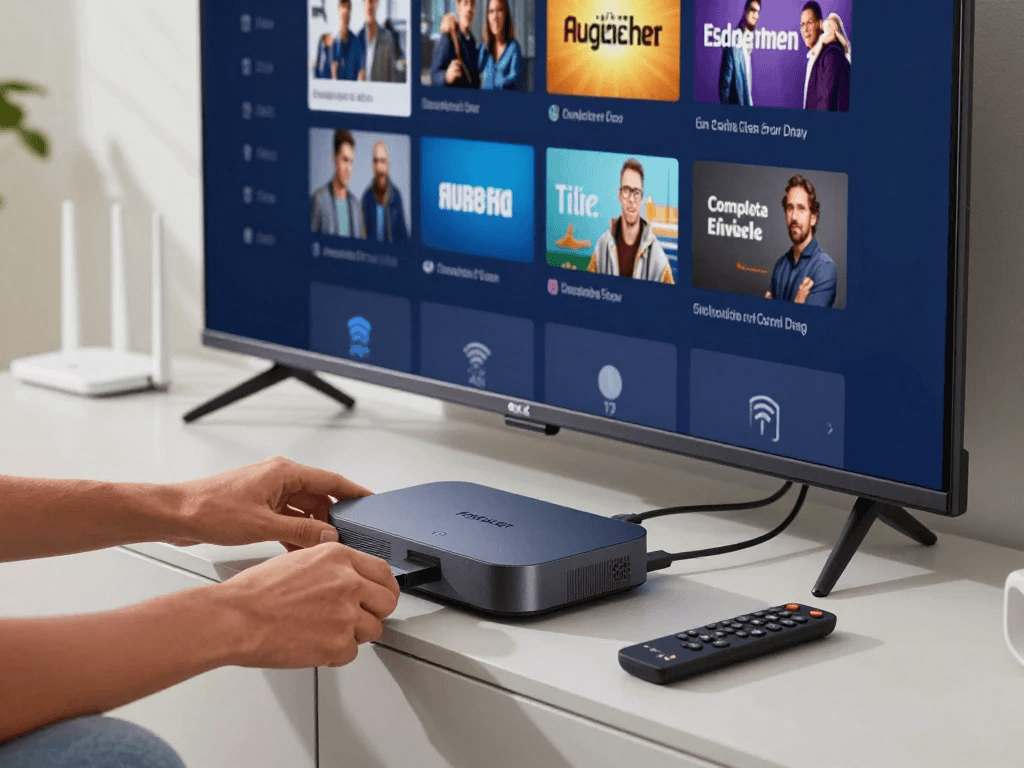
Your internet connection is central to the modern Formuler experience. Without a stable connection, online applications, content services, updates, and certain MYTVOnline features may not work correctly.
You generally have two choices: Wi-Fi or Ethernet.
How to Connect Formuler to Wi-Fi
The exact menu labels vary by model, but the general process is:
- Open Settings.
- Find the network or Wi-Fi section.
- Turn Wi-Fi on if necessary.
- Select your home network.
- Enter the Wi-Fi password.
- Confirm the connection.
- Wait for the device to report that it is connected.
Take care when entering your password. A single incorrect character can make a perfectly healthy network appear unavailable.
If your router broadcasts separate 2.4 GHz and 5 GHz networks, choose the network that provides the best combination of signal strength and stability in the room where your Formuler is located.
How to Connect Formuler With Ethernet
Ethernet is straightforward:
- Connect an Ethernet cable to the Formuler.
- Connect the other end to your router or network switch.
- Open the device’s network settings.
- Confirm that the wired connection is recognized.
- Test internet access.
For a living-room device located near your router, Ethernet can be particularly useful because it eliminates many wireless variables.
Wi-Fi or Ethernet: Which Is Better?
There is no universal winner.
If your router is in the same room or close by, Ethernet is often worth considering because of its consistency. If running a cable would require crossing rooms or installing additional network equipment, strong Wi-Fi may be more convenient.
| Situation | Recommended option |
|---|---|
| Router beside TV | Ethernet |
| Router one room away with strong signal | 5 GHz Wi-Fi or Ethernet |
| Router far away | Strong Wi-Fi or mesh network |
| Wireless interference is common | Ethernet |
| You cannot run a cable | Wi-Fi |
| You frequently experience unexplained buffering | Test Ethernet if possible |
The important word is test. If your Formuler works reliably over Wi-Fi, there is no reason to make your setup unnecessarily complicated.
Formuler Setup Step 5: Sign In and Configure Your Accounts
After establishing an internet connection, complete any account sign-ins requested by your device or applications.
Keep your account credentials private. Never send passwords to someone who claims they need them to “activate” your Formuler.
Your Formuler may use account services separately from the service you use for television content. Do not assume that one login automatically controls everything on the device.
You may also need credentials for individual streaming applications or a legitimate television service.
Keep Your Credentials Organized
For your own convenience, keep a secure record of:
- Account email addresses
- Usernames
- Passwords
- Subscription information
- Provider support details
- Device-specific information
Do not store sensitive passwords in an unsecured note that anyone with access to your phone or computer can read.
A password manager is generally a better option for keeping track of multiple services.
Formuler Setup Step 6: Update the Device Software
Before you spend a lot of time customizing your Formuler, check for official software updates.
Software updates can address bugs, improve compatibility, introduce features, and resolve known problems. The exact update process varies by model and software version, so use the system-update function available on your device.
A good sequence is:
- Connect to the internet.
- Open Settings.
- Find the software/system update area.
- Check for updates.
- Install an available official update.
- Allow the device to restart.
- Wait for the update to finish completely.
Do not disconnect power while an update is actively installing unless the manufacturer’s instructions specifically tell you to do so.
Why You Should Update Before Installing Everything
Imagine spending an hour arranging applications and configuring your setup, only to install a system update afterward that changes behavior or requires a restart.
Updating early gives you a cleaner starting point.
It is also a good maintenance habit. Instead of treating updates as something to avoid, think of them as routine maintenance for your entertainment device.
Formuler Setup Step 7: Install the Apps You Actually Need
Now you can start personalizing your device.
Use supported and trustworthy application sources. Formuler’s support documentation indicates that applications available through its Home Market are among those intended for use with Formuler devices, while third-party compatibility is not guaranteed.
Install the applications you genuinely plan to use. You do not need dozens of apps just because they are available.
A cleaner setup is often easier to maintain.
Good App-Installation Practices
When installing an application:
- Check that it is compatible with your device.
- Use an official or trusted source.
- Review the requested permissions.
- Avoid suspicious download sites.
- Keep applications updated.
- Remove applications you no longer use.
Be especially cautious about applications promising free access to premium channels, movies, sports, or subscription services. A website promising everything for free is not automatically legitimate simply because the application installs successfully.
Formuler IPTV Setup: What Beginners Need to Know
For many Formuler owners, IPTV is an important part of the setup process. This is where you need to understand the difference between the device and the service.
IPTV generally refers to television content delivered using Internet Protocol networks rather than traditional broadcast, cable, or satellite delivery methods.
Formuler’s MYTVOnline software supports certain content-source formats, including MAC-ID/Stalker Middleware portals, Xtreme Codes API credentials, and M3U playlists, depending on the supported software environment.
The critical point is that you need legitimate service information from your provider.
Formuler explicitly states that its devices do not include content and that the portal URL comes from the service provider after subscription.
How to Set Up a Legitimate IPTV Service on Formuler
Your provider may give you one of several types of connection information.
Depending on your service and MYTVOnline version, you may receive:
- A portal URL
- Username and password
- An M3U playlist URL
- An M3U playlist file
- MAC-ID-based portal instructions
The correct setup depends on what your provider supplies.
For example, Formuler’s current documentation identifies these supported portal categories:
| Connection type | Typical information supplied |
|---|---|
| MAC-ID / Stalker | Portal URL and device identification |
| XC / Xtreme Codes API | Portal URL, username, password |
| M3U | Playlist URL or playlist file |
Do not invent a portal URL. Do not copy a random URL from an internet forum and expect it to work.
Your provider is responsible for supplying the connection information associated with your subscription.
Where to Find Content Sources
Formuler’s current support documentation lists these general locations:
- MYTVOnline 2: Menu → Connections
- MYTVOnline 3: Menu → Content Manager → Content Sources
- MYTVOnline 4: Menu → Settings → App Settings → Content Sources
Exact menu wording can change with software updates, so use the version displayed on your device as your authority.
Is IPTV Legal on Formuler?
The Formuler device itself is simply a piece of consumer electronics. The legal question depends on the service and content you access.
If you subscribe to a properly licensed television service, using IPTV technology to receive that service is not inherently a problem.
However, you should not assume that every IPTV provider advertising online is authorized to distribute the channels, movies, sports, or other content it sells.
Before subscribing, look for a legitimate provider, clear company information, appropriate licensing, transparent pricing, and reliable customer support.
Avoid services that advertise unauthorized premium content at implausibly low prices or ask you to install suspicious software.
Understanding MYTVOnline During Your Formuler Setup
MYTVOnline is Formuler’s television-oriented software environment available on supported models. Depending on your device generation, you may encounter MYTVOnline 2, MYTVOnline 3, MYTVOnline 4, or another version.
Once your legitimate content source is connected, you can typically work with features such as channel lists, program guides, favorites, video-on-demand content, television series, and other functions supported by your particular version and provider.
Do not assume every feature will work with every service.
For example, Formuler explains that Cloud Timeshift depends on supported services and channels with Catch-up functionality, and M3U playlist connections do not support Cloud Timeshift.
That is why troubleshooting should always consider three separate components:
- Your Formuler device.
- Your home network.
- Your content provider.
If one of those three has a problem, the viewing experience can fail even though the other two are working perfectly.
How to Organize Channels and Favorites
Once your television service is working, you do not have to accept a huge, disorganized channel list.
Creating favorites can make the interface much easier to use.
You might create a practical list around the channels you actually watch:
- Local news
- National news
- Sports
- Entertainment
- Kids
- Movies
- International
- Local broadcast channels
Formuler provides channel and group management functions in supported MYTVOnline versions. Its documentation explains how users can add favorite channels, edit them, reorder them, and manage favorite groups.
The advantage is simple: instead of scrolling through hundreds or thousands of channels, you can build a smaller list around your actual viewing habits.
Configure the Electronic Program Guide
The electronic program guide, or EPG, can make a major difference to your television experience.
Instead of opening individual channels to find out what is currently playing, you can use the guide to view scheduled programming.
If your guide is showing incorrect times, do not panic. Time-zone and provider data can affect EPG accuracy.
Formuler’s current support documentation includes EPG offset controls for supported MYTVOnline versions. MYTVOnline 2 also includes EPG mode options such as UTC and Normal, while MYTVOnline 3 and 4 provide EPG offset controls through their content-source settings.
If your guide is consistently shifted:
- Confirm your device’s time zone.
- Confirm your provider’s EPG information.
- Check the content-source settings.
- Adjust the EPG offset only when appropriate.
- Contact your provider if the underlying schedule data is incorrect.
Avoid repeatedly changing settings without knowing what they control. A systematic approach is faster.
Use Favorites and Watchlist Features
Newer MYTVOnline versions may provide features designed to help you find upcoming programs more efficiently.
For example, Formuler’s current documentation describes Watchlist functionality in MYTVOnline 3 and MYTVOnline 4. Users can select future programs through the EPG and add them to a Watchlist, provided the required EPG information is available.
The workflow is essentially:
- Open the EPG.
- Find an upcoming program.
- Select it.
- Choose the Watchlist option.
- Return later to the Watchlist or associated category.
The exact menu location depends on your software version.
This is particularly useful if you watch a mixture of live television and scheduled programming and want a quick way to keep track of specific events.
Formuler Audio and Video Settings
After the basic setup works, you can fine-tune your picture and sound.
Do not immediately change every advanced option. Your TV’s default or recommended configuration is usually a better starting point than randomly selecting values.
Display Settings
Depending on your equipment, you may encounter settings related to:
- Resolution
- Refresh rate
- HDR
- Screen scaling
- Aspect ratio
- HDMI behavior
If everything looks correct, leave the settings alone.
If the image looks stretched, cropped, unusually dark, or incompatible with your TV, then investigate the display settings.
Audio Settings
Your setup may include:
- TV speakers
- Soundbar
- AV receiver
- External speakers
Choose an audio configuration compatible with your equipment. If you hear no sound after connecting a soundbar or receiver, verify both the Formuler audio setting and the input/output settings of the external audio equipment.
HDMI-CEC: Make Your Formuler Easier to Control
HDMI-CEC can allow compatible HDMI devices to communicate with your television and, in some configurations, let you control certain functions using a TV remote.
Formuler’s official support instructions indicate that HDMI-CEC settings can be accessed through the device settings, although the menu location can differ by model. Supported options can include enabling CEC, turning the device on or off with the TV, and using the TV remote controller.
If you enable CEC, test it gradually.
If your TV suddenly behaves differently when you turn the Formuler on or off, return to the CEC settings and disable the specific function causing the problem.
CEC behavior can also vary between TV manufacturers, so your television manual may be necessary.
How to Optimize Formuler Performance
A good Formuler setup is not just about getting the device to turn on. You also want to build an environment where the device can operate reliably.
Start with the basics.
Keep the Device Updated
Official software updates can improve stability and compatibility. Check for updates periodically rather than waiting until a problem forces you to investigate.
Keep Storage Under Control
Avoid filling the device with applications you never use. Uninstall unnecessary apps and remove data you no longer need when appropriate.
Improve Your Network
If you experience buffering:
- Test the internet on another device.
- Restart your router.
- Test the Formuler closer to the router.
- Try Ethernet if available.
- Check whether other household devices are consuming significant bandwidth.
- Test another legitimate service or application when possible.
Do not automatically blame the Formuler.
Avoid Overheating
Keep the device in a reasonably ventilated location. Do not bury it under blankets, stack objects directly on top of ventilation openings, or place it somewhere that traps excessive heat.
Good airflow is a simple preventative measure.
Formuler Buffering: Why It Happens and What to Do
Buffering is one of the most common complaints associated with streaming devices, but it does not have one universal cause.
Your internet connection may be responsible, but so might your Wi-Fi environment, router, application, device configuration, or content provider.
Start by asking a simple question: Does everything buffer, or only one service?
If every application struggles, investigate your home network and device first.
If one particular service buffers while other applications work normally, the problem may be specific to that application or provider.
A Practical Buffering Test
Try this sequence:
- Restart the Formuler.
- Restart your router.
- Test another application.
- Test another content source.
- Check Wi-Fi signal quality.
- Try Ethernet if available.
- Check whether other devices on your network are also having problems.
If buffering continues only with one provider, contact that provider before repeatedly changing settings on your Formuler.
Formuler Troubleshooting Guide for Beginners
Even a correctly installed device can occasionally develop problems. The trick is to troubleshoot logically instead of changing ten settings at once.
Formuler Connected to Wi-Fi but Has No Internet
If your device says it is connected to Wi-Fi but online services do not work, start outside the Formuler.
Check another device connected to the same Wi-Fi network. If your phone or computer also cannot access the internet, your router or internet service may be responsible.
If other devices work normally:
- Restart the Formuler.
- Disconnect and reconnect to Wi-Fi.
- Verify the password.
- Restart the router if appropriate.
- Test Ethernet if available.
- Check for system updates.
This process helps determine whether the problem is the Formuler or the network.
Formuler Remote Not Responding
Check the batteries first.
If the batteries are fine, restart the Formuler and try pairing the remote again if your model uses a pairing process.
If the remote works in the Formuler interface but not in a particular application, investigate compatibility with that application. Formuler notes that it cannot guarantee complete compatibility with all third-party applications.
Formuler Has No Picture
Work from the outside in:
- TV powered on?
- Correct HDMI input selected?
- HDMI cable connected securely?
- Formuler receiving power?
- Another HDMI port available?
- Another cable available?
Only after those basic checks should you start investigating display configuration.
Formuler Apps Will Not Install
Possible causes include:
- Insufficient storage
- Internet connectivity
- App compatibility
- Software version
- Application availability
- Temporary service problems
Check your network first, then available storage and system updates.
If an application is not available through the expected official source, do not immediately download a random APK from an unknown website.
Formuler Apps Crash or Freeze
If only one app crashes, restart the app and then the device.
If the problem persists:
- Check whether an update is available.
- Check your device software.
- Review available storage.
- Reinstall the application if appropriate.
- Check the application’s own support documentation.
If several unrelated applications crash, investigate the system rather than assuming every app has a separate problem.
Formuler Factory Reset: When Should You Use It?
A factory reset should not be your first troubleshooting step.
A restart is harmless compared with a factory reset. A reset can remove applications, configuration, accounts, and other personalized settings.
Use a factory reset only after simpler troubleshooting has failed or when you deliberately want to return the device to a clean state.
Before resetting, make sure you have access to important account information and any legitimate service credentials you will need afterward.
If your device supports backup functionality, consider using it before making major changes. Formuler’s current documentation explains that MYTVOnline 3 and MYTVOnline 4 can back up supported content-management data and settings to an external drive.
The documentation notes that supported backup data includes items such as settings, live/VOD/TV Series databases, locked channels, favorite groups, and channel history.
That can be valuable if you have spent significant time organizing your system.
Formuler Recording and Storage
Some Formuler configurations support recording to external storage.
Formuler’s documentation explains that scheduled recording on supported MYTVOnline 2, 3, and 4 models requires storage such as a USB drive, with the amount of recording possible depending on the drive capacity and stream bitrate.
Your practical setup may involve:
- A compatible USB drive
- Correct formatting
- Sufficient storage capacity
- A supported television service
- Correct recording settings
Do not assume that every USB drive or service will behave identically.
If you want to record regularly, choose storage with enough capacity for your intended use and verify compatibility with your particular Formuler model.
Advanced Formuler Feature: Network Storage
If you have a home NAS, some Formuler configurations can use network storage for recording and timeshift functions.
Formuler’s current support documentation provides instructions for connecting a NAS through the device’s Network Storage settings and then selecting it as the recording or timeshift location in MYTVOnline.
This is more advanced than what most beginners need.
If you are completing your first Formuler setup, get the basic device, internet connection, applications, and television service working first. Add network storage later.
A common mistake is trying to configure every advanced feature on day one. You will have a much easier experience if you establish a stable baseline first.
Common Formuler Setup Mistakes to Avoid
1. Skipping Software Updates
Running old software can create avoidable compatibility issues. Check official update options before spending hours troubleshooting.
2. Assuming Wi-Fi Is Always the Problem
Buffering can originate from your provider, application, router, wireless environment, or device. Test methodically.
3. Installing Unknown Applications
An APK being available online does not make it trustworthy. Use reputable and official sources whenever possible.
4. Factory Resetting Too Quickly
A reset can erase your configuration. Restart and troubleshoot first.
5. Using the Wrong IPTV Credentials
A portal URL, username, password, M3U playlist, and MAC-ID configuration are not interchangeable. Use the exact information supplied for your service.
6. Assuming Every Formuler Model Has the Same Menus
They do not. MYTVOnline versions and hardware generations can have different menu structures.
7. Changing Advanced Settings Without a Reason
If everything works, do not change settings simply because an online guide recommends it.
8. Assuming Formuler Provides Television Content
It does not. Your device and your content subscription are separate components. Formuler explicitly identifies itself as the device manufacturer rather than the content provider.
Beginner vs. Advanced Formuler Configuration
You do not need an advanced setup to enjoy your device.
| Setup area | Beginner approach | Advanced approach |
|---|---|---|
| Network | Reliable Wi-Fi | Ethernet/optimized home network |
| Display | TV-compatible defaults | Manual display tuning |
| Apps | Essential apps | Highly customized app ecosystem |
| IPTV | Legitimate provider configuration | Advanced content management |
| Storage | Internal storage | USB/NAS storage |
| MYTVOnline | Basic favorites and EPG | Advanced organization, recording and timeshift |
| Remote | Standard controls | CEC and customized functions |
| Troubleshooting | Basic checks | Network and system diagnostics |
Start in the left column.
Move toward the right only when you have a genuine reason to do so.
Formuler Setup Checklist
Before you consider your installation complete, run through this checklist.
Hardware Checklist
- Formuler connected to power
- HDMI cable connected
- Correct TV HDMI input selected
- Remote batteries installed
- Remote paired if required
- Device positioned with adequate ventilation
Network Checklist
- Wi-Fi or Ethernet connected
- Internet access confirmed
- Connection is stable
- Router is functioning normally
- Ethernet tested if Wi-Fi is unreliable
Software Checklist
- Language selected
- Region/time zone configured
- System updates checked
- Required applications installed
- Unnecessary applications removed
- Audio/video settings tested
Television Service Checklist
- Legitimate provider selected
- Correct provider credentials available
- Correct portal/M3U information entered
- Content source connected
- Channels load correctly
- EPG tested
- Favorites organized
Security Checklist
- Official/trusted applications used
- Passwords kept private
- Suspicious APK files avoided
- Unlicensed content services avoided
- Device software kept current
Frequently Asked Questions About Formuler Setup
How do I start a Formuler setup for the first time?
Start by connecting the Formuler to your TV using HDMI and connecting the supplied power adapter. Select the correct HDMI input on your television, configure the remote, choose your language and region, and connect the device to Wi-Fi or Ethernet. Once you have internet access, check for official software updates before installing the applications and services you want to use.
Your exact menu names may differ according to the Formuler model and MYTVOnline version. That is normal. Use the setup wizard on your device as the primary guide and refer to Formuler’s official support documentation when a menu does not match the instructions in a general guide.
How long does a Formuler setup take?
A basic Formuler setup can usually be completed without a lengthy installation process, but the total time depends on your internet connection, software updates, application installations, and television-service configuration.
The physical portion is generally straightforward: connect HDMI, connect power, configure the remote, and connect to the internet. The more time-consuming part can be configuring third-party services or organizing your channels.
If you are setting up an IPTV service, the process may also depend on how quickly your provider supplies correct login or portal information.
Rather than rushing, allow enough time to complete each stage carefully.
Do I need Ethernet for Formuler setup?
No. You do not universally need Ethernet.
If your Formuler model supports Wi-Fi and your wireless network is strong and stable, Wi-Fi can be perfectly suitable.
Ethernet is worth considering when your router is close to the television or when you are experiencing inconsistent wireless performance. A wired connection removes wireless interference and signal strength from the equation.
If you are troubleshooting buffering, testing Ethernet can therefore be useful even if you eventually return to Wi-Fi.
Can I use Wi-Fi during Formuler setup?
Yes, on Formuler models equipped with Wi-Fi support.
During setup, select your wireless network and enter its password. If you have multiple networks available, choose the one that offers the best combination of signal strength, reliability, and performance at the location of the Formuler.
If Wi-Fi repeatedly disconnects, try restarting your router, moving the device closer to the router, testing another wireless band, or using Ethernet.
Why is my Formuler buffering after setup?
Buffering can have several causes.
Your home internet connection may be unstable, but Wi-Fi interference, router congestion, application problems, device configuration, or the content provider can also contribute.
Try another application. If every service buffers, investigate the network and device. If only one service has problems, investigate that service or provider.
Testing Ethernet is another useful diagnostic step. If performance improves dramatically over Ethernet, your wireless network may be the problem.
Do not assume that increasing your internet speed is always the solution.
Do I need an IPTV subscription for Formuler?
Not necessarily.
Formuler devices can be used with different applications and supported services. If you specifically want to use MYTVOnline for a television service, however, you need a compatible content source.
Formuler states that its devices do not include television content and that portal information is supplied by the service provider.
Choose services that are legitimate and authorized to distribute the content they provide.
How do I update my Formuler after setup?
Connect the device to the internet, open its settings, locate the system/software update function, and check for an available official update.
Because menu structures vary between Formuler generations, follow the instructions shown on your particular device and consult the relevant official support documentation.
Avoid downloading unofficial firmware from random websites. Software updates are an important part of maintaining a stable and secure device, so use official sources whenever possible.
Can I install third-party apps on Formuler?
The answer depends on your specific model, software environment, and the application itself.
Formuler supports applications through its own ecosystem, while compatibility with third-party applications is not guaranteed.
If you choose to use third-party software, research it carefully and use a reputable source. Avoid applications that request unnecessary permissions or promise unauthorized access to premium content.
How do I fix an incorrect EPG time?
First check the time zone and clock on your Formuler.
If the device time is correct but the EPG remains shifted, check your content-source settings. Formuler provides EPG-related configuration options, including EPG offset controls and, for supported MYTVOnline 2 setups, EPG mode options.
The problem can also originate with the service provider’s EPG data. If adjusting the offset does not resolve the issue, contact your provider.
How do I reset my Formuler?
A factory reset is normally found within the device’s system settings, but the exact location varies by model.
Before performing one, understand that resetting can remove your personal configuration and applications. If your MYTVOnline version supports backup functionality, consider creating a backup first.
Use a factory reset when simpler troubleshooting methods have failed or when you intentionally want to start over with a clean configuration.
Can I record programs on a Formuler?
Supported Formuler models and MYTVOnline versions can provide recording functionality when compatible storage and services are available.
Formuler’s documentation states that supported scheduled recording requires storage such as a USB drive, while available recording time depends on storage capacity and stream bitrate.
Check your model’s specific capabilities before purchasing storage.
Can Formuler use network storage?
Yes, supported Formuler configurations can use network storage such as a NAS for recording and timeshift functions.
This is an advanced feature, so it is best to configure your basic Formuler setup first. Once your network and MYTVOnline installation are stable, you can investigate network-storage configuration if you need it. Formuler provides current documentation for connecting supported devices to NAS storage.
Final Thoughts: Your Formuler Setup Is Easier Than It Looks
A new streaming device can feel complicated when you look at all the possibilities at once. The easiest approach is to stop thinking about the entire installation as one giant task and break it into small steps.
First, connect the hardware. Then configure the remote. Connect the internet. Set your language and time zone. Update the software. Install the applications you actually need. After that, configure your legitimate television service and personalize MYTVOnline with favorites, EPG settings, and other features.
If something does not work, resist the temptation to change everything at once. Work through the basics: power, HDMI, network, software, application, and provider. That process usually tells you where the problem actually lives.
Most importantly, remember that your Formuler is only one part of the viewing experience. Your television, home network, applications, and content provider all affect performance.
Once the initial Formuler setup is complete, you can gradually explore more advanced features such as recording, Watchlist, HDMI-CEC, network storage, and personalized channel management.
Ready to finish your setup? Start with the checklist above, complete each step in order, and save this guide for the next time you need to troubleshoot your device. If you run into a problem, identify the exact Formuler model and MYTVOnline version first—that one detail can make finding the right solution dramatically easier.









