Table of Contents
If you have an NVIDIA Shield sitting next to your TV and want to use it for IPTV, you have probably already discovered that the hardware is only half the story. The Shield is powerful, but getting your channels, guide data, player, network, and picture settings working together can initially feel more complicated than it should.
The good news is that an Nvidia Shield IPTV setup does not have to be difficult. Once you understand what each component does, you can build a clean setup without endlessly changing settings or installing questionable applications.
This guide walks you through the entire process from the beginning. You will learn what IPTV is, what you need before starting, how to prepare your Shield, how to install a compatible IPTV player, how playlists and EPG data work, how to improve playback, and what to check when IPTV starts buffering or freezing.
What Is Nvidia Shield IPTV and How Does It Work?
Before you install anything, it helps to understand exactly what “Nvidia Shield IPTV” means. IPTV stands for Internet Protocol Television and generally refers to television or video delivered over an IP network rather than through a traditional broadcast, cable, or satellite connection. Your NVIDIA Shield acts as the streaming device, while an IPTV application provides the interface through which you access a compatible video source.
The Shield itself does not magically contain IPTV channels. Think of the system as three separate pieces: your NVIDIA Shield, your IPTV player, and your authorized IPTV service or media source. The Shield provides the hardware and operating environment, the player handles the interface and playback, and the service supplies the content. Keeping those roles separate makes troubleshooting much easier because you can identify whether a problem originates with your device, application, network, or content source.
What Is IPTV?
Traditional television usually relies on a dedicated broadcast or distribution method. Cable television travels through a cable network, satellite television arrives from a satellite, and over-the-air television uses broadcast signals received by an antenna.
IPTV uses an internet protocol network to transport video data. That does not necessarily mean that every IPTV service works identically. Some services provide live television, while others may offer video-on-demand libraries, catch-up programming, electronic program guides, or other features.
For you as a viewer, the practical difference is simple: instead of selecting a television channel through your cable box, you use compatible software to request and play an internet-delivered stream.
This is why the IPTV player matters. The application interprets the information supplied by your service and presents it in a usable format.
Why Use NVIDIA Shield for IPTV?
The NVIDIA Shield has long been positioned as a high-performance streaming device. Current NVIDIA specifications for the Shield TV Pro include a Tegra X1+ processor, 3 GB of RAM, 4K HDR playback capabilities, Gigabit Ethernet, Wi-Fi, HDMI, and USB connectivity. NVIDIA also lists support for technologies including Dolby Vision, Dolby Atmos, and AI-enhanced upscaling.
That combination can make the Shield particularly attractive if you want more than a basic streaming stick.
You may appreciate the Shield if you want:
- A responsive Android TV-based streaming environment
- Flexible application choices
- Wired Ethernet connectivity
- 4K-capable playback
- Advanced audio and video compatibility
- External storage options on supported models
- A device that can also handle regular streaming applications and other media
However, hardware capability does not automatically guarantee perfect IPTV playback. A powerful streaming box cannot repair a poor network connection or an unreliable stream source.
What You Need for an Nvidia Shield IPTV Setup
A successful setup starts with the right components. Fortunately, you do not need a complicated home theater system.
At minimum, you need an NVIDIA Shield connected to a compatible television, a stable internet connection, a legitimate IPTV service or media source, and a compatible IPTV player. Your exact requirements can change depending on whether you want live television, an electronic program guide, 4K content, surround sound, recording, or other advanced functionality.
Before opening the Play Store, gather the information supplied by your IPTV provider. Depending on the service and player, you might receive a playlist URL, account credentials, EPG information, or another supported connection method. Do not use random credentials or playlists found online. Apart from reliability concerns, unauthorized access can create legal and security problems.
Nvidia Shield IPTV Setup Requirements
| Requirement | Purpose | What You Should Check |
|---|---|---|
| NVIDIA Shield | Streaming hardware | Confirm your model and available ports |
| HDMI connection | Sends video/audio to TV | Use a compatible HDMI input |
| Internet | Delivers IPTV streams | Test stability before troubleshooting IPTV |
| IPTV service/source | Provides authorized content | Confirm your access rights |
| IPTV player | Plays and organizes streams | Check Android TV compatibility |
| EPG data | Displays program schedules | Confirm your provider supports it |
| Remote | Controls Shield and apps | Pair and test before setup |
Internet Connection Requirements
One of the biggest mistakes beginners make is focusing exclusively on advertised internet speed. A fast connection can still perform badly if it suffers from instability, congestion, weak Wi-Fi coverage, or other network problems.
For IPTV, consistency matters. If your Shield regularly loses connectivity for short periods, your stream may buffer even though a speed test looks impressive.
If your router is close enough to the television, Ethernet is worth considering. The Shield TV Pro, for example, includes Gigabit Ethernet as well as dual-band Wi-Fi.
That does not mean Ethernet is mandatory. A strong wireless connection can work perfectly well. The goal is to give your Shield a dependable route to the internet.
How to Set Up NVIDIA Shield TV for IPTV
Before installing an IPTV application, get the Shield itself working properly. This step is easy to rush through, but doing it carefully can save you troubleshooting time later.
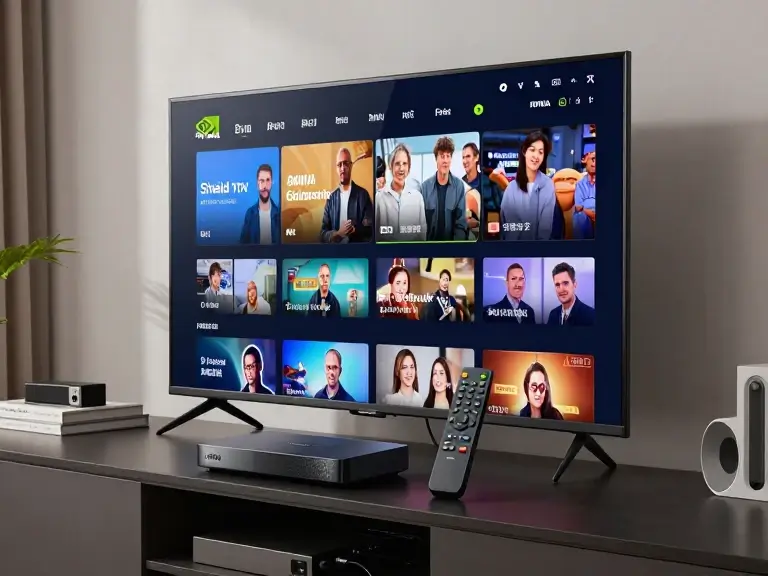
Start by connecting the Shield to your television and selecting the correct HDMI input. Then connect the power supply and pair the remote. Once you reach the home screen, complete the initial Android TV setup and connect the device to your network.
If you have never used the Shield before, don’t worry about IPTV yet. First make sure the device can reliably access the internet, open standard applications, and play ordinary streaming content. Once those basics work, you have a known-good foundation for IPTV.
Step 1 — Connect the NVIDIA Shield
Connect the Shield to your TV with an appropriate HDMI cable and select the corresponding HDMI input on your television.
Then:
- Connect the Shield’s power adapter.
- Turn on the TV.
- Select the Shield’s HDMI input.
- Pair the remote if prompted.
- Follow the initial setup instructions.
If you use an AV receiver or soundbar, your HDMI arrangement may be different. Get the basic picture working first before adding additional equipment to the troubleshooting equation.
Step 2 — Connect to the Internet
During setup, connect the Shield to your home network.
You generally have two practical choices:
Ethernet:
Connect an Ethernet cable from your router or network switch to the Shield. This can be an excellent choice when your entertainment center is wired.
Wi-Fi:
Connect to your wireless network if running a cable is inconvenient.
Do not automatically assume Wi-Fi is inadequate. Instead, test your actual setup. If Netflix, YouTube, or another legitimate streaming application plays reliably from the same device, you have a useful baseline.
Step 3 — Sign In and Update the Shield
Sign into your Google account when prompted and check that your Shield is running the latest available software for your model.
NVIDIA distributes SHIELD Experience software updates directly to supported devices, and its current Shield TV Pro documentation lists Android TV as the operating environment.
Updating before configuring IPTV can prevent avoidable compatibility issues.
After an update, give the Shield a moment to complete any background tasks. If the device asks you to restart, do so before installing and configuring your IPTV application.
How to Choose an IPTV Player for Nvidia Shield
The IPTV player is the application that turns your IPTV source into something you can actually browse and watch. Choosing one deserves more attention than simply searching for the application with the highest number of downloads.
You should look for a player that works properly with your Shield’s Android TV interface and supports the connection method used by your legitimate IPTV provider. If you care about live television, EPG support may be especially important. If you use multiple playlists, search for an application that handles multiple sources cleanly.
You should also consider how frequently the application is maintained. An app that worked perfectly several years ago may not be the best choice today if it has stopped receiving meaningful updates.
IPTV Player vs IPTV Service
These two terms are often confused.
Your IPTV service is the source of the content. Your IPTV player is the application used to access and play that content.
Your NVIDIA Shield is the physical streaming device.
A simple way to visualize the relationship is:
Authorized IPTV source → IPTV player → NVIDIA Shield → TV
This distinction becomes extremely useful when troubleshooting.
If every stream fails, the problem could involve your account, source, network, or player.
If one playlist fails but another works, the problem may be associated with the first source.
If other streaming apps work but one IPTV app crashes, the player becomes a more likely suspect.
Features to Look for in an IPTV Player
Before installing an application, consider whether you need:
- Android TV/Shield compatibility
- EPG support
- Favorites
- Channel categories
- Search
- Multiple playlists
- Subtitle support
- Multiple audio tracks
- Parental controls
- External-player support
- Catch-up features where legitimately provided
- Regular application updates
You do not necessarily need every feature. In fact, keeping things simple is often better when you’re starting.
Don’t Choose an IPTV App Based Only on Appearance
A beautiful interface does not automatically mean an application is trustworthy.
Before installing, look at:
- Developer information
- Recent update history
- User reviews
- Requested permissions
- Official distribution channels
- Compatibility with your Shield model
Google recommends obtaining Android apps through Google Play and provides information about ratings, reviews, downloads, and potentially harmful applications.
Nvidia Shield IPTV Setup: Installing an IPTV Player
Once you’ve chosen a suitable player, installation is usually straightforward. For beginners, the safest starting point is the Google Play Store rather than downloading application packages from unfamiliar websites.
Google’s Android TV instructions state that you can open the Play Store, search for an app, select it, and follow the onscreen installation instructions. Google also provides an option to manage and update installed applications from the Play Store.
The exact menus may vary slightly depending on your Shield software version and the application you’re installing. Don’t worry if your screen doesn’t look exactly like a tutorial screenshot you found online.
Step 1 — Open the Google Play Store
From the Shield home screen:
- Open Apps.
- Find Google Play Store.
- Open the Play Store.
- Select the search option.
- Enter the name of your chosen IPTV player.
If the application is available for your device, its listing should appear.
Step 2 — Verify the Application
Before selecting Install, spend a minute reviewing the listing.
Check:
- The developer
- Recent reviews
- Update history
- Compatibility
- Required permissions
- Whether the application appears to be the genuine version
Be particularly cautious with websites promising modified or “premium unlocked” APK files.
There is little benefit in making your IPTV setup more complicated by installing software from an unknown source when an appropriate application is available through a trusted distribution channel.
Step 3 — Install and Open the App
Select Install, wait for the application to finish downloading, and then open it.
At this point, don’t start changing advanced settings. First determine what the application expects from you.
Most IPTV players will present one or more ways to add a content source. The terminology varies between applications, but you may encounter options involving a playlist, URL, account credentials, or an API-based connection.
Use the exact information supplied by your authorized provider.

How to Add an IPTV Playlist to Nvidia Shield
This is usually the part that causes the most confusion because different IPTV applications use different terminology.
You may see references to M3U, M3U8, Xtream-style APIs, EPG URLs, XMLTV, or other formats. You do not need to understand every technical detail to complete the setup. You simply need to know which connection method your provider supports and which method your chosen player accepts.
Your provider should supply the necessary information. If it does not, contact the provider rather than guessing.
Common IPTV Playlist Formats
An M3U playlist is a common way of organizing media stream information. An M3U8 file is a UTF-8 variant often used with internet streaming playlists.
Some IPTV applications also support an API-based login method where you enter account information and a server address instead of manually adding a playlist.
EPG information is separate from the actual channel stream. An EPG provides program guide information that helps your player display schedules.
The important point is that these formats are not interchangeable in every application.
Adding Your Legitimate IPTV Credentials
The exact process varies, but the general workflow is:
- Open your IPTV player.
- Choose Add Playlist, Add Provider, or the equivalent option.
- Select the connection type supplied by your service.
- Enter the required information.
- Save the connection.
- Wait for the channel list to load.
- Check your categories and channels.
- Test a few streams.
Be careful when entering URLs and credentials. A single missing character can prevent the player from loading anything.
If your provider supplied a long URL, typing it with a remote control can be frustrating. Where supported, use a companion keyboard, phone-based input, or another legitimate input method rather than manually retyping a long address several times.
How to Set Up EPG on Nvidia Shield IPTV
An electronic program guide, commonly called an EPG, can transform an IPTV setup from a simple list of channels into something that feels much closer to a conventional television guide.
Without EPG information, your player may simply show channel names. With valid guide data, it can display program titles, schedules, and sometimes descriptions.
Not every IPTV service supplies EPG data, and not every player handles it in the same way. Before spending time troubleshooting an empty guide, confirm that your service actually provides compatible guide information.
What Is an EPG?
EPG stands for Electronic Program Guide.
It typically provides information such as:
- Current program
- Upcoming program
- Start and end times
- Program title
- Program description
- Channel association
The quality of your EPG depends on the source of the guide data and how accurately it matches the channels in your playlist.
How to Configure EPG
Your IPTV player may have a dedicated EPG or TV Guide section.
The general process is:
- Open the player’s settings.
- Locate EPG or TV Guide settings.
- Add the EPG information supplied by your provider.
- Save the configuration.
- Refresh or update the guide.
- Allow the application to match guide entries with channels.
- Check several channels for accuracy.
Some players handle channel mapping automatically. Others may require manual mapping.
Common EPG Problems
| EPG Problem | Likely Cause | What to Try |
|---|---|---|
| No guide data | EPG isn’t configured | Verify the supplied EPG information |
| Wrong program times | Time-zone configuration | Check device/app time settings |
| Missing channels | Mapping mismatch | Refresh or manually map channels |
| Old listings | Guide hasn’t refreshed | Perform an EPG update |
| Partial listings | Incomplete source data | Contact the service provider |
Do not assume the Shield is responsible just because the guide is wrong. EPG data comes from a separate source, so the issue may be with the provider’s information rather than your device.
Best Nvidia Shield IPTV Settings for Smooth Streaming
Once the basic setup works, you can optimize the experience.
The word “best” needs some qualification here. There is no universal configuration that is ideal for every television, receiver, network, IPTV source, and player.
Your goal is to configure the Shield so that it matches your equipment rather than blindly copying somebody else’s settings.
NVIDIA’s Shield TV Pro specifications include support for 4K HDR playback, Dolby Vision, HDR10, and multiple audio formats, but your actual viewing experience depends on whether the content and rest of your equipment support those formats.
Picture and Display Settings
Start with the television’s native capabilities.
If you have a 4K television, you may want to configure the Shield for a 4K output mode supported by your TV. If your television does not support HDR, enabling HDR-related options unnecessarily may not improve your picture.
You should also pay attention to frame-rate behavior. Some content is produced at different frame rates, and compatibility between the source, player, Shield, and television can affect motion smoothness.
Do not judge a setting by its name alone. Test it.
If a change produces a worse picture, return to the previous configuration.
Audio Settings
Your audio setup could be as simple as TV speakers or as sophisticated as an AV receiver with surround speakers.
Depending on your equipment, you may need to consider:
- Stereo output
- Surround sound
- HDMI passthrough
- Dolby formats
- DTS formats
- Soundbar compatibility
- Receiver compatibility
The Shield TV Pro supports Dolby audio formats and DTS-X passthrough over HDMI according to NVIDIA’s specifications.
However, supporting a format and successfully hearing it through your specific setup are two different things. Your TV, soundbar, receiver, HDMI configuration, and content source all matter.
Network Optimization
For IPTV, network reliability deserves priority.
Try these practical improvements:
- Use Ethernet if convenient.
- Move your router closer if Wi-Fi is weak.
- Avoid placing the Shield inside an enclosed cabinet if heat or signal issues occur.
- Reduce unnecessary network traffic during testing.
- Restart your router if connectivity has become unstable.
- Keep Shield and player software updated.
If you’re troubleshooting buffering, don’t change five settings at once. Change one thing, test, and record the result.
That method takes slightly longer at the beginning but can save hours of random experimentation.
Nvidia Shield IPTV Buffering and Playback Problems
Buffering is probably the most common complaint people associate with IPTV.
The mistake is assuming that buffering automatically means your NVIDIA Shield is too slow.
It may not.
Buffering can originate from your home network, wireless interference, internet service, the IPTV source, the player, the stream’s bitrate, or temporary server-side problems.
Your troubleshooting strategy should therefore begin by identifying whether the problem affects everything or only one particular source.
IPTV Keeps Buffering
If your IPTV stream repeatedly pauses to load, work through this checklist:
- Test another legitimate channel.
- Test another application on the Shield.
- Check your internet connection.
- If possible, test Ethernet.
- Restart the IPTV player.
- Restart the Shield.
- Restart your router.
- Check whether the provider reports an outage.
- Try again later.
If YouTube and other streaming applications work normally but one IPTV service continually buffers, your Shield may not be the problem.
Likewise, if every internet-based application is struggling, look at your home network before changing IPTV settings.
IPTV Video Freezes or Drops
A frozen picture can have several causes.
Start with simple tests.
Does every channel freeze?
That points toward a broader problem.
Does only one channel freeze?
The source may be responsible.
Does only one application freeze?
The player may need attention.
Does playback improve when using Ethernet?
Your wireless network deserves investigation.
This process helps you avoid replacing hardware unnecessarily.
IPTV Audio but No Video
If you hear audio but see no picture, consider compatibility.
Possible causes include:
- Unsupported video codec
- Player compatibility issue
- HDR problem
- Hardware acceleration issue
- HDMI configuration
- Problem with the source stream
Try another channel or stream first.
If other streams display correctly, the problem may be associated with the original stream rather than your Shield.
If nothing displays in the IPTV player but other streaming apps work, check the player’s playback configuration and supported formats.
IPTV App Crashes
If the application repeatedly closes, try the following in order:
- Exit and reopen the application.
- Restart the Shield.
- Check for application updates.
- Check for Shield system updates.
- Clear the application’s cache if the option is available.
- Remove and reinstall the application from its trusted source.
Google’s Android TV documentation also provides standard procedures for finding, updating, and uninstalling applications through the Play Store and app settings.
If the application crashes immediately after installation, check whether the version is actually intended for Android TV/Shield rather than a mobile Android environment.
Nvidia Shield IPTV vs Other Streaming Devices
The NVIDIA Shield isn’t the only way to watch IPTV. Depending on your priorities, another streaming device or the native app on your smart TV may be perfectly adequate.
The Shield becomes more interesting when you value processing performance, flexibility, connectivity, and advanced media playback.
Device Comparison
| Feature | NVIDIA Shield TV | Budget Android TV Device | Smart TV App |
|---|---|---|---|
| Processing performance | Generally strong | Varies considerably | Varies |
| App flexibility | High | Usually high | Platform dependent |
| Ethernet | Model dependent | Model dependent | Model dependent |
| 4K support | Model dependent | Model dependent | TV dependent |
| External storage | Supported on some models | Varies | Usually limited |
| IPTV player flexibility | High | Usually moderate/high | Depends on TV platform |
| Upgrade flexibility | Good | Varies | Limited by TV |
| Best for | Enthusiasts and flexible setups | Budget users | Simple setups |
The table is intentionally broad because individual devices differ significantly.
The important takeaway is that the Shield gives you a dedicated streaming platform. You don’t have to depend entirely on whatever IPTV application happens to be available for your television’s operating system.
Is Nvidia Shield Good for IPTV? Pros and Cons
For many users, the answer is yes—but it depends on what you expect.
The Shield is particularly appealing if you want a versatile media device rather than a box dedicated to one service.
NVIDIA itself positions Shield as a high-performance streaming platform with 4K HDR, Dolby Vision, Dolby Atmos, AI upscaling, and access to applications through its Android TV environment.
That makes it a capable foundation for an IPTV setup.
Still, you should understand the limitations before buying or configuring one.
Advantages
Strong hardware:
The Shield TV Pro uses NVIDIA’s Tegra X1+ processor and includes 3 GB of RAM.
Good connectivity:
Gigabit Ethernet can be valuable if you prefer a wired connection.
4K capabilities:
Supported Shield models can handle high-resolution playback, although your source and television must support it too.
Flexible application ecosystem:
You can install compatible applications through Google Play.
Advanced media support:
The Shield supports a broad range of video and audio formats.
Potential Disadvantages
The Shield may not be the right choice for everyone.
Potential drawbacks include:
- Higher cost than some basic streaming devices
- More settings than a beginner may initially expect
- Some IPTV applications require manual configuration
- Experience depends heavily on the IPTV source
- Certain advanced features require compatible TV/audio equipment
If you only want the simplest possible streaming experience and your television already provides an excellent official application for your service, a dedicated Shield may offer more capability than you actually need.
Nvidia Shield IPTV Setup: Security and Legal Considerations
A complete IPTV guide should discuss legality and security rather than focusing exclusively on installation.
IPTV technology itself is simply a method of delivering video over an IP network. The important question is whether you are authorized to access and use the particular content being delivered.
In the United States, copyright law protects qualifying creative works, and federal law has specifically addressed unauthorized streaming in certain circumstances. The U.S. Copyright Office’s materials discuss statutory provisions concerning unauthorized streaming.
That is why you should evaluate the service you’re subscribing to rather than assuming that every provider offering “thousands of channels” is legitimate.
Use Legitimate IPTV Services
Before paying for an IPTV service, look for clear information about:
- Who operates the service
- What content it provides
- Whether the service identifies appropriate licensing or distribution rights
- How subscriptions are handled
- How customer support works
- What privacy information it provides
Be cautious about services making extraordinary claims for extremely low prices.
A legitimate service should not require you to overlook obvious warning signs simply because the channel list looks impressive.
Protect Your Account and Device
Security is another reason to avoid random IPTV applications and unofficial APK websites.
Google recommends using Google Play and provides Play Protect mechanisms intended to identify potentially harmful applications.
For your setup:
- Download applications from reputable sources.
- Keep Shield software updated.
- Avoid modified APKs from unknown websites.
- Use a strong, unique password for your IPTV account.
- Don’t reuse sensitive passwords.
- Review application permissions.
- Don’t enter credentials into applications you cannot verify.
Your IPTV setup should make television easier—not introduce unnecessary security risks.
Nvidia Shield IPTV Setup Checklist
Once you’ve completed the setup, use this checklist to make sure you haven’t overlooked something.
Before You Start
- Shield connected to TV
- Correct HDMI input selected
- Remote paired
- Internet connected
- Shield updated
- Legitimate IPTV source selected
- Compatible IPTV player chosen
After Installation
- IPTV player installed
- Provider information added
- Channel list loaded
- Several channels tested
- EPG configured if available
- Time zone checked
- Favorites organized
- Picture settings tested
- Audio settings tested
- Network stability confirmed
If Something Doesn’t Work
Use this simple diagnostic sequence:
No channels appear:
Check your playlist, account information, or provider status.
Channels appear but won’t play:
Test another channel and check your network.
Video buffers:
Test Ethernet, check network stability, and determine whether other applications work.
EPG is missing:
Check EPG configuration and source availability.
App crashes:
Update, restart, clear cache, or reinstall.
Everything works except one stream:
Investigate the specific stream or provider rather than immediately changing the Shield.
Nvidia Shield IPTV Setup: Frequently Asked Questions
Can You Use IPTV on NVIDIA Shield?
Yes. The NVIDIA Shield provides an Android TV environment where compatible IPTV applications can be installed. The Shield itself does not supply IPTV channels; you need a compatible and authorized content source. Google documents installing Android TV applications through the Play Store.
What Is the Best IPTV Player for Nvidia Shield?
There is no single IPTV player that is objectively best for everyone.
Your choice should depend on the features you actually need, including EPG support, playlist compatibility, search, favorites, subtitles, multiple sources, interface design, and update frequency.
The most important thing is compatibility with your legitimate IPTV service and Shield environment.
Does Nvidia Shield Come With IPTV Channels?
No.
The NVIDIA Shield is a streaming device. It provides the hardware and software environment for applications, but it does not automatically include a subscription to television channels.
NVIDIA’s specifications identify Google Play and various streaming applications among the Shield ecosystem’s capabilities, but an IPTV subscription is a separate matter.
How Do I Install IPTV on Nvidia Shield?
The basic process is:
- Connect and configure your Shield.
- Connect it to the internet.
- Open Google Play Store.
- Install a compatible IPTV player.
- Add your authorized provider information.
- Load your channel list.
- Configure EPG if your service supports it.
- Test playback.
- Adjust network, video, and audio settings as needed.
Why Is Nvidia Shield IPTV Buffering?
Buffering can result from several different problems.
Possible causes include:
- Weak Wi-Fi
- Network congestion
- Internet instability
- Provider-side problems
- High stream bitrate
- Application issues
- Incorrect playback settings
Don’t immediately blame the Shield. Test another channel, another application, and—if possible—Ethernet.
Is Nvidia Shield IPTV Legal?
The Shield itself is a legitimate streaming device, and IPTV is a technology for delivering video over IP networks. The legal question concerns the content and your authorization to access it.
Use IPTV services that have the appropriate rights to distribute the content you watch. U.S. copyright law includes provisions addressing unauthorized streaming, so you should not assume that every IPTV service is authorized merely because it works technically.
Can Nvidia Shield IPTV Stream 4K?
Supported Shield models can play 4K content, but several conditions have to be satisfied.
The source must provide 4K video, the IPTV player must support the relevant format, your Shield model must support it, and your TV/HDMI setup must also be compatible.
For example, NVIDIA lists up to 4K HDR playback at 60 FPS for supported formats on the Shield TV Pro.
So “the Shield supports 4K” does not mean every IPTV channel will automatically appear in 4K.
Should You Use Ethernet for Nvidia Shield IPTV?
Ethernet is not mandatory, but it can be an excellent option if your Shield is located near your router or network switch.
A wired connection removes many variables associated with wireless interference and signal strength. The Shield TV Pro includes Gigabit Ethernet, making wired networking straightforward on that model.
If your Wi-Fi connection is already stable, however, you may not notice a meaningful difference.
Final Thoughts: Complete Your Nvidia Shield IPTV Setup With Confidence
Setting up IPTV on an NVIDIA Shield can initially look like a maze of applications, playlists, EPG settings, network options, and playback controls. Once you separate those pieces, the process becomes much easier.
Your Shield is the hardware. Your IPTV player is the software interface. Your IPTV service or media source supplies the content. Your network connects everything.
Start with the basics rather than jumping straight into advanced configuration. Get the Shield online, update it, install a reputable compatible player, add your authorized provider information, and test a few channels. Once everything works, configure the EPG, organize favorites, and fine-tune your picture and audio settings.
If you experience buffering, take a diagnostic approach instead of randomly changing settings. Check whether the issue affects one stream or everything, compare Wi-Fi with Ethernet, and determine whether other applications work normally.
Most importantly, build your setup around reliable, authorized content sources and reputable software. That gives you a much better foundation for a stable and secure viewing experience.
Ready to optimize your setup?
Use the checklist above, test your connection, verify your IPTV credentials, and work through the troubleshooting section if something doesn’t behave as expected. With those fundamentals in place, your Nvidia Shield IPTV setup can become a straightforward, flexible part of your home entertainment system.