
Setting up a Samsung Smart TV for the first time should be an exciting experience, not a frustrating one. Whether you’ve purchased a brand-new Samsung television or recently moved and need to reconnect everything, the setup process is much easier when you know exactly what to expect. From connecting to Wi-Fi and signing in to your Samsung account to optimizing picture quality and installing your favorite streaming apps, every step plays an important role in creating the best viewing experience.
In this complete Samsung Smart TV setup guide, you’ll learn everything you need to know to get your television up and running quickly. This guide is designed for users in the United States and covers the latest Samsung Smart TV models, including Crystal UHD, QLED, Neo QLED, OLED, and The Frame series. Whether you’re planning to stream movies, watch live sports, connect gaming consoles, or build a smart home entertainment system, following these instructions will help you get the most from your investment.
What You’ll Need Before Starting Your Samsung Smart TV Setup
Before turning on your television, gathering everything you need will make the installation process smoother and faster. Spending a few minutes preparing your equipment can help you avoid interruptions during setup, especially when connecting to the internet or pairing accessories. Samsung has simplified its installation process over the years, but having the right information ready ensures that every feature works correctly from the beginning.
Samsung Smart TV Setup Checklist
| Item | Purpose | Required |
|---|---|---|
| Samsung Smart TV | Main device | ✅ Yes |
| Power cable | Supplies electricity | ✅ Yes |
| Samsung Smart Remote | Navigation during setup | ✅ Yes |
| AA or AAA batteries (if required) | Remote power | ✅ Yes |
| Wi-Fi network | Internet connection | ✅ Yes |
| Samsung account | App downloads and syncing | Recommended |
| HDMI cable | Connect external devices | Optional |
| Ethernet cable | Wired internet connection | Optional |
| SmartThings app | Mobile-assisted setup | Optional |
Gather Your Accessories
Before plugging in your television, remove all packaging materials and verify that every accessory listed in the box is included. Most Samsung Smart TVs come with a Smart Remote, power cable, user documentation, and a stand or mounting hardware. Depending on the model, batteries may already be installed or need to be added manually. If you’re planning to connect a gaming console, Blu-ray player, streaming stick, or soundbar, keep the necessary HDMI cables nearby. Having all components ready before beginning the installation helps reduce delays and ensures a smoother setup experience.
Choose the Best Location
Where you place your Samsung Smart TV significantly affects your viewing experience. Position the television at eye level whenever possible and avoid placing it in direct sunlight, as glare can reduce picture quality. Ensure that there is enough space around the TV for proper ventilation, since electronic components generate heat during operation. If you’re mounting the TV on a wall, verify that the mount supports your television’s size and weight. Proper placement not only improves comfort during long viewing sessions but also helps extend the lifespan of your Samsung Smart TV.
Check Your Internet Connection
A reliable internet connection is essential because many of your Samsung Smart TV’s features depend on online access. Streaming services, software updates, voice assistants, cloud synchronization, and Smart Hub all require an internet connection. If you’re using Wi-Fi, confirm that your router is functioning properly and that you know the network password. For households with multiple users or heavy streaming activity, a wired Ethernet connection may provide more stable performance. Preparing your network in advance reduces the chances of interruptions during the initial setup process.
Create or Prepare Your Samsung Account
Although you can use some television features without signing in, creating a Samsung account unlocks the full Smart TV experience. Your account allows you to download apps, synchronize preferences across Samsung devices, access Samsung TV Plus, back up settings, and receive personalized recommendations. If you already own a Samsung smartphone or tablet, you may already have an account. Make sure you know your login credentials before beginning the installation to save time during the setup process.
How to Set Up a Samsung Smart TV Step by Step
Samsung has streamlined the installation process so that most users can complete the setup in less than thirty minutes. The setup wizard guides you through each stage, making it simple even if you’re installing a Smart TV for the first time. Following these steps carefully ensures that your television performs at its best from day one.
Step 1: Unbox and Position Your Samsung Smart TV
Carefully remove the television from its packaging and place it on a clean, soft surface before attaching the stand. Large televisions are heavy and fragile, so having another person assist you reduces the risk of accidental damage. If you’re using a wall mount, follow the mount manufacturer’s instructions and confirm that the bracket matches your TV’s VESA mounting pattern. Once positioned, ensure that the screen is stable and has adequate airflow around the rear ventilation openings to prevent overheating during extended use.
Tips for Safe Placement
- Place the TV on a stable surface.
- Avoid direct sunlight.
- Leave at least 4 inches of ventilation space.
- Keep liquids away from the television.
- Secure cables to prevent tripping hazards.
Step 2: Connect the Power Cable
After placing the television in its final location, connect the supplied power cable securely to the back of the TV and plug it into a grounded electrical outlet. Whenever possible, use a surge protector to safeguard your television against unexpected power fluctuations. Avoid connecting the TV to overloaded extension cords or inexpensive power strips that may not provide adequate protection. Once connected, you’ll notice the standby indicator light illuminating, indicating that the television is receiving power and is ready to be turned on.
Step 3: Prepare and Pair the Samsung Smart Remote
Insert the batteries if your remote requires them or charge the rechargeable Smart Remote if your model includes one. Modern Samsung Smart Remotes often pair automatically via Bluetooth when the television powers on for the first time. If automatic pairing doesn’t occur, follow the on-screen instructions or press and hold the Back and Play/Pause buttons simultaneously until pairing is complete. A properly paired remote provides faster navigation, voice control, and improved responsiveness compared to traditional infrared remotes.
Step 4: Turn On the Samsung Smart TV
Press the Power button on the remote to launch the initial setup wizard. The television will display a welcome screen where you’ll select your preferred language and country or region. Make sure to choose United States if you live in the U.S., as this ensures access to the correct app store, local streaming services, broadcast standards, and regional settings. The initial setup wizard is designed to guide you step by step, making the process straightforward even for users who are unfamiliar with smart televisions.
Step 5: Connect Your Samsung Smart TV to Wi-Fi
Connecting your television to the internet is one of the most important steps during setup. Select your wireless network from the list of available Wi-Fi connections, enter your password carefully, and wait for the TV to verify the connection. If your home router supports both 2.4 GHz and 5 GHz networks, the faster 5 GHz connection generally provides better streaming performance at shorter distances. Alternatively, connecting an Ethernet cable directly from your router to the television offers maximum reliability for 4K streaming and online gaming.
Benefits of Connecting to Wi-Fi
- Download streaming apps.
- Access Samsung Smart Hub.
- Receive automatic software updates.
- Use voice assistants.
- Stream 4K and HDR content.
- Mirror content from compatible devices.
Step 6: Sign In to Your Samsung Account
After establishing an internet connection, you’ll be prompted to sign in to your Samsung account. If you don’t already have one, creating a new account only takes a few minutes. Signing in enables features like Samsung TV Plus, cloud synchronization, app downloads, SmartThings integration, and personalized recommendations. Your Samsung account also allows your television to synchronize preferences across compatible Samsung devices, making it easier to maintain a consistent entertainment experience throughout your home.
Step 7: Update the TV Software
Before installing apps or adjusting settings, check for available software updates. Samsung regularly releases firmware updates that improve security, fix bugs, enhance performance, and introduce new features. Navigate to the software update menu and allow the television to download and install the latest version if one is available. The process may take several minutes and the TV may restart automatically. Keeping your software current ensures that your Samsung Smart TV remains secure, stable, and compatible with the latest streaming services and smart home technologies.
Samsung Smart TV Initial Settings You Should Change
Once the basic setup is complete, your television is ready to use. However, spending a few extra minutes adjusting important settings can dramatically improve picture quality, audio performance, privacy, and overall usability. The default factory settings are designed to work in retail showrooms rather than living rooms, so making a few changes helps create a more comfortable viewing experience.
Picture Settings
One of the first adjustments you’ll want to make is selecting the appropriate picture mode. Samsung televisions typically offer Standard, Dynamic, Movie, Filmmaker Mode, and Game Mode. While Dynamic mode looks bright under showroom lighting, Movie or Filmmaker Mode usually provides more accurate colors and better contrast for home viewing. Reducing sharpness slightly can also make movies and television programs appear more natural by eliminating artificial edge enhancement.
Recommended Picture Settings
| Setting | Recommended Value |
|---|---|
| Picture Mode | Movie or Filmmaker Mode |
| Brightness | Medium |
| Contrast | High |
| Sharpness | Low |
| Color Tone | Warm |
| Local Dimming | High (if available) |
| HDR | Automatic |
Sound Settings
Your Samsung Smart TV includes several sound profiles designed for different types of content. Adaptive Sound automatically adjusts audio based on what you’re watching, while Standard mode offers balanced performance for everyday viewing. If you’re using a Samsung soundbar, enabling Q-Symphony (on supported models) allows the TV speakers and soundbar to work together for a richer audio experience. Taking a few moments to customize these settings can noticeably improve dialogue clarity, music, and surround effects.
Energy and Power Settings
Samsung enables several energy-saving features by default, including Adaptive Brightness and Power Saving Mode. While these options can reduce electricity usage, they may also dim the screen unexpectedly during movies or gaming sessions. If consistent picture brightness is important to you, consider disabling aggressive power-saving features while leaving automatic screen protection enabled. This balance helps maintain excellent image quality without sacrificing long-term screen health.
Privacy and Security Settings
Modern smart televisions collect usage information to improve recommendations and support personalized features. During setup, review Samsung’s privacy options and choose the settings that best match your preferences. You can control voice assistant permissions, advertising personalization, diagnostic data collection, and app permissions individually. Taking the time to understand these settings helps you maintain greater control over your personal information while still enjoying the convenience of your Samsung Smart TV.
Customize the Smart Hub
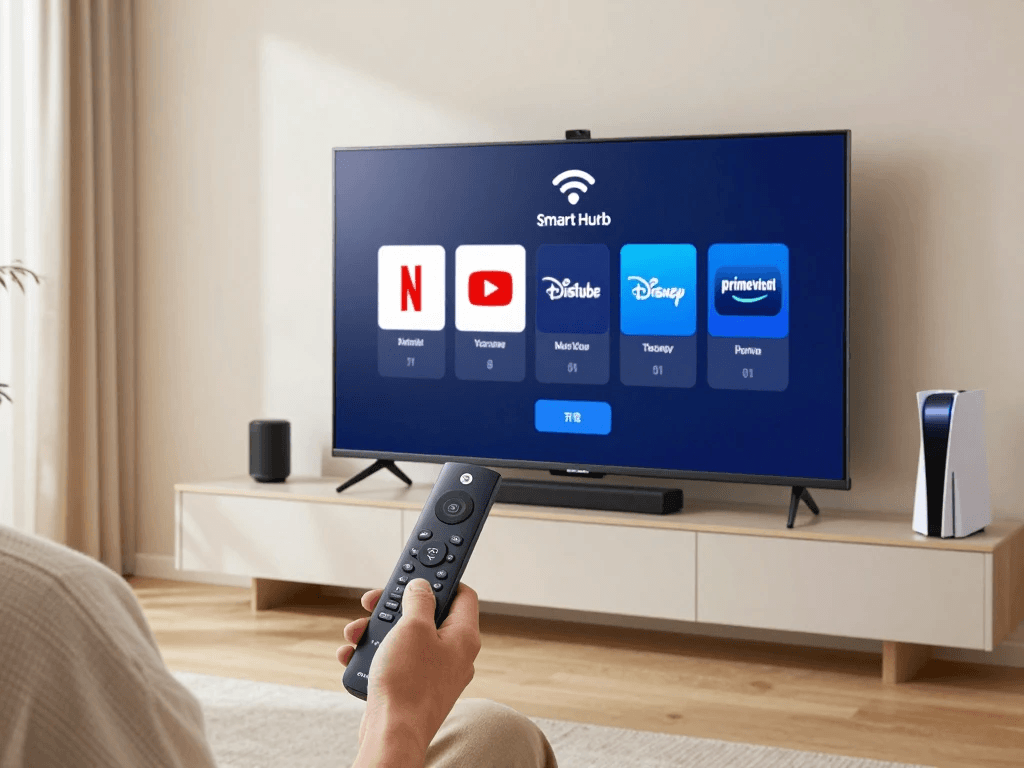
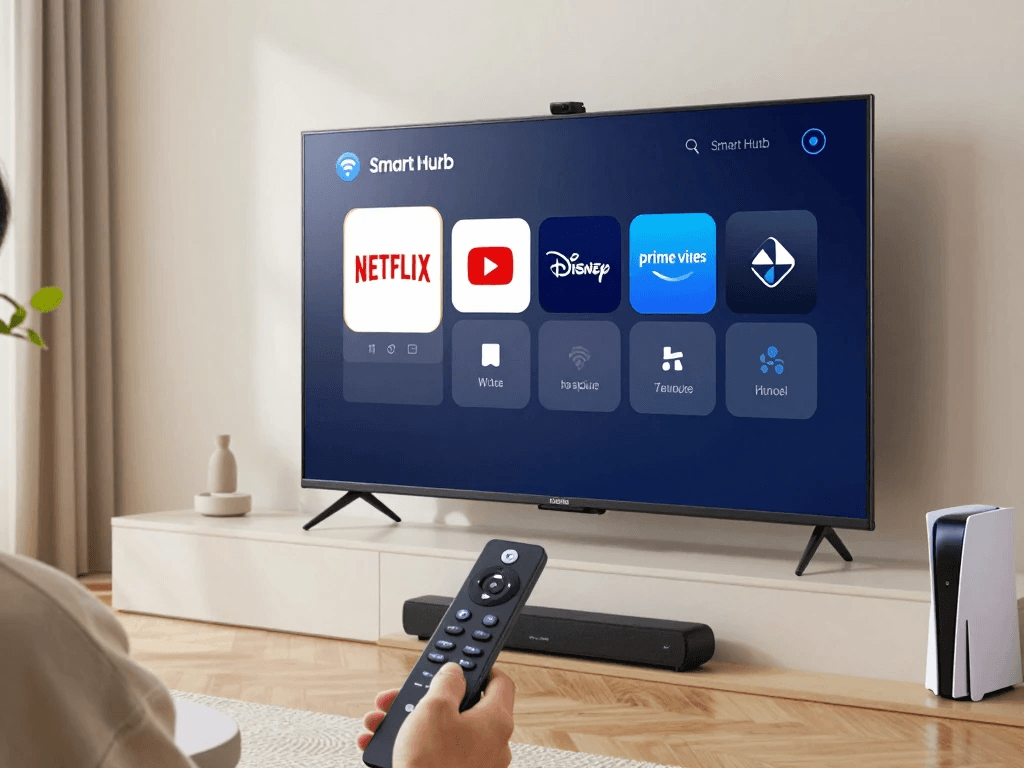
Samsung Smart Hub serves as the central dashboard for all your entertainment. Rearranging frequently used apps like Netflix, YouTube, Disney+, Hulu, and Prime Video makes navigation faster and more convenient. You can also remove unused apps from the home screen, organize content categories, and personalize recommendations based on your viewing habits. A well-organized Smart Hub creates a cleaner interface and helps you spend less time searching for entertainment and more time enjoying it.
Connecting Devices to Your Samsung Smart TV
One of the biggest advantages of owning a Samsung Smart TV is its ability to connect seamlessly with a wide range of devices. Whether you’re adding a gaming console, Blu-ray player, streaming device, soundbar, or wireless headphones, the right connections can significantly improve your entertainment experience. Samsung TVs support modern connectivity standards such as HDMI, USB, Bluetooth, Wi-Fi, and screen mirroring, making it easy to build a complete home entertainment system. Taking the time to connect your devices correctly ensures better picture quality, lower input lag, improved audio, and easier access to all your favorite content.
Connecting HDMI Devices
HDMI remains the most reliable way to connect external devices because it carries both high-definition video and audio through a single cable. Most Samsung Smart TVs include multiple HDMI ports, allowing you to connect several devices simultaneously. Popular HDMI devices include gaming consoles like the PlayStation 5 and Xbox Series X, streaming devices such as Roku or Amazon Fire TV, Blu-ray players, cable boxes, and laptops. For the best performance, use High-Speed or Ultra High-Speed HDMI cables, especially if you plan to enjoy 4K HDR content or advanced gaming features.
Common HDMI Devices
| Device | Recommended HDMI Port | Benefits |
|---|---|---|
| PlayStation 5 | HDMI 2.1 | 4K 120Hz Gaming |
| Xbox Series X | HDMI 2.1 | VRR & ALLM Support |
| Blu-ray Player | Any HDMI Port | High-Quality Movies |
| Streaming Stick | Any HDMI Port | Additional Streaming Apps |
| Cable Box | HDMI 1 | Live Television |
Tips for HDMI Connections
- Use certified HDMI cables for 4K and 8K content.
- Label each HDMI input for easier identification.
- Enable HDMI-CEC (Anynet+) to control compatible devices with one remote.
- Connect gaming consoles to HDMI 2.1 ports when available.
- Check your TV’s settings to enable enhanced HDMI features for HDR content.
Connecting USB Devices
USB ports on your Samsung Smart TV provide convenient access to photos, videos, music, and software updates. You can insert a USB flash drive or external hard drive to view personal media directly on your television without requiring another device. Some USB ports also supply power to accessories like streaming sticks. If you’re updating your TV manually, Samsung allows firmware installation through a USB drive, making it useful when internet access is unavailable or unstable.
USB Uses
- Watch family videos.
- Display vacation photos.
- Play music files.
- Update TV firmware.
- Power compatible streaming devices.
Pairing Bluetooth Devices
Many recent Samsung Smart TV models support Bluetooth connectivity, allowing you to pair wireless accessories without additional cables. Bluetooth headphones are particularly useful for late-night viewing, while wireless speakers can enhance audio throughout your room. Some Samsung TVs also support Bluetooth keyboards and mice, making web browsing and text entry much easier than using the remote control.
Popular Bluetooth Accessories
| Accessory | Primary Benefit |
|---|---|
| Bluetooth Headphones | Private listening |
| Wireless Speakers | Enhanced sound |
| Bluetooth Keyboard | Faster typing |
| Bluetooth Mouse | Easier navigation |
| Wireless Game Controller | Casual gaming |
How to Pair Bluetooth Devices
- Turn on Bluetooth on your accessory.
- Put the device into pairing mode.
- Open Settings > Sound > Sound Output or Settings > General > Bluetooth Device List.
- Select your accessory from the list.
- Confirm the pairing request.
Screen Mirroring and Wireless Casting
Samsung Smart TVs make it simple to display content from your smartphone, tablet, or computer directly on the television. If you own an Android device, Samsung Smart View allows wireless screen sharing. Apple users can take advantage of built-in AirPlay support on compatible Samsung TVs to stream photos, videos, music, and presentations. Screen mirroring is ideal for sharing family photos, business presentations, fitness classes, or mobile games on a larger display without needing extra cables.
Benefits of Screen Mirroring
- Share vacation photos instantly.
- Stream mobile videos.
- Present work documents.
- Display social media content.
- Mirror mobile games.
How to Install Apps During Samsung Smart TV Setup
One of the main reasons people choose a Samsung Smart TV is access to thousands of entertainment apps through Samsung Smart Hub. Installing apps allows you to stream movies, watch live television, listen to music, browse the internet, and even participate in online fitness classes. Samsung regularly updates its app library, making it easy to access today’s most popular streaming services.
Accessing Samsung Smart Hub
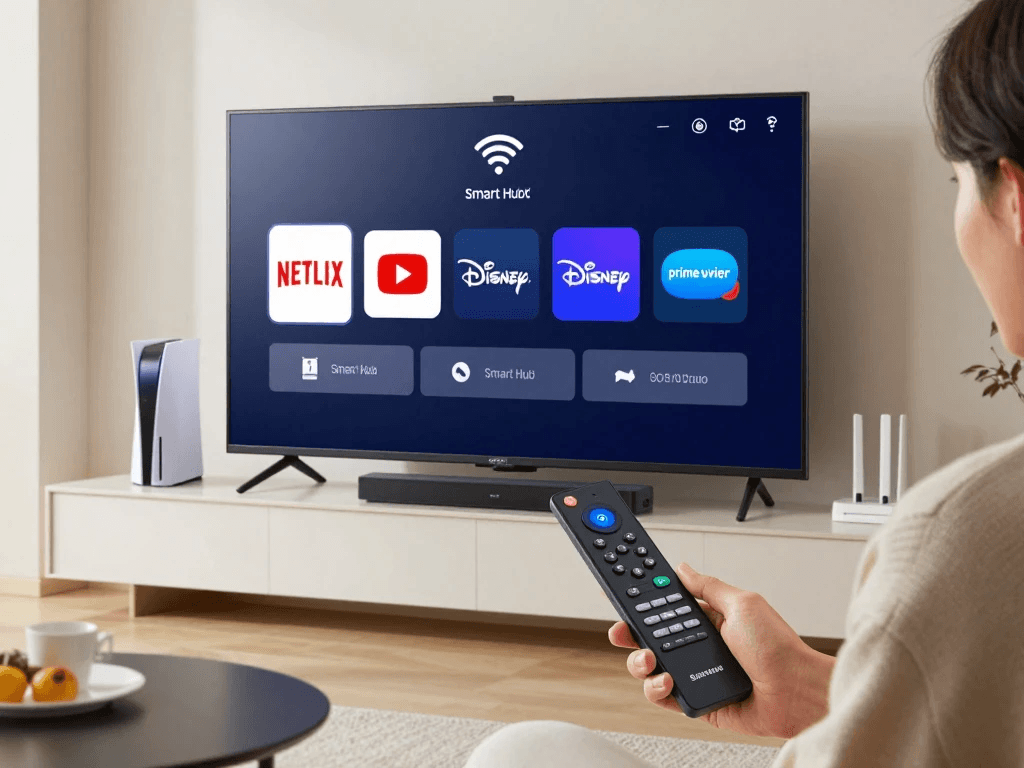
Smart Hub serves as the main dashboard for all entertainment on your television. Press the Home button on your Samsung Smart Remote to launch Smart Hub, where you’ll find installed apps, recommendations, settings, connected devices, and the Samsung App Store. The interface is designed to be simple and intuitive, allowing you to browse categories or search directly for specific apps.
Downloading Apps
Installing an app only takes a few moments. Open the Apps section, browse available categories, or use the search function to locate your preferred application. Select the app, choose Install, and wait for the download to finish. Once installed, the app automatically appears in your Smart Hub, ready to launch whenever you want.
Popular Streaming Apps
| Entertainment | Music | Sports | Kids |
|---|---|---|---|
| Netflix | Spotify | ESPN | YouTube Kids |
| Disney+ | Amazon Music | NFL | PBS Kids |
| Hulu | Pandora | NBA | Cartoon Network |
| Prime Video | YouTube Music | MLB | DisneyNOW |
| Max | Apple Music | Peacock Sports | Noggin |
Organizing Your Apps
After installing your favorite applications, organize them so they’re easy to access. Samsung allows you to pin frequently used apps to the front of the Smart Hub, remove unnecessary shortcuts, and reorder icons based on your viewing habits. Keeping your most-used apps within easy reach makes daily navigation much more convenient and creates a cleaner interface.
Recommended First Apps to Install
- Netflix
- Disney+
- Prime Video
- Hulu
- YouTube
- Peacock
- Max
- Apple TV
- Spotify
- Plex
Enable Automatic App Updates
App developers frequently release updates to improve performance, fix security issues, and add new features. Enabling automatic updates ensures that your streaming apps remain current without requiring manual downloads. This setting also reduces compatibility issues and helps maintain a smooth streaming experience across all supported services.
Samsung Smart TV Setup Using the SmartThings App
Samsung has made setup even easier by integrating its SmartThings mobile application into the installation process. If you already own a Samsung Galaxy phone or another compatible smartphone, SmartThings can automatically transfer Wi-Fi credentials, Samsung account information, and selected preferences directly to your television. This significantly reduces the amount of manual typing required during setup.
What Is SmartThings?
SmartThings is Samsung’s smart home platform that connects compatible devices into one centralized ecosystem. Besides helping with TV setup, it allows you to control lights, thermostats, security cameras, appliances, speakers, and other smart devices directly from your phone or television. Once connected, your Samsung Smart TV can even serve as a smart home dashboard.
Setting Up Your TV with SmartThings
The SmartThings setup process is straightforward and only takes a few minutes. Download the SmartThings app from your device’s app store, sign in using your Samsung account, and follow the prompts to detect nearby Samsung devices. When your TV appears, simply approve the connection and allow SmartThings to transfer your account and network settings.
SmartThings Setup Steps
- Install the SmartThings app.
- Sign into your Samsung account.
- Enable Bluetooth and Wi-Fi.
- Select Add Device.
- Choose your Samsung Smart TV.
- Confirm the pairing code.
- Complete the automatic setup.
Benefits of SmartThings Integration
Using SmartThings extends your television beyond entertainment. You can receive notifications from smart appliances, monitor security cameras, control lighting scenes, adjust thermostats, and automate household routines directly from your TV. Families invested in Samsung’s ecosystem often find SmartThings to be one of the most valuable features of their Smart TV.
SmartThings Features
| Feature | Benefit |
|---|---|
| Remote Control | Control TV from your phone |
| Device Automation | Create smart home routines |
| Energy Monitoring | Track energy usage |
| Security Integration | View smart cameras |
| Appliance Control | Manage Samsung appliances |
Best Picture and Sound Settings After Samsung Smart TV Setup
After completing the initial installation, optimizing your television’s picture and sound settings will dramatically improve your viewing experience. Factory settings are designed to stand out under bright retail lighting rather than provide accurate colors in your home. A few simple adjustments can produce more realistic images, clearer dialogue, and richer sound.
Optimize Picture Quality
Samsung televisions offer several preset picture modes, each designed for different types of content. Movie and Filmmaker Mode typically provide the most accurate colors for films and TV shows, while Game Mode prioritizes low input lag for responsive gameplay. Sports fans may prefer Standard mode for brighter images during daytime viewing.
Recommended Picture Settings
| Setting | Recommended |
|---|---|
| Picture Mode | Movie / Filmmaker |
| Brightness | 40–50 |
| Contrast | 45–50 |
| Sharpness | 5–10 |
| Color Tone | Warm 2 |
| HDR | Auto |
| Motion Smoothing | Off for movies |
Improve Audio Performance
Even though Samsung TVs feature increasingly capable built-in speakers, adjusting sound settings can significantly improve clarity and immersion. Adaptive Sound automatically analyzes content and adjusts audio accordingly, making dialogue easier to hear during movies and television shows. If you own a compatible Samsung soundbar, enabling Q-Symphony allows the TV speakers and soundbar to work together for fuller, more immersive sound.
Recommended Audio Settings
- Adaptive Sound: On
- Dolby Atmos: Enabled (if supported)
- Q-Symphony: Enabled (compatible soundbars)
- Auto Volume: On
- Bass Boost: Moderate
- Dialogue Enhancement: Enabled
Optimize Settings for Different Activities
Different activities benefit from different settings. For example, gamers should activate Game Mode to minimize input lag, while movie enthusiasts may prefer Filmmaker Mode for cinematic accuracy. Sports viewers often enjoy slightly higher brightness and smoother motion settings, whereas late-night viewers may appreciate Adaptive Sound and Bluetooth headphones for private listening.
Recommended Settings by Activity
| Activity | Best Mode |
|---|---|
| Movies | Filmmaker Mode |
| Sports | Standard |
| Gaming | Game Mode |
| Streaming | Movie Mode |
| General TV | Standard |
Save Your Customized Settings
After adjusting your preferred picture and sound options, save the settings if your TV model supports individual profiles. Some Samsung Smart TVs allow separate configurations for each HDMI input, ensuring your gaming console, streaming device, and cable box all use optimized settings automatically. Spending a little time customizing your television now can greatly enhance your entertainment experience every time you turn it on.
Common Samsung Smart TV Setup Problems and Solutions
Even with Samsung’s user-friendly setup wizard, you may occasionally encounter issues during or after the installation process. Most problems are minor and can be resolved in just a few minutes without professional assistance. Understanding the most common setup challenges and their solutions will save you time and help you enjoy your new Samsung Smart TV without unnecessary frustration. From Wi-Fi connectivity problems to app installation errors and remote pairing issues, the troubleshooting steps below cover the situations most users experience.
Samsung Smart TV Won’t Connect to Wi-Fi
One of the most common setup problems is a failed Wi-Fi connection. This issue may occur because of an incorrect password, router settings, signal interference, or outdated firmware. Before assuming there’s a hardware problem, verify that your internet connection is working on other devices. Restarting both your router and television often resolves temporary network glitches. If possible, move the router closer to the TV or connect via Ethernet for a more stable connection. Ensuring your router broadcasts both 2.4 GHz and 5 GHz networks can also improve compatibility and performance.
How to Fix Wi-Fi Connection Problems
- Restart your modem and router.
- Restart your Samsung Smart TV.
- Double-check your Wi-Fi password.
- Forget the network and reconnect.
- Update the TV software.
- Reset network settings.
- Try a wired Ethernet connection.
Common Wi-Fi Issues
| Problem | Possible Cause | Solution |
|---|---|---|
| TV can’t find Wi-Fi | Weak signal | Move router closer |
| Wrong password error | Incorrect credentials | Re-enter password |
| Frequent disconnections | Network interference | Use 5 GHz Wi-Fi |
| Slow streaming | Limited bandwidth | Upgrade internet plan |
| No internet access | ISP outage | Contact provider |
Samsung Smart Remote Isn’t Working
If your Samsung Smart Remote doesn’t respond during setup, don’t panic. In many cases, the remote simply needs to be paired again via Bluetooth. Remove and reinstall the batteries if applicable, or recharge the remote if it’s battery-powered. Ensure there are no physical objects blocking the TV’s sensor if your model still uses infrared functions. Pairing the remote again usually restores full functionality within a few seconds.
Remote Troubleshooting Checklist
- Replace or recharge batteries.
- Restart the television.
- Pair the remote again.
- Check for Bluetooth interference.
- Inspect the remote for physical damage.
- Reset the remote if necessary.
Apps Won’t Download
Occasionally, you may encounter errors while downloading apps from Samsung Smart Hub. These issues are commonly caused by software updates, insufficient storage space, temporary server outages, or account-related problems. Signing out and back into your Samsung account may resolve authentication issues. Clearing the Smart Hub cache or restarting the television often fixes download failures. If the issue persists, verify that your TV software is fully updated.
Possible Solutions
- Check your internet connection.
- Restart Smart Hub.
- Update your TV firmware.
- Clear app cache.
- Delete unused applications.
- Sign out and back into your Samsung account.
Black Screen After Setup
A black screen doesn’t necessarily indicate a hardware failure. Sometimes the television is functioning normally but receiving no video signal from an external device. Check that all HDMI cables are firmly connected and that you’ve selected the correct input source. Disconnect external devices temporarily to determine whether one of them is causing the issue. Performing a power cycle by unplugging the TV for one minute before restarting can also resolve temporary display problems.
Software Update Problems
Firmware updates occasionally fail because of interrupted internet connections or insufficient storage. If an automatic update doesn’t complete successfully, try downloading the latest firmware to a USB drive using a computer and install it manually. Manual installation is straightforward and can resolve update-related issues without waiting for another automatic attempt.
Samsung Smart TV Tips for Better Performance
After completing your Samsung Smart TV setup, a few regular maintenance habits can help keep your television running smoothly for years. Like smartphones and computers, Smart TVs benefit from periodic updates, storage management, and routine restarts. These simple practices improve speed, reduce software glitches, and extend the lifespan of your television while ensuring that apps continue performing at their best.
Keep Your Software Updated
Samsung regularly releases firmware updates that improve security, fix bugs, add compatibility with new streaming services, and occasionally introduce entirely new features. Enabling automatic software updates ensures your television remains current without requiring manual intervention. Updated firmware also improves overall stability, making your Smart TV less likely to experience crashes or connectivity issues.
Restart Your TV Regularly
Many users leave their televisions in standby mode for weeks at a time, but performing a complete restart periodically clears temporary memory and refreshes the operating system. Restarting your TV once every week can improve responsiveness and reduce the likelihood of apps freezing or slowing down. Simply turning the television off with the remote isn’t always enough; occasionally unplugging it for about one minute performs a more complete reset.
Manage Storage Space
Installing dozens of apps may eventually consume your television’s internal storage, leading to slower performance. Remove apps you rarely use and clear cached data whenever possible. Maintaining sufficient free storage allows the operating system to function more efficiently and provides room for future updates.
Performance Maintenance Checklist
| Maintenance Task | Recommended Frequency |
|---|---|
| Restart TV | Weekly |
| Check for software updates | Monthly |
| Delete unused apps | Every 3 months |
| Clear app cache | Every 2–3 months |
| Review storage usage | Monthly |
| Clean the screen | Weekly |
Keep the Screen Clean
Dust and fingerprints can affect your viewing experience, especially on high-resolution displays. Always clean your Samsung Smart TV with a soft microfiber cloth designed for electronics. Never spray liquids directly onto the screen, and avoid household cleaners containing alcohol, ammonia, or abrasive chemicals. Gentle cleaning preserves the screen coating and helps maintain excellent picture quality over time.
Samsung Smart TV Setup for Gaming
Modern Samsung Smart TVs are designed with gamers in mind. Many models support advanced gaming technologies such as HDMI 2.1, Auto Low Latency Mode (ALLM), Variable Refresh Rate (VRR), AMD FreeSync Premium Pro, and 4K gaming at 120Hz. Configuring these features correctly helps reduce input lag, eliminate screen tearing, and create a smoother gaming experience whether you’re playing on a PlayStation 5, Xbox Series X, or gaming PC.
Enable Game Mode
Game Mode automatically reduces input lag by disabling certain image processing features that aren’t necessary during gameplay. This allows your controller inputs to appear on-screen more quickly, providing faster response times during competitive games. Most Samsung TVs automatically detect supported gaming consoles and activate Game Mode, but you can also enable it manually through the settings menu.
Benefits of Game Mode
- Lower input lag.
- Faster response times.
- Smoother gameplay.
- Reduced motion blur.
- Improved HDR gaming performance.
Configure HDMI 2.1 Features
If your Samsung TV supports HDMI 2.1, connect your gaming console to the appropriate HDMI port to unlock advanced features. HDMI 2.1 enables higher frame rates, improved HDR, Variable Refresh Rate, and Auto Low Latency Mode. Using an Ultra High-Speed HDMI cable is essential for achieving the best gaming performance at 4K resolution.
Recommended Gaming Settings
| Setting | Recommended Value |
|---|---|
| Game Mode | On |
| VRR | Enabled |
| ALLM | Enabled |
| HDR | Automatic |
| Motion Processing | Off |
| Input Signal Plus | Enabled |
Optimize Picture Settings for Gaming
Bright colors and smooth motion make games more immersive, but excessive image processing can increase latency. Reduce unnecessary picture enhancements while keeping HDR enabled when supported. Adjust brightness according to your room’s lighting conditions, and avoid using Dynamic mode, which may produce overly saturated colors during gameplay.
Connect Gaming Accessories
Beyond your console, consider pairing Bluetooth gaming controllers, wireless headsets, or compatible keyboards and mice if supported. Samsung Smart TVs can also connect to select cloud gaming services, allowing you to play supported games without a traditional console, depending on your TV model and internet connection.
Samsung Smart TV Setup for Streaming
Streaming is one of the primary reasons many people purchase a Samsung Smart TV. Whether you’re watching Netflix originals, Disney movies, live sports, or YouTube videos, optimizing your TV and internet connection ensures smooth playback and the best possible picture quality. A stable network and properly configured settings make a noticeable difference, especially when streaming 4K HDR content.
Install Your Favorite Streaming Services
After completing the initial setup, download the streaming apps you use most frequently. Pinning these apps to the beginning of Smart Hub saves time and makes daily navigation much easier. Many Samsung Smart TVs also support personalized recommendations based on your viewing history, helping you discover new shows and movies.
Recommended Streaming Apps
- Netflix
- Disney+
- Hulu
- Max
- Prime Video
- Apple TV
- Peacock
- Paramount+
- YouTube
- Crunchyroll
Internet Speed Requirements
Your internet connection plays a major role in streaming quality. While HD content requires relatively little bandwidth, 4K HDR streaming demands a faster and more stable connection. If multiple people in your household stream simultaneously, consider a higher-speed internet plan to avoid buffering.
Recommended Internet Speeds
| Streaming Quality | Minimum Speed | Recommended Speed |
|---|---|---|
| SD | 3 Mbps | 5 Mbps |
| HD (1080p) | 5 Mbps | 10 Mbps |
| 4K UHD | 25 Mbps | 35–50 Mbps |
| 8K Streaming | 50 Mbps | 100+ Mbps |
Optimize Streaming Performance
For the most reliable streaming experience, connect your TV to a 5 GHz Wi-Fi network or use a wired Ethernet connection if available. Keeping apps updated and restarting your television occasionally can also improve playback performance. If you experience buffering, pause the stream for a few moments to allow additional content to load before resuming.
Streaming Optimization Tips
- Use Ethernet whenever possible.
- Choose the 5 GHz Wi-Fi band.
- Keep apps updated.
- Close unused applications.
- Restart the router periodically.
- Avoid heavy downloads during streaming.
Enhance the Viewing Experience
Pairing your Samsung Smart TV with a quality soundbar or home theater system can significantly improve movies, concerts, and sporting events. Enabling HDR, Dolby Atmos (where supported), and Adaptive Sound creates a more immersive experience, while adjusting room lighting helps reduce reflections and eye strain during extended viewing sessions.
Samsung Smart TV Safety Tips
After completing your Samsung Smart TV setup, it’s important to follow a few safety and maintenance practices to protect your investment. Modern televisions are designed to operate reliably for many years, but proper placement, cleaning, and electrical protection play a significant role in their longevity. Whether your TV is mounted on the wall or placed on a stand, following basic safety guidelines helps prevent accidents, improves performance, and reduces the likelihood of expensive repairs.
Install Your TV in a Safe Location
The location of your Samsung Smart TV affects both safety and viewing quality. Place the television on a sturdy entertainment center or use a wall mount that supports your TV’s size and weight. If you have children or pets, securing the TV with anti-tip straps provides an extra layer of protection against accidental falls. Avoid placing the television near fireplaces, radiators, heating vents, or areas exposed to excessive moisture, as heat and humidity can shorten the lifespan of electronic components.
Safe Placement Tips
- Use a stable TV stand or certified wall mount.
- Keep the TV away from direct sunlight.
- Allow at least 4 inches (10 cm) of ventilation space.
- Avoid placing heavy objects on top of the television.
- Secure cables to prevent tripping hazards.
- Use anti-tip safety straps in homes with children.
Protect Your TV from Power Surges
Unexpected power surges caused by lightning storms or electrical fluctuations can damage sensitive electronics. Connecting your Samsung Smart TV to a quality surge protector helps safeguard the internal components from voltage spikes. If you live in an area with frequent storms, consider unplugging the television during severe weather when practical. For maximum protection, a battery backup (UPS) can also prevent sudden shutdowns during brief power outages.
Electrical Safety Checklist
| Safety Measure | Benefit |
|---|---|
| Surge protector | Protects against voltage spikes |
| Grounded outlet | Improves electrical safety |
| UPS battery backup | Prevents sudden shutdowns |
| Avoid overloaded outlets | Reduces fire risk |
| Inspect power cables regularly | Prevents electrical hazards |
Clean the Screen Properly
Cleaning your Samsung Smart TV correctly helps preserve picture quality and prevents damage to the screen’s protective coating. Always power off the television before cleaning and use only a dry or slightly damp microfiber cloth designed for electronics. Never spray cleaning solutions directly onto the screen, as liquids can seep into the edges and damage internal components. Avoid using paper towels, abrasive cloths, or household cleaners containing ammonia, bleach, or alcohol.
Recommended Cleaning Routine
- Turn off the TV before cleaning.
- Use a soft microfiber cloth.
- Wipe gently in circular motions.
- Remove dust weekly.
- Clean fingerprints only when necessary.
- Never apply excessive pressure to the display.
Manage Cables Effectively
A well-organized cable setup not only looks cleaner but also improves safety and airflow. Bundle HDMI, power, Ethernet, and audio cables neatly using cable ties or sleeves. Avoid tightly bending cables, as excessive stress may reduce their lifespan. If your TV is wall-mounted, using an in-wall cable management system or cable raceway creates a professional appearance while reducing trip hazards around your entertainment center.
Frequently Asked Questions About Samsung Smart TV Setup
Below are answers to some of the most common questions users have during or after a Samsung Smart TV setup. These FAQs address practical concerns and help reinforce key information covered throughout this guide.
How do I complete Samsung Smart TV setup for the first time?
Setting up your Samsung Smart TV involves connecting the power cable, pairing the Smart Remote, selecting your language and region, connecting to Wi-Fi or Ethernet, signing in to your Samsung account, updating the TV software, and customizing picture, sound, and Smart Hub settings. Most users can complete the entire process in about 20 to 30 minutes, depending on their internet speed and the number of devices they connect.
Do I need a Samsung account for Samsung Smart TV setup?
No, but creating or signing in to a Samsung account is highly recommended. A Samsung account allows you to download apps, sync settings across compatible Samsung devices, use Samsung TV Plus, access SmartThings, receive personalized recommendations, and restore preferences after a factory reset. Without an account, some smart features and services may be unavailable.
Can I set up a Samsung Smart TV without Wi-Fi?
Yes. You can complete the basic setup without an internet connection, and you can watch content from connected HDMI devices such as cable boxes, Blu-ray players, or gaming consoles. However, you’ll need an internet connection to download apps, receive software updates, use streaming services, and access most Smart TV features. If Wi-Fi isn’t available, a wired Ethernet connection is an excellent alternative.
How long does Samsung Smart TV setup take?
For most users, the initial setup takes between 20 and 30 minutes. The exact time depends on whether a software update is required, how quickly you sign in to your Samsung account, and whether you’re connecting additional devices like soundbars, gaming consoles, or streaming players. If you’re using the SmartThings app, setup may be completed even faster.
Why won’t my Samsung Smart TV connect to Wi-Fi during setup?
This issue is often caused by an incorrect Wi-Fi password, weak signal strength, outdated firmware, router configuration problems, or temporary internet outages. Restart your router and television, verify your password, and reconnect to the network. If problems continue, try using an Ethernet cable or resetting the TV’s network settings before attempting the connection again.
How do I reset my Samsung Smart TV and start the setup again?
If you want to begin the setup process from scratch, open Settings, select General & Privacy, navigate to Reset, and enter your PIN if prompted. The default PIN is usually 0000 unless you’ve changed it. After the reset is complete, your television will restart and display the initial setup wizard, allowing you to configure everything again.
Can I use my smartphone for Samsung Smart TV setup?
Yes. Samsung’s SmartThings app simplifies the setup process by transferring your Wi-Fi credentials, Samsung account information, and certain settings directly from your smartphone to your TV. The app also functions as a remote control and allows you to manage compatible smart home devices after the setup is complete.
How do I update my Samsung Smart TV after setup?
Go to Settings > Support > Software Update and select Update Now. If your TV is connected to the internet, it will automatically search for available firmware updates. You can also enable Auto Update so future software releases install automatically, helping keep your TV secure and up to date with the latest features.
What apps should I install after Samsung Smart TV setup?
The best apps depend on your viewing preferences, but most users start with popular streaming platforms such as Netflix, Disney+, Prime Video, Hulu, Max, Peacock, Apple TV, YouTube, Spotify, and Paramount+. Sports fans may also install ESPN, while Plex is a great choice for streaming personal media libraries.
How do I improve picture quality after Samsung Smart TV setup?
For the best viewing experience, switch to Movie Mode or Filmmaker Mode, reduce sharpness, enable HDR when available, and adjust brightness based on your room’s lighting. If you own a gaming console, activate Game Mode for lower input lag. Keeping your TV’s firmware updated also helps maintain optimal picture performance and compatibility with new content formats.
Final Thoughts
Completing your Samsung Smart TV setup is only the beginning of what your television can do. Once connected to the internet and personalized with your favorite apps, your TV becomes the center of your home entertainment system. Whether you’re streaming blockbuster movies, enjoying live sports, playing the latest video games, or managing smart home devices, a properly configured Samsung Smart TV delivers a smooth, immersive experience every day.
Taking the time to optimize picture settings, configure sound preferences, install software updates, and organize Smart Hub will help you get the maximum value from your investment. Regular maintenance—such as updating firmware, cleaning the screen correctly, and removing unused apps—ensures your TV continues performing like new for years to come.
Remember that technology evolves quickly, and Samsung regularly introduces new features through software updates. Keeping your television updated allows you to enjoy the latest improvements in performance, security, streaming compatibility, and smart home integration without purchasing new hardware.
Get the Most Out of Your Samsung Smart TV
Now that your Samsung Smart TV is fully set up, it’s time to make it your own. Explore the Smart Hub, install your favorite streaming services, connect gaming consoles and audio devices, and customize your picture and sound settings to match your viewing preferences. A few minutes of personalization can dramatically improve your everyday entertainment experience.
If you found this guide helpful, consider sharing it with friends or family who are setting up a new Samsung TV. You can also bookmark this page for future reference whenever you need troubleshooting tips, setup instructions, or maintenance advice. Staying informed will help you enjoy the full potential of your Samsung Smart TV for many years to come.
Quick Samsung Smart TV Setup Checklist
| Step | Completed |
|---|---|
| Unbox and position the TV | ☐ |
| Connect the power cable | ☐ |
| Pair the Smart Remote | ☐ |
| Select language and region | ☐ |
| Connect to Wi-Fi or Ethernet | ☐ |
| Sign in to your Samsung account | ☐ |
| Install the latest software update | ☐ |
| Configure picture settings | ☐ |
| Adjust sound settings | ☐ |
| Install streaming apps | ☐ |
| Connect external devices | ☐ |
| Set up SmartThings (optional) | ☐ |
| Organize Smart Hub | ☐ |
| Enable automatic updates | ☐ |
Key Takeaways
- Samsung Smart TV setup usually takes 20–30 minutes.
- A Samsung account unlocks the TV’s full range of smart features.
- Keep your TV updated with the latest firmware for improved security and performance.
- Use Movie or Filmmaker Mode for the most accurate picture quality.
- Enable Game Mode for lower input lag when gaming.
- Organize Smart Hub by pinning your most-used apps.
- Connect to a 5 GHz Wi-Fi network or use Ethernet for the best streaming experience.
- Protect your TV with a surge protector and clean it using only a microfiber cloth.
- Review privacy settings and keep apps updated for the best long-term experience.
- Regular maintenance helps your Samsung Smart TV continue performing at its best for years to come.









